Open topic with navigation
Entering and Editing Data
Entering data in a FinancialForce application is like entering data in any web page.
As you enter and edit data, remember to click Save so you do not lose your changes. If your organization has enabled inline editing, you can edit fields directly on some, but not all, detail pages.
Note: Note
You must not use the standard System Administrator profile, or its equivalent, to enter data into FinancialForce Accounting in an organization with more than one activated company.The same restriction applies to any profile with "Modify All" and "View All" data permissions.
In a multi-company organization, you must only be logged in as System Administrator to perform application configuration and customization tasks. This restriction is related to the ability of the application to work across multiple companies and currencies. The one exception to this advice is running the Background Posting Scheduler, which must be run as System Administrator.
When entering data into any web form, including in FinancialForce Accounting , it is good practice to avoid using the browser's Back button to return to the previous page.
Tip: Tip
If your organization has enabled hover details, hover over any lookup field on the detail page to view key information about a record before clicking into that record's detail page.
If your organization has enabled inline editing, you can edit data directly on the page. For more information, see "Editing Data Using Inline Editing" in the Salesforce Help.
Classic Edition, Extended Edition, Custom Input Forms
There is a choice of user interfaces when creating, editing and viewing sales invoices, sales credit notes, payable invoices, payable credit notes, cash entries and journals.
is the default, but your System Administrator may have configured the for some or all of these document types. The FinancialForce Accounting Help explains procedures in both Classic and Extended user interfaces.
If your System Administrator has enabled custom input forms for some or all of these document types, how you create, edit and view documents might differ from what is described in the FinancialForce Accounting Help. Contact your System Administrator for assistance.
Data Entry Grids
Data entry grids are a feature of .
See Data Entry Grids for more details.
See Editing Field Sets for a description of how to edit a Manage Lines grid.
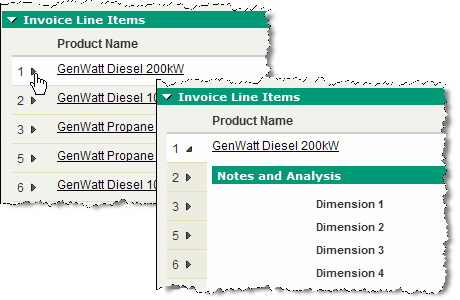
Expander Panels
Expander panels are a feature of .
Dates
To enter a date:
Put your cursor in the date or date/time field on an edit page.
Choose a date from the calendar that opens, or manually enter a date in the format defined by your user locale.
[Optional] Enter a special date value, such as "Tomorrow" or "Friday".
See "Entering Dates and Times" in the Salesforce Help for more details.
Note: Note
If you use the current date link next to a date field, you must place the cursor back into the date field and then tab out. If you fail to do this some processing may be skipped, such as the recalculation of due dates.
See the following
Salesforce Help topics for more information:
Entering Dates and Times
Entering Currencies
Entering Phone Numbers
Selecting Picklist Values
Open topic with navigation
 Tell me more