To automatically reconcile transactions against items on a bank statement:
Click the Bank Statements tab.
Navigate to and select the bank statement that you want to reconcile. This must be one with a status of "Imported".
Click Reconcile. A new bank reconciliation record is created and the Reconcile Transactions page is displayed.
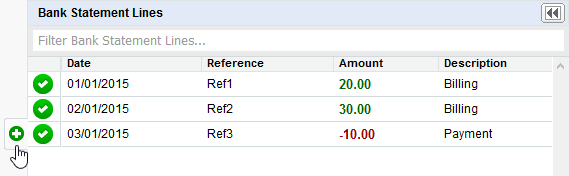
Green check icons indicate items automatically selected for reconciliation. The Balance field below the grid displays the calculated balance (0.00). See About Bank Reconciliation for information on the automatic selection criteria.
[Optional] Browse the columns using the scroll bars to validate the automatically selected items.
Click one or more bank statement lines on the left. A green check icon appears.
[Optional] Enter transaction filter criteria to find a specific value, date or reference.
Click one or more related transaction lines on the right.
Continue until the balance returns to 0.00.
Click Commit Selected Lines. The appropriate bank reconciliation lines are added to the bank reconciliation record.
Repeat as required.
Using the bank statement line item and transaction filters
At the top of each column on the Reconcile Transactions page is a text entry field that helps you find specific unreconciled bank statement lines or transactions. This field accepts any characters and is not case sensitive.
So, for example:
To find a transaction with a specific value, begin typing the transaction value into the Filter Transactions field. As you type, the associated list is dynamically updated. Entering 33 will find a transaction with values such as 33.00, –33.00, 330.00 and 0.33.
To find a bank statement line for a specific date, begin typing the date in the correct date format into the Filter Bank Statement Lines field. As you type, the associated list is dynamically updated.
To find a transaction with a specific string of characters as a reference, begin typing the characters into the Filter Transactions field. As you type, the associated list is dynamically updated.
If at any time the list becomes blank, amend the entered filter criteria as appropriate.
Creating new transactions for unreconciled bank statement lines
On the Reconcile Transactions page, hover over an unreconciled bank statement line that you can't find a corresponding transaction for. A pop-out tab appears to the left of the selected line.
Move your cursor over to the create transaction icon. When it goes green, click to display the Create Transaction dialog box.
Click either the Journal or Cash Entry tab as appropriate. Where possible, default values are brought across from the selected bank statement line details.
[Optional] Amend any of the editable default values.
Click Create Transaction. The Reconcile Transactions page is displayed and refreshed. The new transaction is placed at the bottom of the list and is now available for selection.
Reconcile the new transaction manually as described earlier.
Repeat as required.
Completing the reconciliation
Once all the bank statement line items have been committed, the Complete Reconciliation button becomes available. When clicked, the following status changes are made:
The status of the bank reconciliation record is set to "Complete".
The bank reconciliation status of reconciled transaction lines are set to "Complete".
The status of the bank statement and its line items are set to "Reconciled".