To create a change request:
- On a project record, click Actions | Project Financials | Create Change Request. Using Classic:
 The Create Change Request page opens.
 - Click Create Change Request on the project A collection of activities and related items to be managed over a defined time range, such as timecards, expenses, milestones and budgets. to which the request relates.
- Complete the fields on the Create Change Request page. For information about Opportunity fields, see Custom Opportunity Fields and the Salesforce help.
- Click Create.
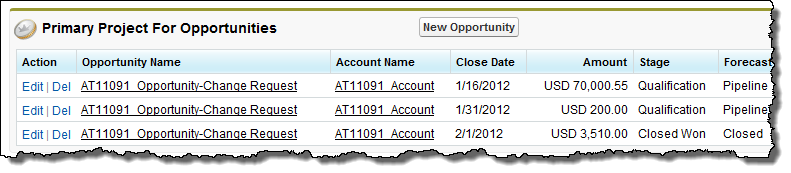
You can raise a change request from your project. This creates a change request opportunity. For instance, you can use this when you need to request additional budget An amount used to manage expenditure on customer purchase orders, internal budgets, outbound vendor purchase orders and work orders. A budget must be associated with a project. for a project, or if a change is to be made to a project that is outside the scope of the work that was originally agreed. You can then create a new project from the change request opportunity. When you do this, you can view the related opportunities in the Primary Project For Opportunities related list on the original project record.