The Time and Expense workspace contain the following components:
- Navigation Pane
- Alerts
- Counts
- Chart
- List View
- Time Entry Component
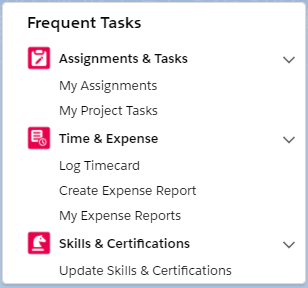
Navigation Pane
The Navigation pane provides links to navigate to the most frequently accessed pages that are relevant to your role.
Alerts
Alerts provide you with information to highlight important details about your missing time, rejected timecards, and rejected expense reports. To display a list of detailed records specific to each alert, click View Details.
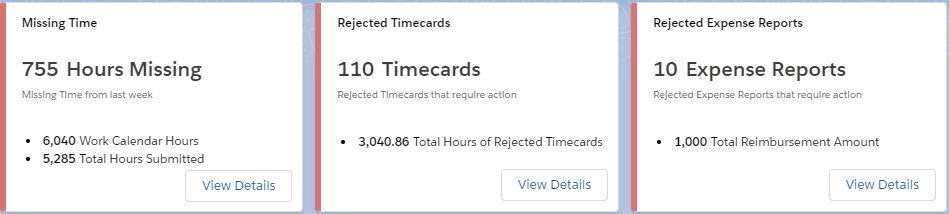
The following alerts are available from Time and Expense workspace.
| Name | Description | View Details |
|---|---|---|
| Missing Time |
The count of missing time from time variance records. The missing time is calculated by the difference between Work Calendar Hours and Total Hours Submitted for the record of last week for current resource. |
Displays a list view of your time variance records. The following fields are displayed:
|
| Rejected Timecards | The total count of your rejected timecards that need attention. |
Displays a list view of your rejected timecards. The following fields are displayed:
|
| Rejected Expense Reports | The count of your rejected expense reports that need attention. |
Displays a list view of your expense reports. The following fields are displayed:
|
Counts
Counts summarize the number of records found on corresponding list views that are relevant for the Time and Expense workspace. Counts enable you to quickly access related content. To display a list view of detailed records specific to each count, click the count.

The following counts are available from the PSA Time and Expense workspace.
| Name | Description | View Details |
|---|---|---|
| My Active Assignments |
The count of your active assignments that are billable and are not closed. |
Displays the following fields for a list view of your assignments that are billable and are not closed:
|
| My Overdue Tasks | The count of your project task assignments and project tasks having end date till today with status as "Started". |
Displays the following fields for a list view of your overdue tasks:
|
| My Certifications To Expire This Year |
The count of your Certifications that are due to expire this year. |
Displays the following fields for a list view of you certifications that are due to expire this year:
|
For more information on customizing Navigation Pane, Count and Alert cards, see Customizable Lightning Components Overview in the Foundations Help.
Chart
The Time and Expense Workspace Report Chart displays a Timecards report, summarizing the total number of hours off from projects you are assigned to.
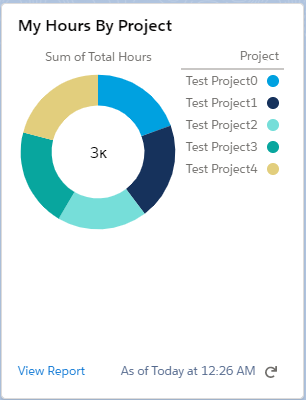
A view of the details of your report that shows all projects submitted timecard hours, click View Reports.
List View
The Time and Expense List View displays a list of your task assignments.
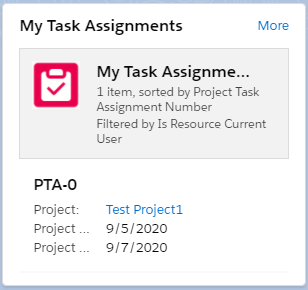
List View enables you to quickly access related content. To display a list view of detailed task assignments specific to each view, click More.
The following fields are displayed:
- Project Task Assignment Number
- Project
- Start Date
- End Date
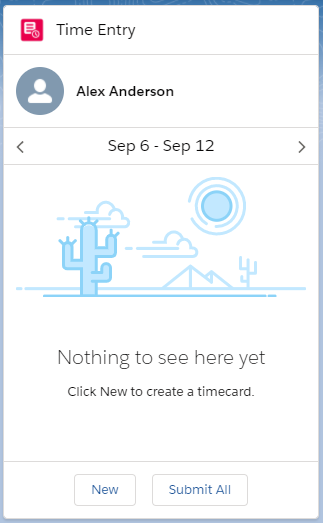
Time Entry Component
The Time Entry component displays a list of your timecards. Time Entry enables you to quickly access related content. To display a list of detailed time entries specific to each timecard, click individual timecards. To create a new time entry, click New.