Open this page from App Launcher or the Services Billing workspace. Use it to review projects that contain one or more business records that are eligible for billing. You can also see other relevant information for the projects displayed. This enables you to select and generate billing events for multiple projects, or for regions, practices, groups, and accounts.
Page Layout
This page comprises:
- Grid
- Toolbar controls
- Buttons
Grid
The grid contains a list of projects that are eligible for billing and contain at least one business record that is eligible for billing. The following conditions apply:
- The project is not excluded from billing.
- The project is billable.
- The project account is not null.
- At least one business record is eligible for billing on the project.
The projects displayed in the grid are determined by your permission controls for the projects, or the regions, practices, and groups that the projects belong to. Contact your administrator if you cannot see the projects that you were expecting.
You can select and deselect all of the projects using the checkbox at the top of the grid, or select and deselect individual projects using the checkboxes.
Your administrator controls the columns displayed in the grid and your permissions for them. Contact your administrator if you need to see different columns.
Toolbar Controls
The toolbar controls enable you to filter the grid and view information about options for changing the grid view.
To open and close the Filters panel, click  .
.
You can select multiple items in each field, and the filters that you apply are displayed above the grid. You can also include child projects, accounts, regions, practices, and groups if you are using these objects in your filters.
Click Apply to save your current selections. Click Clear to clear all of your filter selections.
Your administrator controls the filters displayed and your permissions for them. Contact your administrator if you need to see different filters.
Buttons
The following buttons are available:
- Mass Billing Event Generation: Enables you to generate multiple billing events immediately.
- Schedule Mass Billing Event Generation: Enables you to schedule the generation of multiple billing events.
You can use these buttons to generate billing events in two ways:
- Select projects in the grid, and then click the relevant button.
- Click the relevant button without selecting any projects. This opens another window that enables you to select multiple regions, practices, groups, and accounts to generate billing events for.
Mass Billing Event Generation
Using this tab you can generate billing events:
- For one or more regions, practices, groups, accounts, and projects.
- Including one or more type of business record.
- For a specific time period, and include records from previous periods in the same mass generation, if needed.
- For time periods that end on or before a specified cutoff date, per project or account, if using flexible billing.
- Using a scheduled job to generate billing events at specific times of the week or month.
To generate multiple billing events immediately:
- [Optional] Use the filters to reduce the number of records in the grid. You can select multiple options for some filters.
- Select the projects that you want to generate billing events for, or leave all projects deselected.
- Click Mass Billing Event Generation. The Mass Billing Event Generation window opens.
- If you did not select any projects in the grid, you can select multiple regions, practices, groups, and accounts to generate billing events for. You can add a selector for each object.
- If you are not using flexible billing, in the Time Period field, select the time period that you want to generate billing events for.
[Optional] We recommend that you select the Include Prior Periods checkbox to generate billing events for past periods in addition to the period you have selected. Your administrator can define how far into the past you can generate billing events for.
If you are using flexible billing, select a date in the Cutoff Date field. For more information, see About Flexible Billing Periods.
- [Optional] Select the types of business record that you want to include or exclude when generating the billing event, or select the All Records Eligible for Billing checkbox.
- Click Generate to generate billing events and batches for projects that meet your selected criteria.
The progress of all batches that are currently processing is shown.
Scheduling Mass Billing Event Generation
You can set up a recurring schedule for the generation of multiple billing events.
To set up a recurring schedule:
- [Optional] Use the filters to reduce the number of records in the grid. You can select multiple options for some filters.
- Select the projects that you want to generate billing events for, or leave all projects deselected to generate billing events for a region, practice, group or account.
- Click Schedule Billing Event Generation. The Schedule Billing Event Generation window opens.
- If you did not select any projects in the grid, you can select multiple regions, practices, groups, and accounts to generate billing events for. You can add a selector for each object.
- If you are not using flexible billing, in the Period field, select the time period that you want to generate billing events for.
[Optional] We recommend that you select the Include Prior Periods checkbox to generate billing events for past periods in addition to the period you have selected. Your administrator can define how far into the past you can generate billing events for.
If you are using flexible billing, enter a number in the Offset Days field.
 Examples
- Enter 0. Generated billing events include eligible billing records up to the date and time when the schedule runs.
- Enter 4. Generated billing events include eligible billing records up to four days after the scheduled generation. Example: A job scheduled weekly at 7:00 PM on Mondays, to be next run on Nov 15. Billing events generated for this schedule include eligible billing records up to Friday Nov 19.
- Enter -3. Generated billing events include eligible billing records up to three days before the scheduled generation. Example: A job scheduled weekly at 7:00 PM on Mondays, to be next run on Nov 15. Billing events generated for this schedule include eligible billing records up to Friday Nov 12.
Your administrator can also set a configuration option maxNumberOfDaysPriorToQuery to define the start of the date range for the eligible billing records. Therefore, if this is set to 14 for the negative example above, billing events generated for this schedule include eligible billing records between Monday Nov 1 and Friday Nov 12.
For more information about flexible billing periods, see About Flexible Billing Periods.
- [Optional] Select the types of business record that you want to include or exclude when generating the billing event, or select the All Records Eligible for Billing checkbox.
- In the Schedule Settings section, enter a unique name for the schedule. You cannot create schedules with the same name.
- Select either Weekly or Monthly.Weekly
- Select a time for the job to start.
- Select one or more days for the job to run.
Monthly- Select a time for the job to start.
- From the Monthly Method drop-down list, select when in the month the job runs, and then enter or select the relevant settings for this option.
- Click Schedule to schedule the generation of billing events and batches for projects that meet your selected criteria.
About Flexible Billing Periods
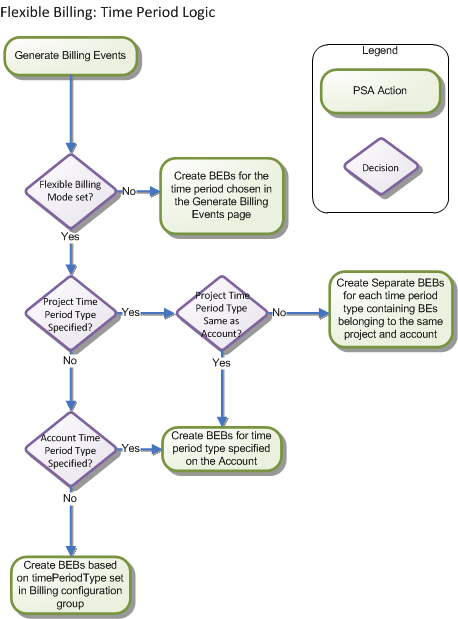
If your administrator has configured PSA to use flexible billing, you can select a cutoff date instead of a time period to use for project and account billing events. Billing events are generated for time periods that end on or before the date you specify. The diagram below shows how PSA selects the time period type.