You can create a customer quotation from the Customer Quotations page or from the Opportunity Detail page.
Customer Quotation Page
To create a quotation from the Customer Quotation page:
- Click the Customer Quotation tab.
- Click New.
- Select the required Record Type from the Record Type drop-down list:
- Click Continue.
-
The fields that you must complete vary depending on the type of customer quotation you are creating. If you are creating a standard service contract, flex service contract, or a change request, enter the service term and service term number.
- Select the customer account for the quote from the Customer Account lookup.
- Click Save.
You can create a customer quotation from an opportunity if the stage is not "Closed Won" or "Closed Lost". When you create a customer quotation from an opportunity, the parent account addresses are copied to the record. You can override the default bill to and ship to addresses.
Opportunities Page
To create a customer quotation from an opportunity:
Click Create Customer Quote from the Opportunity Detail page.
Adding Lines to a Customer Quotation
To add lines to a customer quotation:
- From the Line Items tab on the customer quotation page, click
 to add a new line.
 - In the Item to Quote column, enter an item for the customer quotation line. You can start typing the item and then select it from the drop-down list once it displays.
- Enter a quantity for the line.
- [Optional] Complete the remaining fields as required. For details of other fields, see Customer Quotation Fields.
- [Optional] Repeat steps 1-4 as many times as required to add more lines.
- Click Save.
Editing Lines
To edit existing lines:
- In the grid, change the fields as required for the lines you want to update.
- Click Save.
Cloning Lines
To clone lines:
- Select the checkboxes of the lines you want to clone.
- Click
 above the grid.
 - [Optional] Modify the cloned lines as required.
- Click Save.
Deleting Lines
To delete lines:
- Select the checkboxes of the lines you want to delete.
- Click
 above the grid.
 - Click Save.
 Using Classic or Lightning Visualforce Pages
There are several ways in which you can create a customer quotation line:
- By using the Add New Line button in the quote line section of a customer quotation.
- By entering the name of a single item to be quoted and clicking Go.
- By adding several customer quotation lines in one go and editing them.
- By searching for an item in FinancialForce Configure Price Quote and creating an item from that search. See Searching for Items and Creating Lines from a Search.
Using the Add New Line Button
This is the preferred option for adding lines to a flex type service contract quotation. The associated popup window enables you enter the service term start and end dates for each line as required.
To add customer quotation lines using the Add New Line Button:
- Click Add New Line in the quote breakdown section of the customer quotation.
- Do one of the following:
- In the top box on the Add New Line popup enter the name of the Item Master The record of a product or a service which is to be sold and/or stocked in a warehouse. An item master might also be referred to as a Stock Keeping Unit (SKU). to be quoted. If you do not know the exact name of the item master, click
 to search for it.
 - If you are quoting for a new item, enter the name of that item in the second box.
- In the top box on the Add New Line popup enter the name of the Item Master
- [Optional] Complete these fields:
- Description
- Quantity
- Condition
- Service Term Start/End Dates
- Supplier
- NRC/RC base fees
- Click Save.
Entering the Name of an Item
You can create a new customer quotation line quickly. To do so:
- Enter the name of your new task in the Enter New Line box.
- Click Go.
- If the Add New Customer Quotation Line popup appears, complete the fields and click Save. Depending on the configuration your administrator has set in the Advanced Quoting Settings custom setting and the type of customer quotation you are creating, the line is either created immediately, or the Add New Customer Quotation Line popup appears.
- Review the line and edit it if required. See Managing Customer Quotation Lines.
Adding Several Lines at Once
To add more than one line at the same time:
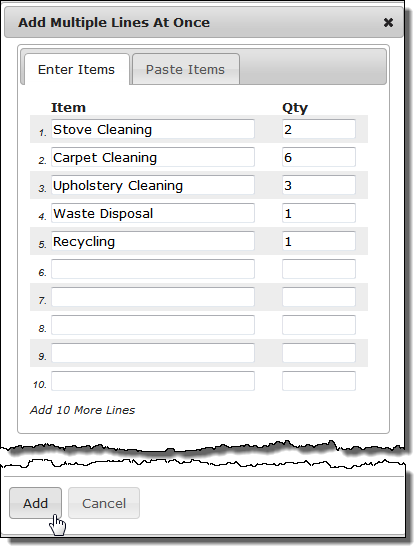
- Click Add Multiple Items.
- Do one of the following:
- Enter the item name and quantity for each new line. If you need more lines, click Add 10 More Lines.
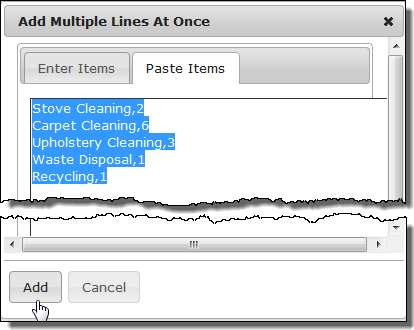
- Click the Paste Items tab and paste the item names and quantities you want using a comma delimited format like this:
- Enter the item name and quantity for each new line. If you need more lines, click Add 10 More Lines.
- When ready to add the lines, click Add.
- Review the lines and edit them if required. See Managing Customer Quotation Lines.