You can view or add daily notes, remove existing notes, and save any changes you've made.
To view daily notes:
- Select an assignment
 Connection between a resource and a project..
 - On the list of projects or resources, double click an assignment to view it in the edit assignments panel A contextual panel used to manage schedules for resources and projects on the Resource and Project Planners..
- On the edit assignments panel, click an assignment name.
- The edit assignments panel lists the daily notes for the selected assignment.
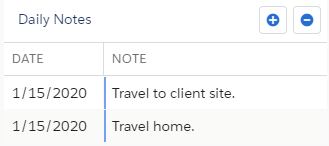
To add daily notes:
- Follow the previous steps to view daily notes.
- Click
 to add a daily note on the selected assignment.
 - A new note is created, either for today or the next day with hours entered against it.
- Write your note.
- Optionally, select a different date for the daily note.
- Optionally, hide the edit assignments panel.
- Click Save to create the Assignment Daily Note in your organization A deployment of the Salesforce/Certinia applications with a defined set of licensed users. Your organization (org) includes all of your data and applications, and is separate from all other orgs..
To remove daily notes:
- Follow the previous steps to view daily notes.
- Select a daily note and click
 to remove it from the list.
 - Click Save to delete the Assignment Daily Note from your organization.