 SECTIONS
PSA Backlog Dashboard
The PSA Backlog dashboard enables you to:
- View key performance indicators (KPIs) for your backlog and your unscheduled backlog.
- View your backlog and unscheduled backlog data, including additional information, such as the project status, project bookings value, project billable hours, and unscheduled revenue.
The dashboard is created as part of the PS Cloud Advanced Analytics app.
PSA Backlog Dashboard Guide
By default, the PSA Backlog dashboard displays data for the current fiscal quarter and only includes scheduled backlog amounts.
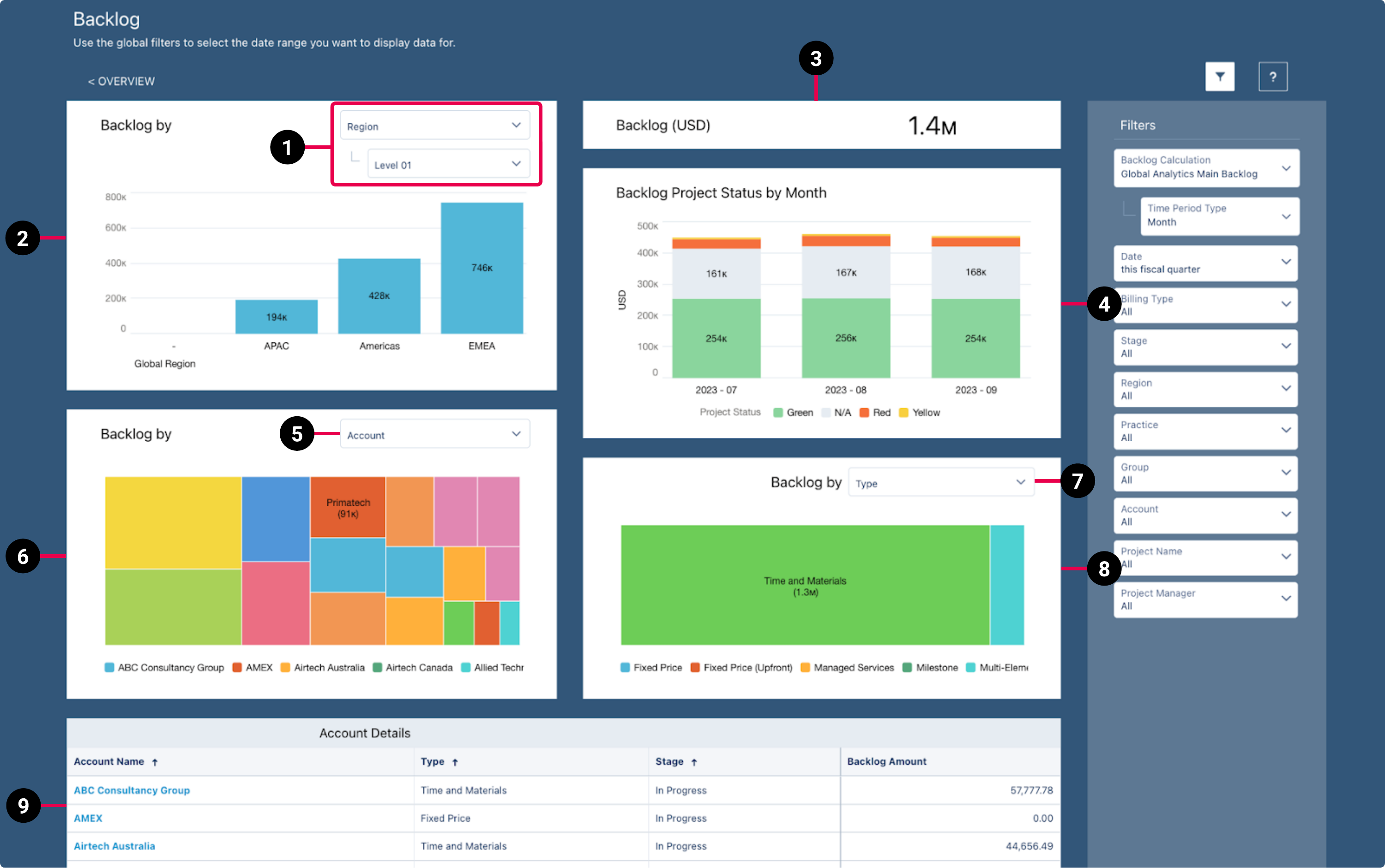
The dashboard displays data from the Backlog dataset. For more details about the fields used in the dashboard calculations, see Backlog Dataset PS Cloud Analytics Output Fields.
|
Element Number |
Name |
Description |
Calculation |
Referenced Calculation |
|---|---|---|---|---|
| 1. | View By Picker for Backlog By RPG Bar Chart | Defines the data displayed in the Backlog By RPG bar chart. | Backlog Amount grouped by Project Region Level 00 and Region Level 01 and stacked by Backlog Type. Data displayed responds to selections. |
Displays data by region. |
Backlog Amount grouped by Project Practice Level 00 and Practice Level 01 and stacked by Backlog Type. Data displayed responds to selections. |
Displays data by practice. | |||
Backlog Amount grouped by Project Group Level 00 and Group Level 01 and stacked by Backlog Type. Data displayed responds to selections. |
Displays data by group. | |||
| 2. | Backlog By RPG Bar Chart | Displays the total backlog amount for the value selected in the view by picker (1). | Backlog Amount filtered by Time Period Type = Week or Month, Has Project = Yes, and Time Period Start Date = This fiscal quarter. Data displayed responds to selections. |
None |
| 3. | Backlog KPI | Total backlog amount. | Backlog Amount filtered by Time Period Type = Week or Month, Has Project = Yes, and Time Period Start Date = This fiscal quarter. Data displayed responds to selections. |
None |
| 4. | Backlog Time Period Stacked Chart | Displays the total backlog amount on project status by month. |
Backlog Amount grouped by Filtered by |
None |
| 5. | View By Picker for Backlog By Account or Project Bar Chart |
Defines the data displayed in the Backlog By account or project bar chart. |
Account | Displays data by account. |
| Project | Displays data by project. | |||
| 6. | Backlog By Account or Project Bar Chart | Displays the total backlog amount for the value selected in the view by picker (5). | Backlog Amount grouped by Account Name or Project Name and filtered by Time Period Type = Week or Month, Has Project = Yes, and Time Period Start Date = This fiscal quarter. Data displayed responds to selections. |
None |
| 7. | View By Picker for Backlog By Opportunity, Project Manager, Stage, or Type Bar Chart | Defines the data displayed in the Backlog By opportunity, project manager, stage, or type bar chart. | Opportunity | Displays data by opportunity. |
| Project Manager | Displays data by project manager. | |||
| Stage | Displays data by stage. | |||
| Type | Displays data by type. | |||
| 8. | Backlog By Opportunity, Project Manager, Stage, or Type Bar Chart | Displays the total backlog amount for the value selected in the view by picker (8). | Backlog Amount grouped by Opportunity, Project Name, Project Manager, Stage, or Type and filtered by Time Period Type = Week or Month, Has Project = Yes, and Time Period Start Date = This fiscal quarter. Data displayed responds to selections. |
None |
| 9. | Account Details list | Details the backlogs amounts for all accounts. Data can be organized by account name, type, or stage. | Backlog Amount grouped by Account Name, Stage, or Type and filtered by Time Period Type = Week or Month, Has Project = Yes, and Time Period Start Date = This fiscal quarter. Data displayed responds to selections. |
None |
Filters
The following filters are available on the PSA Backlog dashboard. For more information about the dataset fields that provide the values for the dashboard filters, see Backlog Dataset PS Cloud Analytics Output Fields.
|
Name |
Description |
Source of Filter Options |
|---|---|---|
| Account | Select the specific accounts to filter by, and apply the relevant operators to include or exclude them from the displayed data. | Dataset field: Account Name |
|
Backlog Calculation |
Select the specific backlog calculations to filter by. |
Dataset field: |
|
Billing Type |
Select the specific billing types to filter by, and apply the relevant operators to include or exclude them from the displayed data. |
Dataset field: |
|
Date |
Select a specific time period to filter by, or select "Custom" to create your own time period to filter by. |
Filtered by the |
|
Group |
Select the specific groups to filter by, and apply the relevant operators to include or exclude them from the displayed data. |
Dataset field: |
|
Practice |
Select the specific practices to filter by, and apply the relevant operators to include or exclude them from the displayed data. |
Dataset field: |
|
Project Manager |
Select the specific project managers to filter by, and apply the relevant operators to include or exclude them from the displayed data. |
Dataset field: Project Manager Name |
|
Project Name |
Select the specific projects to filter by, and apply the relevant operators to include or exclude them from the displayed data. |
Dataset field: Project Name |
|
Region |
Select the specific regions to filter by, and apply the relevant operators to include or exclude them from the displayed data. |
Dataset field: Project Region Name |
| Stage | Select the specific stages of the project to filter by, and apply the relevant operators to include or exclude them from your filters. | Dataset field: Project Stage |
|
Time Period Type |
Select a specific time period type to filter by. Only the time period types for the selected backlog calculation are available for selection. |
Dataset field: Time Period Type |
For more information about dashboard functionality, see Using the Dashboards Charts.