 SECTIONS
PSA Capacity Summary Dashboard
The PSA Capacity Summary dashboard enables you to:
- View the Remaining Hours percentage KPI.
- View the Scheduled Hours percentage KPI.
- View the PSA scheduled utilization.
- Calculate the total capacity hours data.
- Group the data to view the remaining capacity availability.
The dashboard is created as part of the PS Cloud Advanced Analytics app.
PSA Capacity Summary Dashboard Guide
The PSA Capacity Summary dashboard displays:
- Data for the current fiscal quarter by default
- Only current region, practice and group values for resources
The dashboard calculates capacity by adding assigned and held hours, but does not include unheld hours (demand).
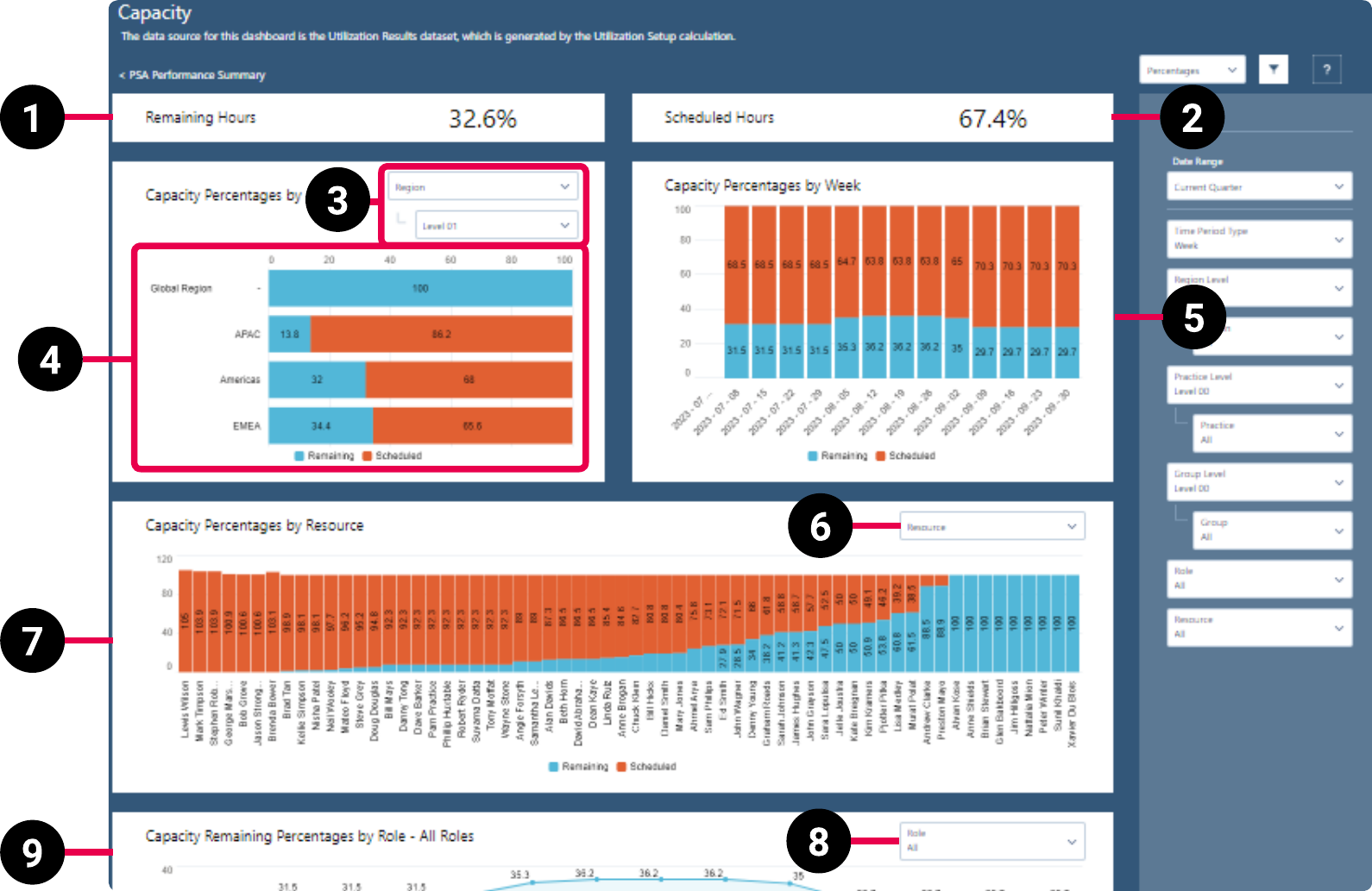
The dashboard displays data from the Utilization Results dataset. For more details about the fields used in the dashboard calculations, see Utilization Results Dataset PS Cloud Analytics Output Fields.
|
Element Number |
Name |
Description |
Calculation |
Referenced Calculation |
|
|---|---|---|---|---|---|
| 1. | Remaining Hours KPI |
Total remaining hours as a percentage. |
Remaining Hours = (Calendar Hours - Assigned + Held) / Calendar Hours x 100
|
Assigned = Billable Assignment Hours + Credited Assignment Hours + Non Billable Assignment Hours + Value Time Excluded Assignment Hours + Utilization Excluded Assignment Hours |
|
Held = Resource Request Hours + Utilization Excluded Held RR Hours |
|||||
| 2. | Scheduled Hours KPI | Total scheduled hours as a percentage. |
Scheduled Hours = |
Assigned = Billable Assignment Hours + Credited Assignment Hours + Non Billable Assignment Hours + Value Time Excluded Assignment Hours + Utilization Excluded Assignment Hours |
|
Held = Resource Request Hours + Utilization Excluded Held RR Hours |
|||||
| 3. | View By Picker for Capacity Percentages By RPG Bar Chart | Defines the data displayed in the Capacity Percentages By RPG bar chart. | Capacity grouped by region and selected level. | Displays capacity by region. | |
| Capacity grouped by practice and selected level. | Displays capacity by practice. | ||||
| Capacity grouped by group and selected level. | Displays capacity by group. | ||||
| 4. | Capacity Percentages By RPG Bar Chart |
Displays the remaining and scheduled capacity hours as a percentage for the value selected in the view by picker (3). |
Remaining = hours / sum( |
Hours = sum(Calendar Hours) - (sum(Billable Assignment Hours) + sum(Credited Assignment Hours) + sum(Non Billable Assignment Hours) + sum(Time Excluded Assignment Hours) + sum(Utilization Excluded Assignment Hours) + sum(Held Resource Request Hours) + sum(Utilization Excluded Held RR Hours))
|
|
| 5. | Capacity Percentages By Week Bar Chart | Displays the remaining and scheduled capacity hours as a percentage by week. |
Remaining = hours / sum( |
Hours = sum( |
|
| 6. |
View By Picker for Capacity Percentages By Resource, Role, or Skill Bar Chart |
Defines the data displayed in the Capacity Percentages By resource, role, or skill bar chart. |
Resource | Displays data by resource. | |
| Role | Displays data by role. | ||||
| Skill | Displays data by skill. | ||||
| 7. | Capacity Percentages By Resource, Role, or Skill Bar Chart | Displays the remaining and scheduled capacity hours as a percentage for the value selected in the view by picker (6). | Remaining = hours / sum(CalendarHours) as a percentage, grouped by resource, role, or skill. |
Hours = sum( |
|
| 8. | View By Role Picker for Capacity Remaining Percentages By Role Line Chart | Defines the data displayed in the Capacity Remaining Percentages By Role line chart. | Resource role | Displays remaining capacity by resource role as a percentage. | |
| Name/Type |
Displays remaining capacity by name/type as a percentage. |
||||
| 9. | Capacity Remaining Percentages By Role Line Chart |
Displays remaining capacity hours as a percentage for the value selected in the view by picker (8). |
Remaining = hours / sum( |
|
For more information about dashboard functionality, see Using the Dashboards Charts.
Filters
The following filters are available on the PSA Capacity and Demand Planning dashboard. For more information about the dataset fields that provide the values for some of the dashboard filters, see Billings Dataset PS Cloud Analytics Output Fields.
|
Name |
Description |
Source of Filter Options |
|---|---|---|
|
Date Range |
Select a specific time period to filter by, or select "Custom" to create your own time period to filter by. |
Filtered by the |
| Group | Select the specific groups to filter by, and apply the relevant operators to include or exclude them from the displayed data. | Dataset field: Group Name |
| Group Level | Select the specific group levels to filter by. Selections determine the options displayed in the Group filter. | Dataset field: Group Level XX, where XX represents a number between 00 and 12. |
| Practice | Select the specific groups to filter by, and apply the relevant operators to include or exclude them from the displayed data. | Dataset field: Practice Name |
| Practice Level | Select the specific practice levels to filter by. Selections determine the options displayed in the Practice filter. | Dataset field: Practice Level XX, where XX represents a number between 00 and 12. |
| Region | Select the specific groups to filter by, and apply the relevant operators to include or exclude them from the displayed data. | Dataset field: Region Name |
| Region Level | Select the specific region levels to filter by. Selections determine the options displayed in the Practice filter. | Dataset field: Region Level XX, where XX represents a number between 00 and 12. |
| Resource |
Select the specific resources to filter by, and apply the relevant operators to include or exclude them from the displayed data. |
Dataset field: |
| Role | Select the specific resource roles to filter by. | Dataset field: Resource Role |
| Time Period Type | Select a specific time period type to filter by. Only the time period types for the selected utilization calculation are available for selection. | Dataset field: Time Period Type |
For more information about dashboard functionality, see Using the Dashboards Charts.