 SECTIONS
Using Advanced Lookup
When working with lookup fields, simply start typing the name of an item and matching results are displayed based on the "Name" column. To view all results in a lookup, click Show All Results for " " for the respective lookup field. This opens the lookup window with the searched string populated in the Search field, and displays all the related items in the grid based on other predefined fields. For more information, see PSA Administration.
Viewing Inactive RPGs in the Advanced Lookup Window
To view inactive regions, practices, or groups, follow these steps:
- Open the Advanced Lookup window.
- Go to the Filters panel.
- Based on your search, select the checkboxes for Only Show Inactive Regions, Only Show Inactive Practices, or Only Show Inactive Groups.
- Refine your search results by entering text in the available fields on the grid.
- Click Apply to use additional filters or click Clear to remove your search results.
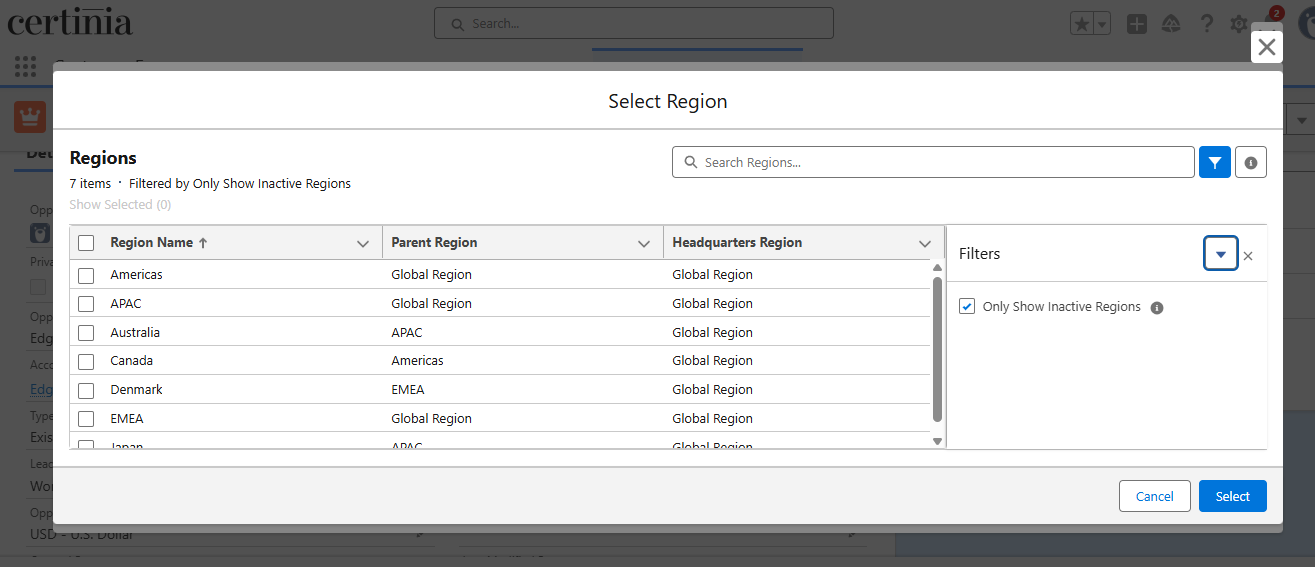
To view the list of user interfaces where you can view the Show Inactive RPGs functionality in the Advanced Lookup window, see Availability of Filter Panel to View Inactive RPGs Functionality.
Example 1: Shows the implementation of the multi-select lookup functionality in the Schedule Billing Event Generation window.
-
In the Region lookup, enter at least two characters to start the search and click Show All Results for " ".
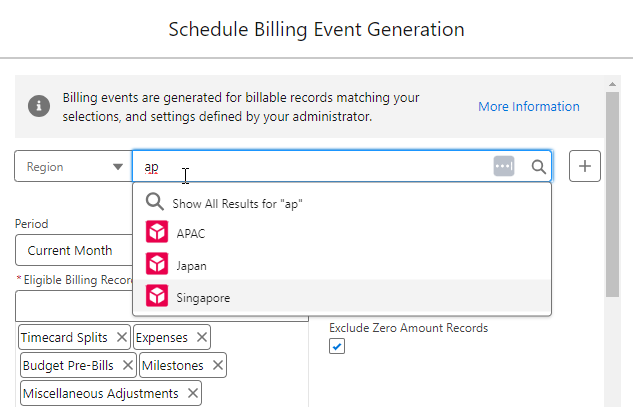
-
Select the regions from the grid that you want and click Select.
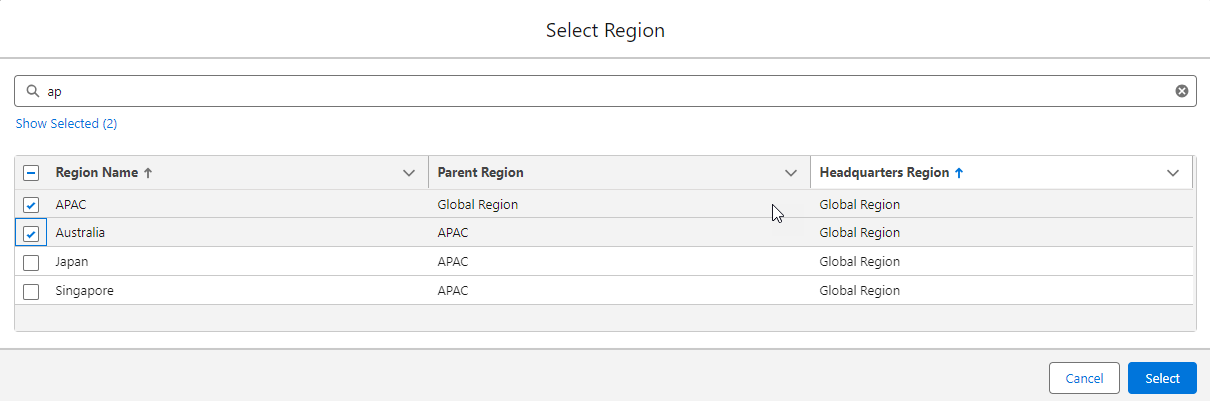
-
The selected regions are then added to the Region lookup.
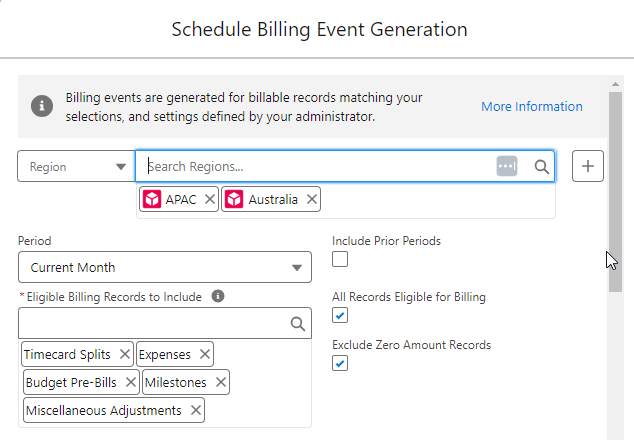
Example 2: Shows the implementation of the single-select lookup functionality in the Filters panel on the Skills Management page.
-
In the Region lookup, enter at least two characters to start the search and click Show All Results for " ".
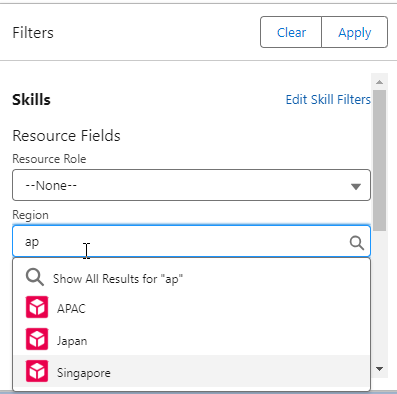
-
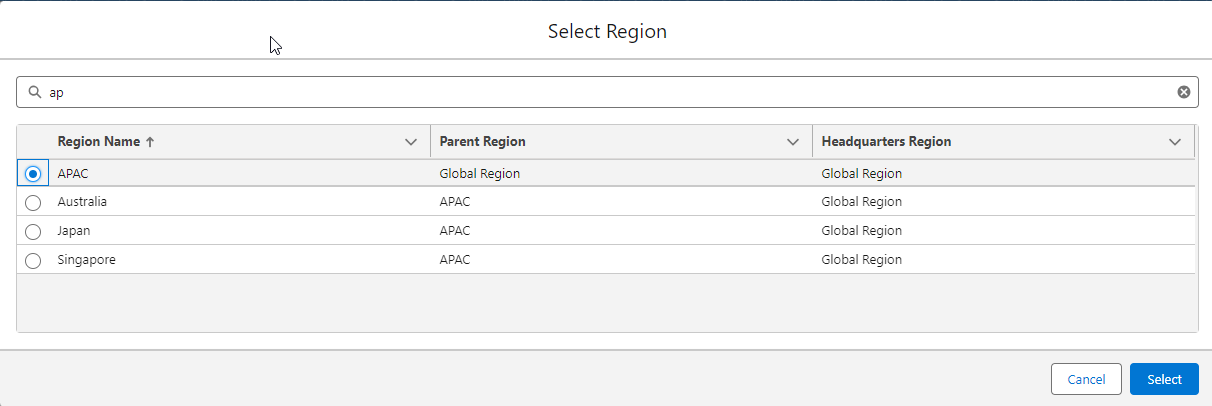
The Select Region window opens with the searched string in the search field and all the related items are displayed in the grid. Select the region from the grid and click Select.
-
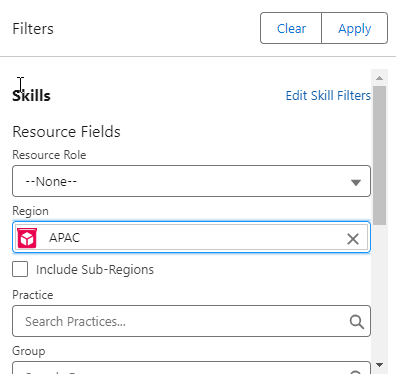
The selected region is then added to the Region lookup in the Filters panel.
Benefits
The benefits of advanced lookup are:
- You can easily identify the exact record you want to select. Unlike regular lookup search, which might truncate long names, advanced lookup displays complete names along with important details.
- You can search records using other important fields of types, such as text, reference, picklist, and text area, in addition to the name.
- Unlike the limited display of five records in regular lookup search, advanced lookup enables you to view a larger number of records, typically up to 50. This expanded visibility enables you to quickly scan and select the appropriate record from a wider range of options.
- Advanced lookup can be used on Lightning pages, windows, and grids, supporting both single and multi-select lookups.
- You can sort the search results.
- In multi-select lookups, advanced lookup enables you to search within the already selected items. This enables you to refine the search and reduce the number of results within the selected records.
- Advanced lookup includes additional fields in the search criteria. This enables you to make more informed decisions when selecting records, especially in cases where there are similar name search results. By considering important details from additional fields, you can select the most relevant record.
- You can define the exact fields to appear as columns for specific objects in the advanced lookup by mapping the desired field set API name to the object API name in the Advanced Search Configurations section on the Certinia Help Administration page. This ensures that the most relevant data is visible for selection.
- If lookup fields from a field set are included in a window, filters, or in the columns of a data table, and you search these lookup fields, the window might only show the Name column for specific objects and predefined fields for others until you add a configuration from the Advanced Search Configurations window.
Limitations
Following are the limitations of the advanced lookup functionality:
- Searching is limited to columns of text, reference, picklist, and text area data types only.