 SECTIONS
Transfer Request Statuses and Actions
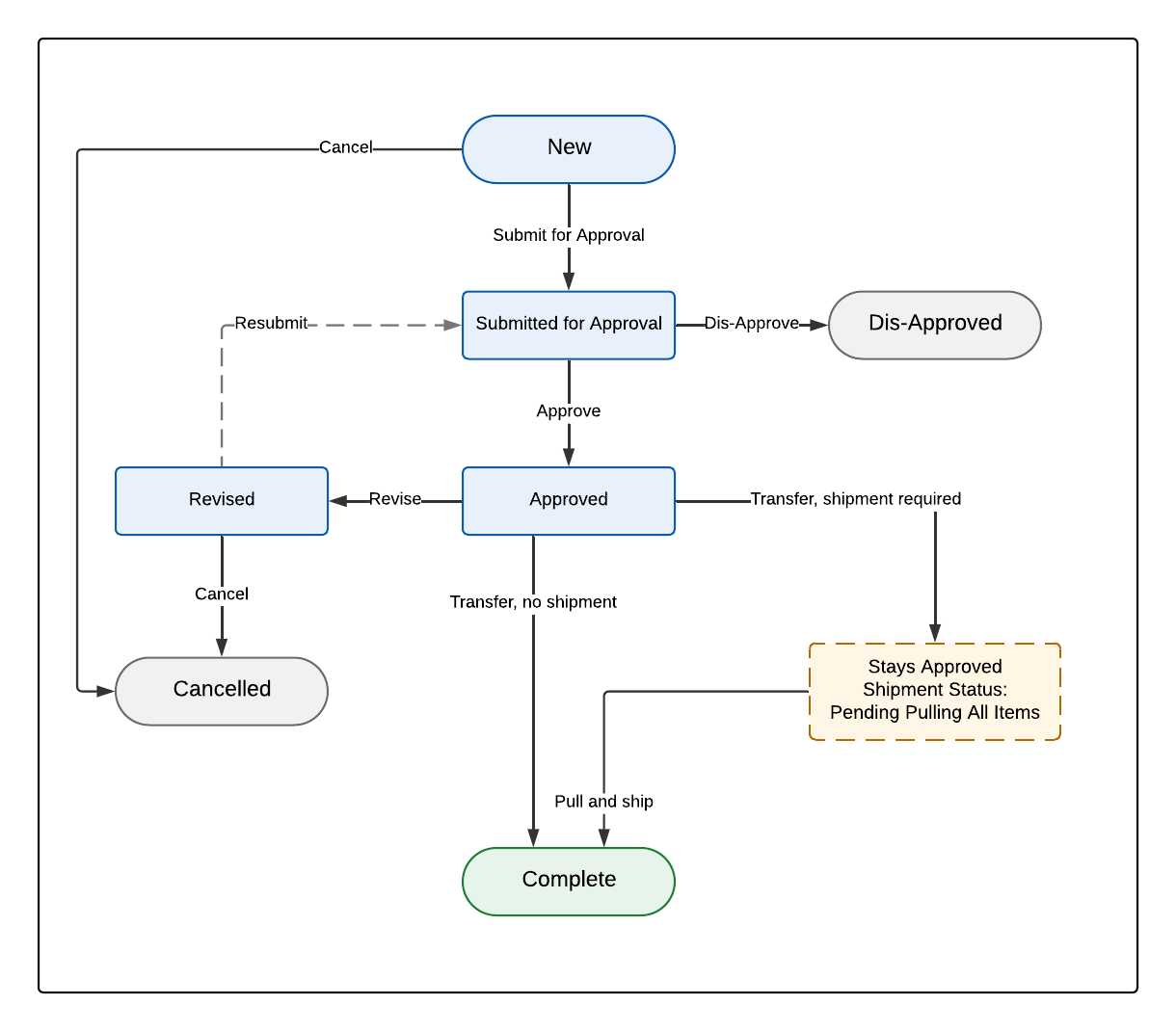
You can perform the following actions from a transfer request's record page: Transfer, Cancel, Revise, and Print. The actions you can use depend on the transfer request's status. For a transfer, it also depends on whether a shipment is required.
Transfer Request Statuses
A transfer request has two status fields. The Status field tracks approval and completion. The Shipment Status field tracks the progress of the shipment.
The Status field has the following values:
- New
- Submitted for Approval
- Approved
- Revised
- Cancelled
- Complete
- Dis-Approved
The Shipment Status field has the following values:
- Open
- Processing
- Allocated
- Partially Allocated
- Pending Pulling All Items
- Pulled All Items Pending Shipment
- Shipped
- Complete
- Cancelled
The following diagram shows which action moves a transfer request between statuses.
Transfer Request Actions
The Transfer Request Actions table details which action to use for each task.
| Task | Action | Description |
|---|---|---|
| Change an approved transfer request. | Revise | Takes the transfer request back out of warehouse processing so that you can change it. The allocated inventory stays reserved. |
| Release the inventory and abandon an approved transfer request. | Revise, then Cancel | You cannot cancel an approved transfer request directly. Revise it first to set its status to "Revised", then cancel it. |
| Complete a transfer request. | Transfer | Commits the transfer request. If a shipment is required, the transfer completes later, using the pull and ship process. |
| Produce the transfer request document. | Produces the document. The transfer request is not changed. |
How Each Action Works
The sections that follow describe each action in detail. For each action, they explain what it does, the statuses that it requires, and its effect on the inventory that is allocated to the transfer request.
Transfer
The Transfer action commits the transfer request. It is the only action that opens a confirmation window before it runs. For more information, see Initiating a Transfer.
To use this action, the status of the transfer request must be "Approved". Its shipment status must be "Allocated" or "Partially Allocated".
What the Transfer action does depends on the Shipment Required checkbox. The Shipment Required Field Behavior table details what happens when this checkbox is selected or deselected.
| Shipment Required Selected | Shipment Required Deselected |
|---|---|
|
The action hands the transfer request over to the warehouse. It does the following:
The status stays "Approved". The transfer request is deliberately still open at this point. The transfer completes later, when the items are pulled and shipped. For more information, see Picking the Items on a Transfer Request and Shipping the Items on a Transfer Request. |
The action moves the stock immediately. It does the following:
You must specify a destination location before you use this action. This requirement applies only when the Shipment Required checkbox is deselected. |
Cancel
The Cancel action cancels the transfer request and releases the inventory that was allocated to it.
To use this action, the status of the transfer request must be "New" or "Revised". You cannot cancel an approved transfer request directly, you must revise it first.
This action does the following:
- Resets the allocated quantity on each transfer request line to zero.
- Removes the link between the inventory and the transfer request line.
- Deletes the related picklist and its picklist details.
- Sets the status and the shipment status to "Cancelled".
The released inventory becomes available again, and other transfer requests can select it.
Revise
The Revise action takes an approved transfer request back out of warehouse processing so that you can change it.
To use this action, the status of the transfer request must be "Approved". Its shipment status must not be "Shipped" or "Complete".
This action does the following:
- Reverses the action queue entries that are not complete.
- Removes the shippers that are not complete.
- Resets the picklists that are in process.
- Reverse allocates the serial numbers.
- Sets the status to "Revised" and the shipment status to "Allocated".
- Increases the Revision field by one.
This action does not release the allocated inventory. The stock stays reserved for the transfer request. To release the stock as well, cancel the transfer request after you revise it.
While the status is "Revised", you can change the items on the transfer request and submit it for approval again.
The Print action produces the transfer request document. It does not change the transfer request or its status.
Action Restrictions
Each action checks the transfer request before it runs. If the transfer request is not in a suitable status, the action stops and an error is displayed.
The Action Restrictions table details what stops each action from running.
| Action | Restrictions |
|---|---|
| Transfer |
|
| Cancel | The status is not "New" or "Revised". |
| Revise |
|
| This action has no status requirements. |