Recalculating Actuals with the Actuals Verifier

If you suspect that some actuals are incorrect, you can verify them using the Actuals Verifier. If the Actuals Verifier finds discrepancies, there are several actions that you can take including:

Caution
Do not delete all actuals and re-calculate them unless this is the only way to resolve the inconsistencies in your actuals. When you re-calculate all actuals, all actuals records in the org are deleted, not just the ones that you verify. You cannot undo or reverse this step. Recalculating actuals on medium to large data sets can take several hours to process. We recommend allowing a day. During this time, PSA must be considered read-only. This means that users must not carry out activities that involve creating records, such as expense/time entry, staffing and billing.
We recommend that you contact your FinancialForce.com PSA consultant, or FinancialForce.com Customer Support before carrying out any of the steps in this section.

Verifying Actuals

Before verifying actuals:

  1. Schedule down time and notify users when PSA is to be unavailable.
  2. If PSA is configured to calculate actuals in scheduled mode, unschedule existing scheduled batch jobs that process transaction deltas and actuals. Make a note of the processes so that you can re-schedule the jobs when finished verifying actuals.
  3. If PSA is configured to calculate actuals in scheduled mode, process any unprocessed transaction deltas.

To process unprocessed transaction deltas:

  1. Click the Actuals Verifier tab.
  2. If there are unprocessed transaction deltas, click Process to process them.

To verify actuals:

  1. Click the Actuals Verifier tab.
  2. Click Lock Actuals.
  3. Select the scope to carry out the verification on:
    1. Select Region, Practice, Group, Project or Resource. If verifying actuals for a project or a resource and you want to verify actuals for all projects or resources, Select the Include all Projects or Resources checkbox.
    2. Select the time period, or if you want to include all time periods between the start and end dates of the selected objects, select the checkbox.
      Tip
      You only need to verify actuals on the objects on which you suspect there to be inconsistencies.
  4. Click Check Verification Scope.
  5. Ensure the message at the top of the page indicates that the selected scope is within the 10,000 record limit. If this is not the case, change the selected scope and check the verification scope again.
    Tip
    If you selected Global Region, or the Include all checkboxes, try selecting a single record and deselecting the include all checkboxes to return fewer records.
  6. Click Start Verification.

    The Verification Results appear after a few moments.

  7. If no differences are found, or if discrepancies were found but you want to resolve them at a later date:
    1. Click Start Over to remove verification actuals.

      The verification options re-appear after a few moments.

    2. Click Unlock Actuals.
    3. If PSA is configured to calculate actuals in scheduled mode, re-schedule the batch jobs that you unscheduled earlier.
    4. Notify users that PSA is available again.

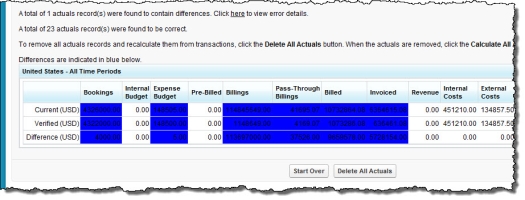
If the Actuals Verifier found differences between the transactions and the actuals records, click the link to review them. Differences are highlighted like this.

Click the image to expand it.

Deleting Actuals

If you verified actuals, the actuals verifier found discrepancies and you now want to delete all actuals and re-calculate them:

  1. If you previously verified actuals but removed the verification actuals after doing so, verify actuals again on the objects and time periods on which you suspect there to be inconsistencies.
  2. If PSA is configured to calculate actuals in scheduled mode and you have not already done so, disable these triggers using the configuration options in the ASM TriggersCollapsed configuration group:
  3. Click Delete All Actuals.
    Caution
    We recommend that you only recalculate all actuals as a last resort. All actuals records in the org will be deleted, not just the ones that you verified. You cannot undo or reverse this step.
  4. Click Calculate All Actuals.
    Note
    This could take several hours depending on the data in your org.
  5. Enable the triggers in the ASM TriggersCollapsed configuration group that you disabled earlier.
  6. Click Unlock Actuals on the Actuals Verifier tab.
  7. Notify users that PSA is available again.
  8. Copy all new actuals values to their parent Region/Practice/Group/Project/Resource. Do one of the following:
  9. If PSA is configured to calculate actuals in scheduled mode, re-schedule the batch jobs that you unscheduled earlier.

Related Information

Actuals

© Copyright 2009-2012 FinancialForce.com, inc. All rights reserved.
Various trademarks held by their respective owners.