 icon to access buttons that cannot fit in the current window size.
On the enhanced Billing Document Detail page you can view the Billing Document Details, and the products and services that form the billing document line items. You can also add, edit, and delete the billing document lines on the enhanced Billing Document Detail page. When you make changes to the billing document, the Document Total updates to reflect the changes.
Custom buttons are supported in the button bar. You might need to click the icon to access buttons that cannot fit in the current window size.
Custom buttons to invoke Visualforce pages must be implemented using the workaround described in
If your products belong to active Salesforce Price Books, you can apply a price book to billing document line items if you create them from the enhanced Billing Document Detail page. For information about price books, see the "Prices and Price Books" topics in the Salesforce Help.
To restore the default layout:
 .
.You can change the layout of the billing document lines on the Billing Document Detail page in these ways:
To move a column:
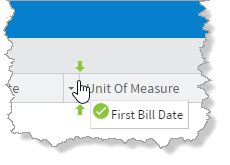
To the sort the lines by column, do one of the following:
 indicates that the lines are sorted in ascending order. The down arrow
  indicates that the lines are sorted in descending order.
 icon then select
  Sort Ascending or
  Sort Descending depending on whether you want to sort the lines in ascending or descending order.
To show or hide columns:
icon.Related Concepts
Related Tasks
Adding Information to Billing Documents
Calculating Tax on Billing Documents Using FinancialForce
Calculating Tax on Billing Documents Using Avalara AvaTax
Converting Billing Documents to Credit Notes
Editing the Billing and Shipping Address
Reference