PSA Project Burnup Plus Dashboard
The PSA Project Burnup Plus dashboard is the same as the PSA Project Burnupdashboard but, additionally, it enables you to:
- Use predictive analytics to view velocity trends in your projects.
- Track the burn-through date
 The burn-through date is represented in the Project Burnup dashboard as the point in time where the predicted billings surpass the assigned budget for the project, or when the predicted hours surpass the planned hours for the project. for your projects to see when you risk going over-budget or exhausting your allocated hours.
You can configure the dashboard to choose whether the current month is displayed as scheduled or actual data in the Project Trend Prediction chart. For more information, see Using the PSA Project Burnup Plus Dashboard Configuration Page.
For more information on PSA Project Burnup dashboard, see PSA Project Burnup Dashboard
The dashboard is created as part of the PS Cloud Advanced Analytics app.
PSA Project Burnup Plus Dashboard Guide
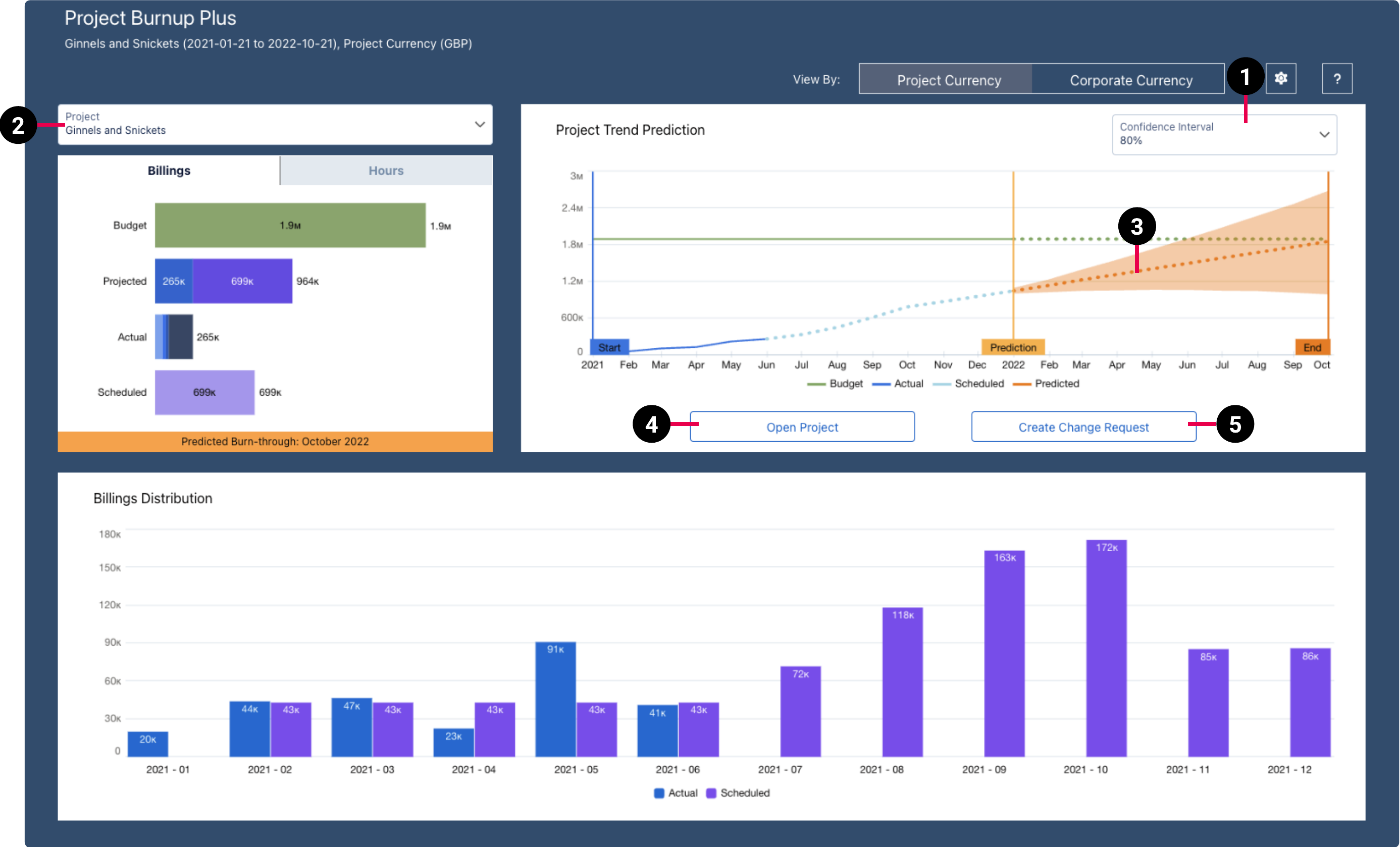
The PSA Project Burnup Plus dashboard has the following additional elements, which are available in both the Billings and Hours view.
| Element Number | Name | Description |
|---|---|---|
| 1. | Confidence Interval Picker | Enables you to set the degree of accuracy for the timeseries trend prediction. By default, the selector is set to display a confidence interval of 80 percent. For more information about timeseries functionality, see the Salesforce Help. |
| 2. | Project Picker | Enables you to select the project you want to display data for. |
| 3. | Prediction Line |
Predicts your project’s future burn-through date, based on your current actual and scheduled data, using the Salesforce Timeseries algorithm. If the end date of the project is within the next 12 months, the prediction line extends to the end date of the project only. If the end date of the project is more than 12 months into the future, the prediction line extends to 12 months from the project’s last actual or scheduled data point. For more information on the Salesforce Timeseries algorithm, see the Salesforce Help. |
| 4. | Open Project | Opens the PSA record for the selected project. Use this button to drill down to the record of the project displayed by the dashboard. |
| 5. | Create Change Request | Opens the change request page for the selected project. Use this feature when you need to request additional budget for a project, or to make a change to the project that is outside of the scope of work that was originally agreed upon. For more information about change requests, see the PSA Help. |