PSA Utilization Analytics Dashboard
The PSA Utilization Analytics dashboard enables you to compare the scheduled or actual hours logged with the calendar hours. By default, it displays data for all time periods.
To configure the dashboard, see Setting up the PSA Utilization Analytics Dashboard.
We recommend you embed the dashboard in the Resource Management Workspace. For more information, see Embedding the PSA Utilization Analytics Dashboard.
Prerequisites
This dashboard only displays data for actual hours logged up to close of play of the previous week. Hours after this cutoff are categorized as scheduled hours, regardless of how frequently you run your Utilization Results calculation or PS Cloud Analytics dataflow.
For example, if you ran your Utilization Results calculation and Dataflow on a Wednesday, regardless of whether timecards had been submitted between the end of Saturday last week and today, your actual hours would be calculated on the timecards whose dates ended before last Saturday. Late timecards for business last week would be included but timecards for business conducted during the partial week would not be included.
PSA Utilization Analytics Dashboard Guide
The PSA Utilization Analytics dashboard contains the following pages, charts, tables, local filters and components:
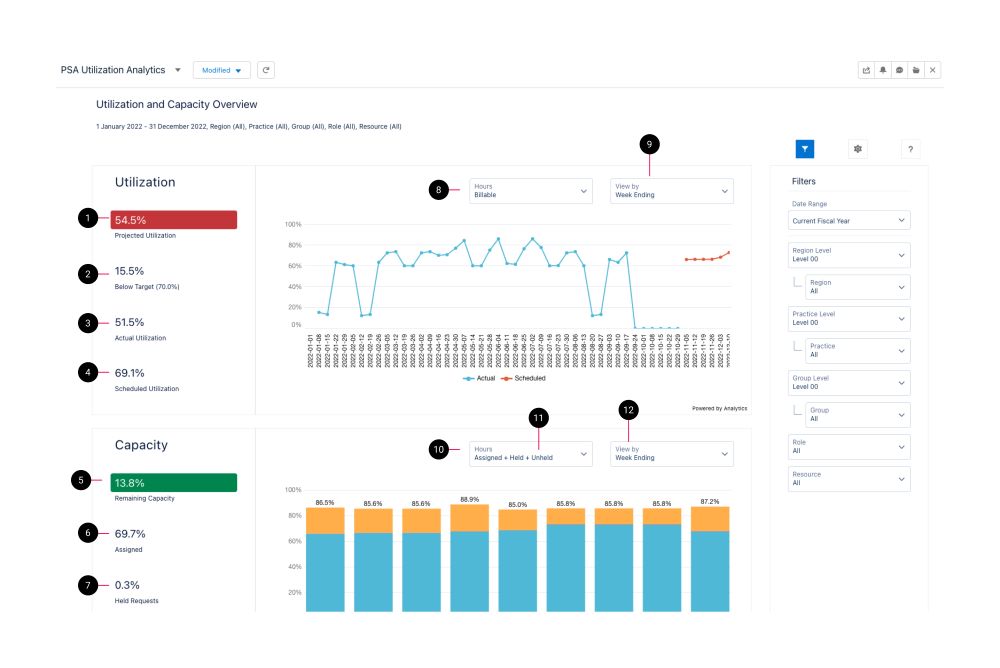
The dashboard displays data from the Utilization Results dataset. For more details about the fields used in the dashboard calculations, see Utilization Results Dataset PS Cloud Analytics Output Fields.
Filters
The following filters are available on the PSA Utilization Analytics dashboard. For more information about the dataset fields that provide the values for some of the dashboard filters, see Utilization Results Dataset PS Cloud Analytics Output Fields.
|
Name |
Description |
Source of Filter Options |
|---|---|---|
| Date Range |
Select a specific time period to filter by, or select "Custom" to create your own time period to filter by. |
Filtered by the Time Period End Date dataset field, but the value from the Time Period Name dataset field is displayed in the picklist. |
| Group | Select the specific groups to filter by, and apply the relevant operators to include or exclude them from the displayed data. | Dataset field: Group Name |
| Group Level | Select the specific group levels to filter by. Selections determine the options displayed in the Group filter. | Dataset field: Group Level XX, where XX represents a number between 00 and 12. |
| Practice | Select the specific groups to filter by, and apply the relevant operators to include or exclude them from the displayed data. | Dataset field: Practice Name |
| Practice Level | Select the specific practice levels to filter by. Selections determine the options displayed in the Practice filter. | Dataset field: Practice Level XX, where XX represents a number between 00 and 12. |
| Region | Select the specific groups to filter by, and apply the relevant operators to include or exclude them from the displayed data. | Dataset field: Region Name |
| Region Level | Select the specific region levels to filter by. Selections determine the options displayed in the Region filter. | Dataset field: Region Level XX, where XX represents a number between 00 and 12. |
| Resource | Select the specific resources to filter by. | Dataset field: Resource Name |
| Role | Select the specific resource roles to filter by. | Dataset field: Resource Role |
The dashboard is designed to be embedded in the PSA Resource Manager Workspace. For more information, see Embedding the PSA Utilization Analytics Dashboard.
This dashboard is created as part of the PS Cloud Core Analytics app.
The dashboard is available in the following apps:
- PS Cloud Analytics: PSA Utilization Analytics dashboard
- PSA Analytics Embedded Dashboards: Utilization Analytics (Embedded) dashboard
Comparing Utilization Details with Utilization Results
Depending on the setup of your PSA data environment and your reporting preferences, you can use either Utilization Details or Utilization Results to create the utilization data viewed in PS Cloud Analytics.
Lenses and reports created using either of these methods might display variations in data. This is due to the different configuration and calculation options available for Utilization Details and Utilization Results.
To learn how to validate the data displayed using Utilization Results against data derived from Utilization Details, see Matching Utilization Calculations.
KPIs
The following table contains details of the main utilization calculations contained in this dashboard. These calculations can be configured and renamed according to your reporting requirements. For more information see .
|
KPI |
Description |
|---|---|
| Productive Utilization |
Total utilization. This is calculated using the following formula: (Billable Timecard Hours + Billable Assigned Hours + Credited Timecard Hours + Credited Assigned Hours) / (Total Work Hours - Excluded Timecard Hours - Excluded Assigned Hours) |
| Actual Utilization |
(Billable Actual Timecard Hours + Credited Actual Timecard Hours) / (Actual Calendar Hours - Excluded Actual Timecard Hours) |
| Scheduled Utilization |
(Scheduled Billable Hours + Scheduled Credited Hours) / (Scheduled Calendar Hours - Scheduled Excluded Hours) |
 Managing Filters
Select whether to display your data as Actual or Scheduled. Your selections determine the data available to filter below.
Your filter selection determines the data displayed on the dashboard. To set or change your filters, use the following drop-down options:
- Date: select the time period you want to view data for. You can select between fiscal year, fiscal quarter, calendar year, calendar quarter, calendar month, and day. You can also select all time or custom to input the time period of your choosing. The data displayed in the dashboard changes according to whether you select a past, current or future time period. For example, Previous Quarter displays Actual Utilization, Current Quarter displays Actual, Scheduled, and Productive Utilization, and Next Quarter displays Scheduled Utilization.
- Included Hours: select the type of hours you want to view data for.
- Resource: select the resource by name whose related scheduled utilization you want to view the data for. You can also select All to view data from all scheduled utilization.
- Role: view your scheduled utilization data by grouping it according to the roles the assigned resources have. You can also select All to view data from all scheduled utilization.
- RPG Level: select the RPG hierarchy level you want to filter your data by. Selections here determine the region options displayed under "Region", "Practice", and "Group".
- Region: select the region, according to your PSA region associated with the resource, practice, and group settings, you want to view data for.
- Practice: select the practice, according to your PSA region associated with the resource, practice, and group settings, you want to view data for.
- Group: select the group, according to your PSA region associated with the resource, practice, and group settings, you want to view data for.
View by Week Starting
You can change the View by Week Ending selector to display data by Week Starting. To do this, perform the following steps:
- In the PSA Utilization Analytics dashboard, click Edit.
- Double-click the View by Week Ending selector and click Continue.
- In the New Custom Query modal, select Week Ending in the Text display column, and change the text to your preferred label, for example, Week Starting.
- In the Text dimension column, change TimePeriodWeekEndDate to TimePeriodWeekStartDate.
- Click Done.
- Click Preview | Save.
- [Optional] Enter a new name, description, or version history.
- [Optional] Select a new app to save your amended dashboard to.
- To show the amended label, choose another option from the View by selector and then reselect your amended label.
For more information about dashboard functionality, see Using the Dashboards Charts.