 SECTIONS
Configuring Salesforce Flows to Populate Recognition Template and GLA Fields on Source Records
You can configure Revenue Management to automatically populate the recognition template and GLAs on your source records based on their revenue recognition treatment.
Revenue Management works out which recognition template to assign to a source record by looking first at the product on the source record. From the product, Revenue Management looks at the recognition rule, and then at the revenue recognition treatments on the rule. Revenue Management replicates the selection criteria used by Salesforce to determine which revenue recognition treatment to use. Revenue Management then reads the recognition template from the correct revenue recognition treatment, and writes it to the Revenue Recognition Template field on the source record. From the revenue recognition treatment, Revenue Management looks at the GL rule, then the GL treatment to get the credit and debit accounts which it copies to the GLA fields on the source record.
To use this functionality you must build a Salesforce flow that triggers an Apex action, as explained in the following instructions.
You must build a separate Salesforce flow for each of your source objects:
- Order Product (OrderItem)
- Invoice Line (blng__InvoiceLine__c)
- Credit Note Line (blng__CreditNoteLine__c)
- Usage Summary (blng__UsageSummary__c)
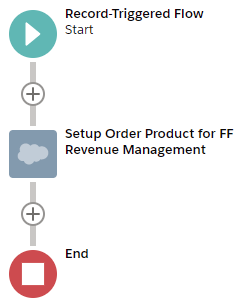
Here is an outline of the flow you will be building. This example shows a flow created for Order Product. (Click the image to expand it.)
Before You Begin
Before you begin you must enable the Enabling Revenue Cloud Connector feature in Feature Console. Make sure the Revenue Management on SF Revenue Cloud permission set is assigned to you.
Creating the Flow
These steps explain how to create the flow for the Order Product (OrderItem) source object.
- From Setup, navigate to Flows. Create a new flow of type Record-Triggered Flow. We recommend you use the Auto-Layout option to build the flow.
- Click the Start icon in the flow.
- Click Edit to configure the trigger. On the Configure Trigger window, set:
Trigger the Flow When: A record is created or updated
Run the Flow: After the record is saved - Click Done.
- Click Choose Object and complete the Choose Object window as follows:
Object: Order Product
Condition requirements: All conditions are met (AND)Then add the following conditions:
ffrrIncludeInRevenueRecognition__c Equals TrueffrrRevenueRecognitionComplete__c Equals Falseffrrtemplate__c Is Null TrueWhen to Run the Flow for Updated Records: Every time a record is updated and meets the condition requirements
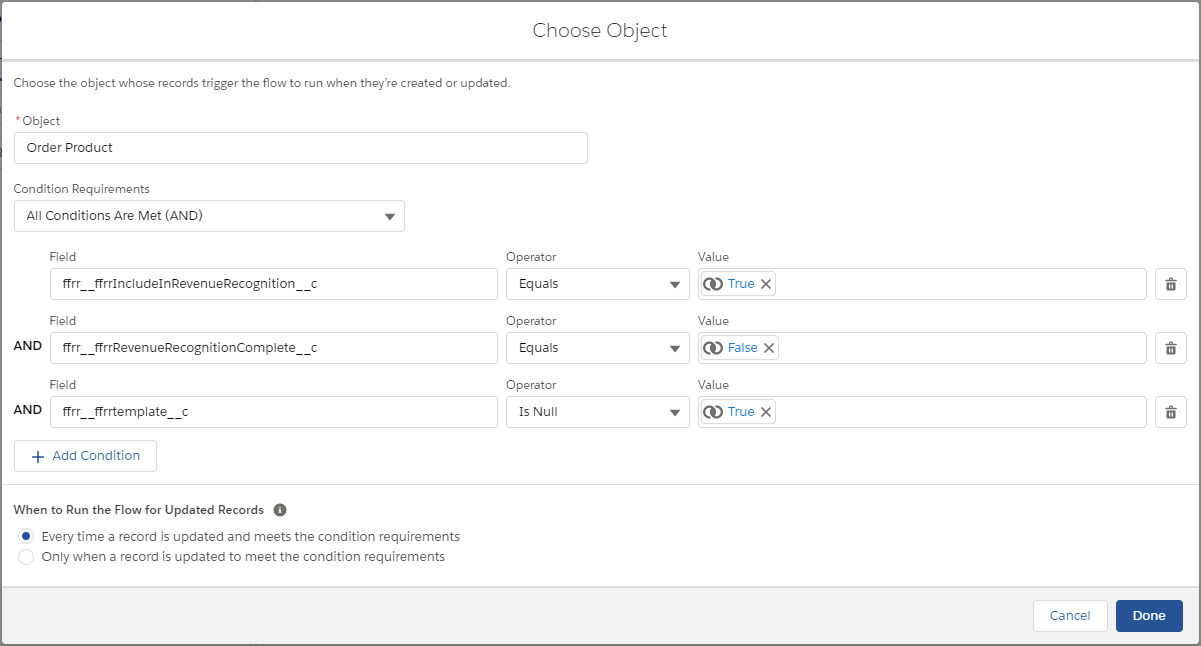
- Click Done. Note that the
ffrrtemplate__c Is Nullcondition ensures that the process does not run if the template is already populated on the source record. - Click the + symbol between the Start Icon and the End icon, then choose to add an Action element.
- In the New Action window, choose to Filter By "Type" then "Apex Action".
- From the Actions drop-down list, select Setup Revenue Cloud source records for Revenue Management (apex-ffrr__SourceRecordSetupAction).
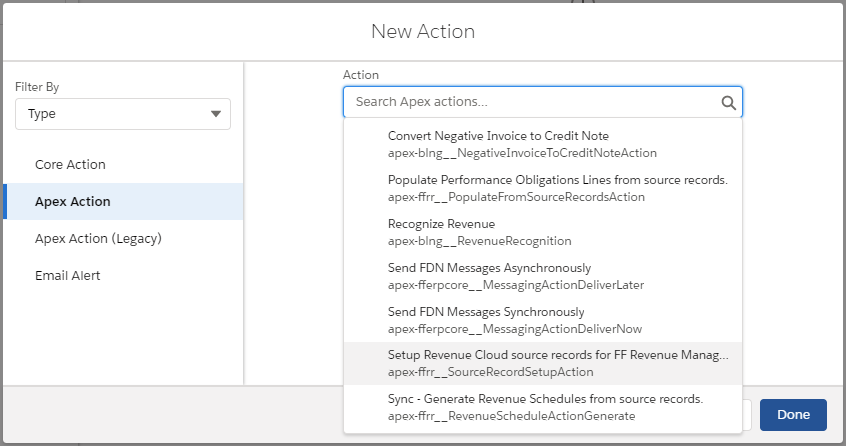
- Complete the remaining fields on the New Action window as follows:
Label: Setup Order Product for Revenue Management
API Name: Setup_Order_Product_for_Revenue_Management - In the Set Input Values section, enter:
{!$Record.Id}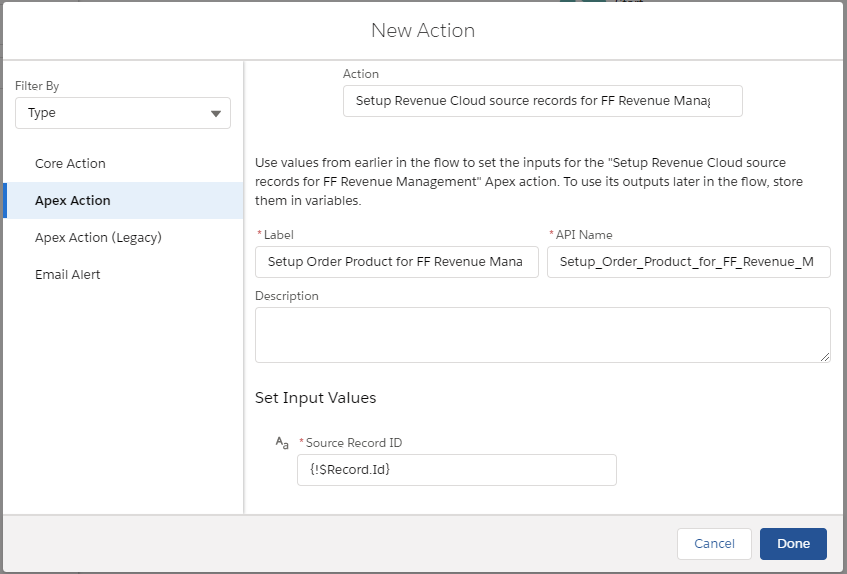
- Click Done.
- Save your flow then click Activate.
The flow is triggered when you save or update an order product that meets the conditions for being included in recognition processes.
Repeat this procedure to create flows for each of the remaining source objects: Invoice Line, Credit Note Line, and Usage Summary (if used).