 SECTIONS
Setting up PS Cloud Core Analytics Apps
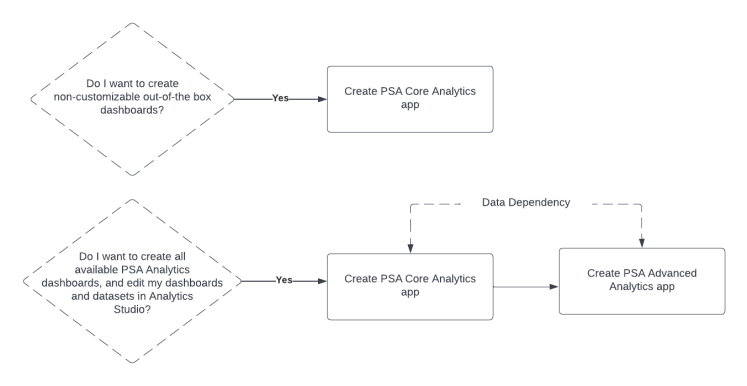
Depending on your business requirements, you can choose to create a PS Cloud Core Analytics app, or a PS Cloud Core Analytics app and a PS Cloud Advanced Analytics app. The PS Cloud Core Analytics app is required to provide the data displayed in the dashboards created by the PS Cloud Advanced Analytics app.
This chart represents a high-level overview of the process of creating your PS Cloud Analytics apps.
What is PS Cloud Core Analytics?
Setting up PS Cloud Core Analytics
The table below describes the steps for setting up your PS Cloud Core Analytics app. You must be signed in as an administrator, or equivalent, to complete the steps.
| Step | Task | Further Information |
|---|---|---|
| 1. | Ensure the Analytics View Only Embedded App permission set licenses have been enabled in your org. To do this, navigate to Setup | Company Information | Permission Set Licenses and look for Analytics View Only Embedded App. |
Advanced Analytics licenses (CRM Analytics Platform) can be used to set up the app instead of View Only Embedded licenses. If CRM Analytics Platform or View Only Embedded Licenses are not available in your org, contact your Certinia Account Manager or Customer Success Manager. |
| 2. | Ensure that Analytics is enabled in your org. If this is not enabled, contact your Onboarding Team to raise a case with Salesforce. |
To check whether Analytics is enabled in your org, go to Setup | Analytics | Getting Started. If the Launch CRM Analytics button is enabled in the top right-hand corner, Analytics is enabled in your org. |
|
3. |
Ensure that null measure handling is enabled in your org. If it is not listed as an option in Analytics Settings, contact your Onboarding Team to raise a case with Salesforce to enable the setting. |
To check whether null measure handling is enabled in your org, go to Setup | Analytics | Settings. If Allow null measure handling in datasets and available and selected, null measure handling is enabled in your org. For more information, see Null Measure Handling in PS Cloud Core Analytics. |
|
5. |
Ensure that the following packages are installed in your org:
|
For more information, see Supported Environment. |
|
6. |
If your org is configured to support multiple currencies, ensure that the Integration User's currency is set to your corporate currency. To do this, navigate to Setup | Company Information and look at the corporate currency. Ensure the currency selected is same as in Users | User, Integration. |
For more information, see the Salesforce Help. |
|
7. |
Create a read access permission set for the Skill / Certification Rating, Contact, and Resource Change objects and assign this to the Integration User. |
For more information, see PS Cloud Core Analytics Permission Sets. |
|
8. |
Assign required permission sets and licenses to the Integration User. |
For more information, see PS Cloud Core Analytics Permission Sets and PS Cloud Core Analytics Licensing. |
|
9. |
Assign required permission sets and licenses to the PSA Admin User. This is the user who creates and administers the analytics app. |
For more information, see PS Cloud Core Analytics Permission Sets and PS Cloud Core Analytics Licensing. |
|
10. |
Assign required permission sets and licenses to the View User. |
For more information, see PS Cloud Core Analytics Permission Sets and PS Cloud Core Analytics Licensing. |
|
11. |
Prepare Backlog calculations. |
For more information, see Preparing the Data Environment for PS Cloud Analytics. |
|
12. |
Populate Utilization Results or Utilization Summary or Details objects. |
For more information, see Preparing the Data Environment for PS Cloud Analytics. |
|
13. |
[Optional] Create data for the Revenue Forecast dataset. |
For more information, see Preparing the Data Environment for PS Cloud Analytics. |
|
14. |
[Optional] Create Data for the Project Margin dataset. |
For more information, see Preparing the Data for Project Margin. |
|
15. |
[Optional] Create data for Revenue Forecasts. |
For more information, see Preparing the Data Environment for PS Cloud Analytics. |
| 16. |
[Optional] If you want to create the Services Forecast Reporting dataset, perform the following steps:
|
For more information, see (Beta) Managing the Services Forecast Live Dataset and (Beta) Creating the Services Forecast Plans Dataset. |
|
17. |
Ensure you have data in the required objects in your PSA data environment. |
For more information, see Objects Required by the PS Cloud Analytics Dataflow. |
|
18. |
[Optional] Ensure you have data in the required objects in your Services Estimator data environment. |
For more information, see Objects Required by the PS Cloud Analytics Dataflow. |
|
19. |
Configure and create your PS Cloud Core Analytics app. |
For more information, see Creating an App from the PS Cloud Core Analytics Template. |
| 20. | Schedule your dataflows. | For more information, see Using PS Cloud Core Analytics. |
| 21. | [Optional] Share your PS Cloud Core Analytics app with the relevant users. | For more information about app sharing, see the Salesforce Help. |