 SECTIONS
Project Management Workspace
The Project Management workspace contains the following components:
- Global Navigation
- Alerts
- Counts
- Standard Chart
- List View
- My Weekly Summary
- Time Entry
- Expense Entry
- Project Manager Work Planner
- Project Creation
- Project Task Board
- RAID Tracker
Global Navigation
The Project Management links enable you to open the pages that are relevant to your role.
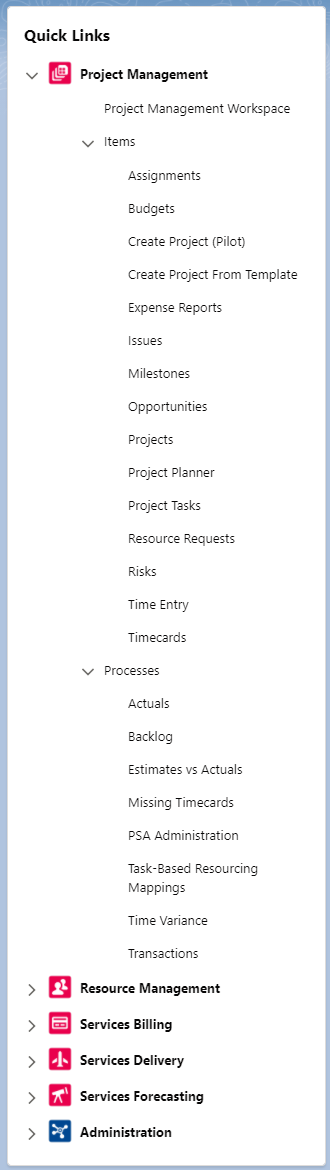
The Navigation pane also provides links to our Certinia business process models (BPMs). These models are a visual representation of process flows in PSA. For example, a BPM takes you through the steps for creating a project from an opportunity. To open the Create Project From Opportunity BPM, in the Navigation pane, under Processes & Flows, click Create Project from Opportunity.
Alerts
Alerts provide you with information to highlight important details about your projects. To display a list of detailed records specific to each alert, click View Details.
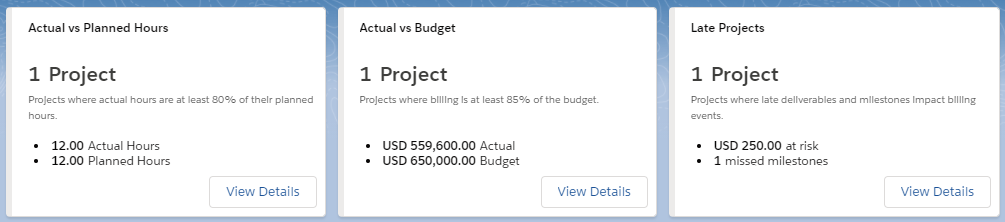
The following alerts are available from the Project Management workspace.
| Name | Description | View Details |
|---|---|---|
| Actual vs Planned Hours | The count of your projects where actual hours are 80% or greater than their planned hours, and the aggregated value of planned hours and actual hours across the counted projects. | Displays a list view of your projects with high actual hours. |
| Actual vs Budget | The count of your projects where billing is 85% or greater than the project budget, and the aggregated value of actual and budget including expenses across the counted projects. | Displays a list view of your projects that are close to their budget. |
| Late Projects | The aggregated value of your projects at risk of running late, and the count of projects with late milestones impacting billing events, and the count of missed milestones across the counted projects. | Displays a list view of late milestones associated with your projects. |
Your administrator can customize the Actual vs Planned Hours, Actual vs Budget alert card using the Lightning App Builder, for more information, see Setting up Certinia Alert Cards.
Counts
Counts summarize the number of records found on corresponding list views that are relevant for the Project Management workspace. Counts enable you to quickly access related content. To display a list view of detailed records specific to each count, click the count.

The following counts are available from the Project Management workspace.
| Count | Description | List View |
|---|---|---|
| Estimates vs Actuals with High Variance |
The count of assignments with actual hours that varied higher or lower than 50% in the previous week. |
Displays estimates vs actuals. |
| Due Resource Requests |
The count of open resource requests. These are resource requests where the Assignment lookup on the resource request is blank or null and the start date is 30 days or less from today's date and their status is one of the following:
|
Displays open resource requests on your projects that are close to the start date. |
| Projects with Red Status | The count of projects with the status of "Red". | Displays the statuses of your projects. |
Your administrator can customize the Estimates vs Actuals with High Variance, Due Resource Requests, Projects with Red Status count cards using the Lightning App Builder, for more information, see Setting up Certinia Count Cards.
Standard Report Chart
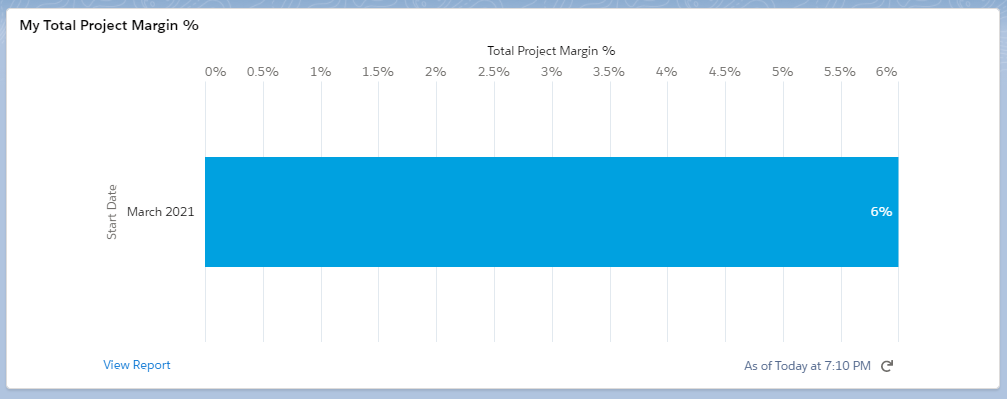
The Project Management Workspace Report Chart displays a My Total Project Margin % report, summarizing the percentage of your total project margin.
List View
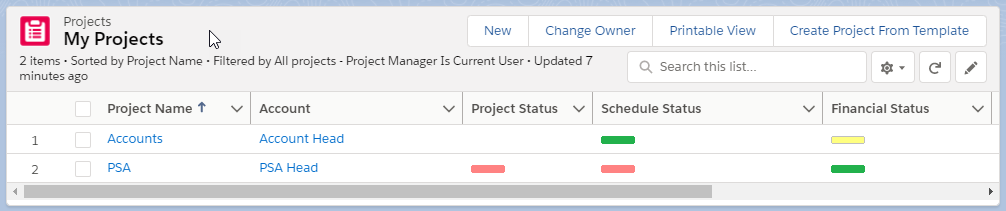
The Project List View displays a list of projects where you are assigned as the project manager.
My Weekly Summary Component
The My Weekly Summary component provides a weekly view of status for all your associated projects, assignments, and project task assignments.
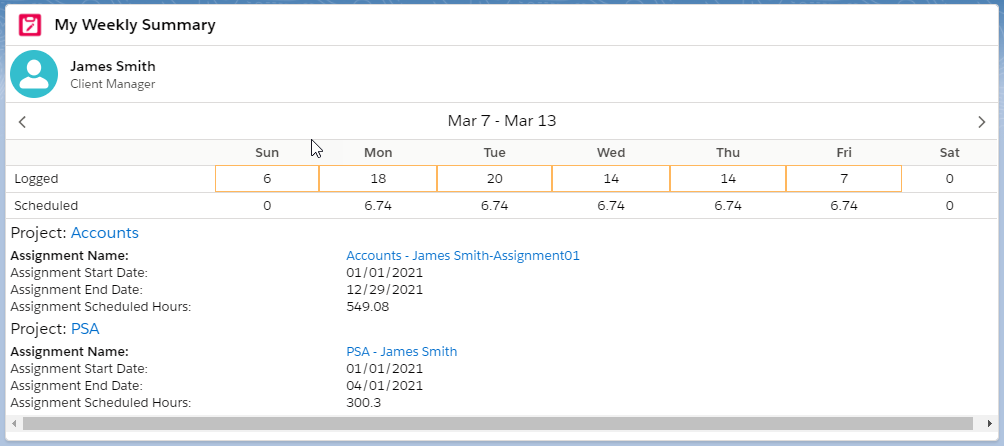
For more information, see My Weekly Summary
Time Entry Component
The Time Entry component displays a list of your timecards and enables you to create new ones.
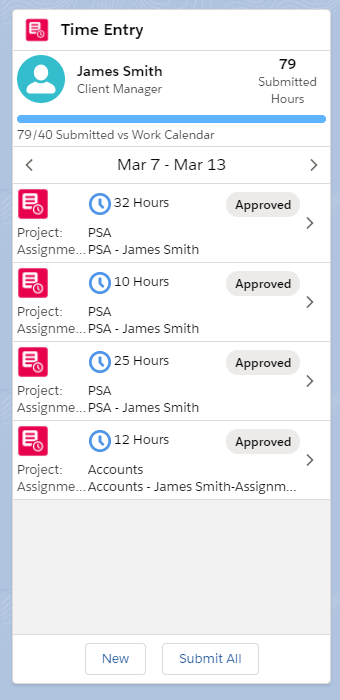
For more information, see Using the Time Entry Component.
Expense Entry Component
The PSA Expense Entry component enables you to submit expenses against assignments and milestones associated with projects.
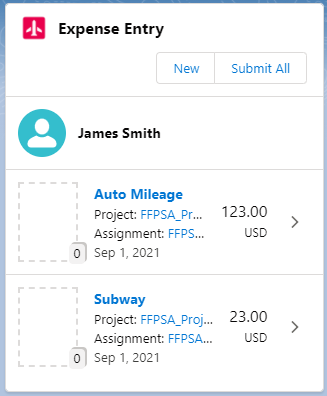
For more information, see Using the Expense Entry Lightning Component.
Project Manager Work Planner Component
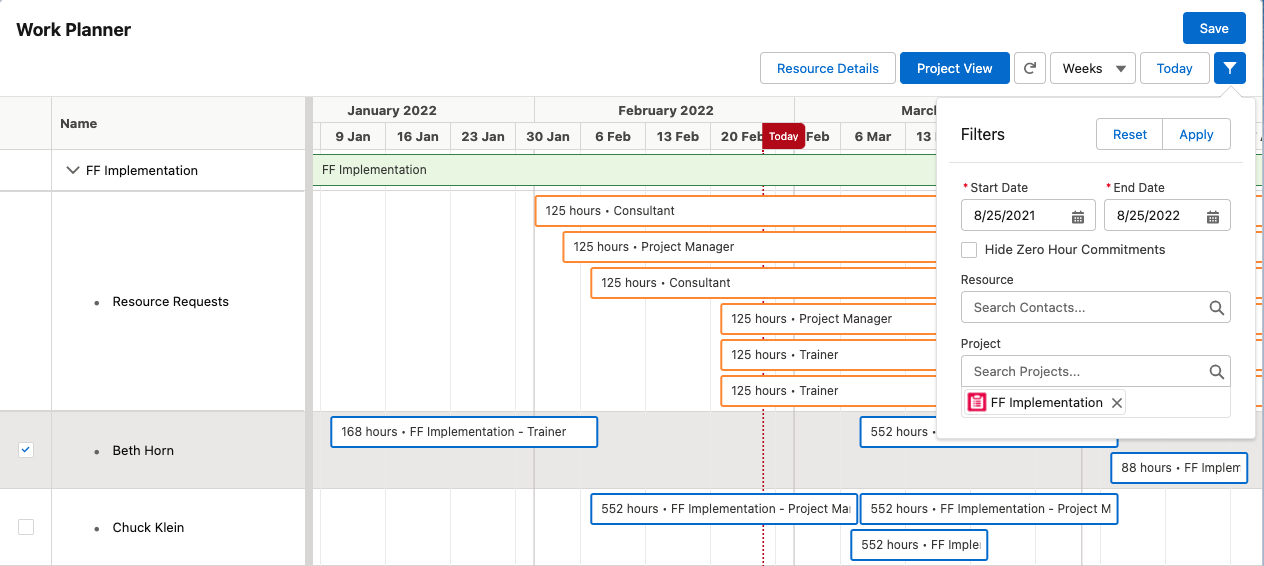
The PSA Project Manager Work Planner component enables you to view assignments and resource requests, grouped by project or by resource, and view resource detail, so that you can plan project work quickly and easily.
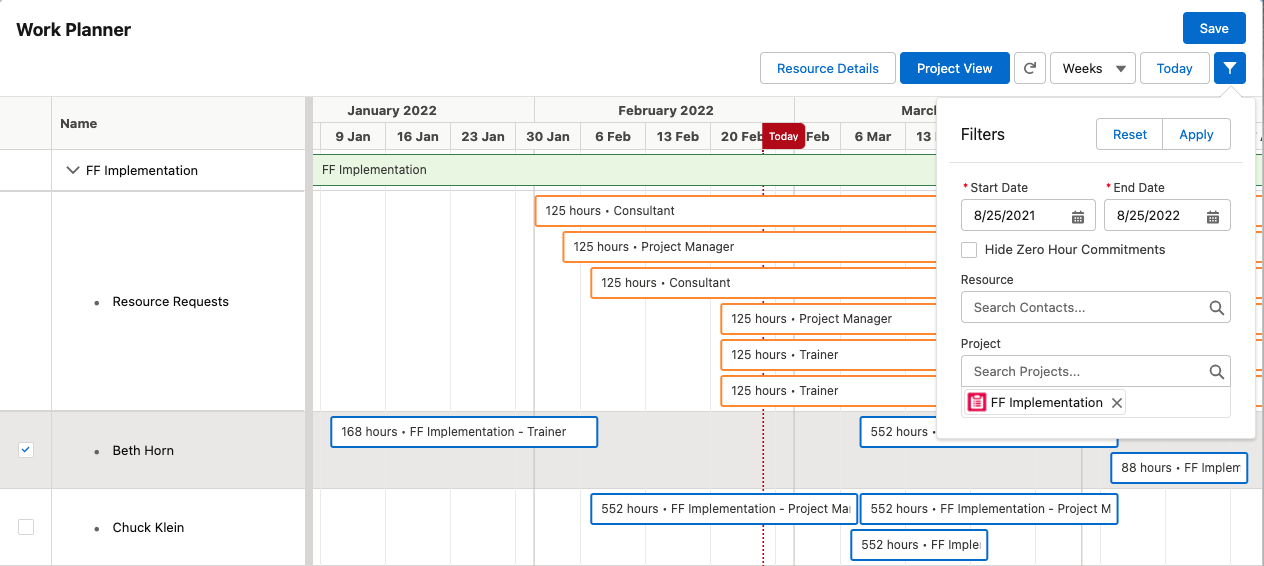
For more information, see Using Work Planners.
Project Creation Component
The PSA Actions: Project Creation component enables you to create projects from other projects, including templates.

For more information, see Creating a Project from an Existing Project or a Template.
Project Task Board Component
The PSA Project Task Board component displays the project tasks you manage, own or are assigned to on the projects you manage.
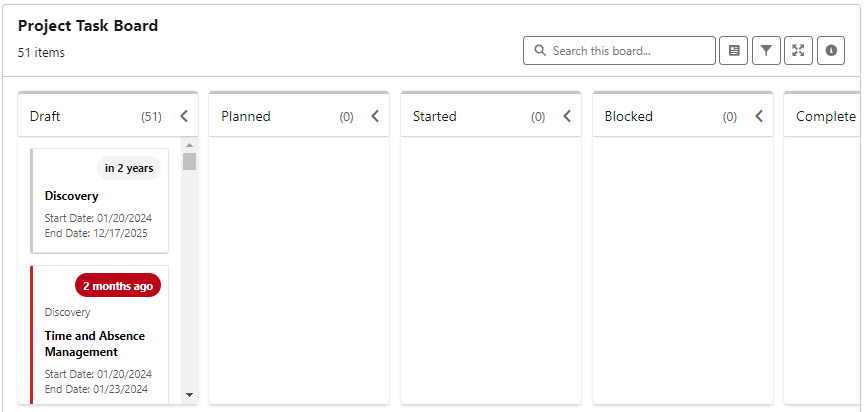
For more information, see Using the Project Task Board.
PSA RAID Tracker Component
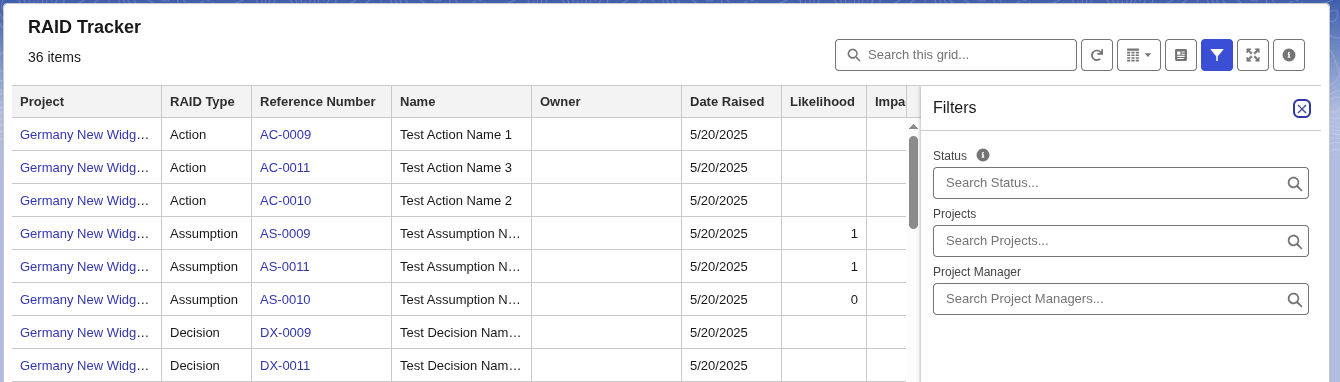
The RAID Tracker is a project management tool that assists Project Managers and Teams in effectively managing and tracking Risks, Actions, Assumptions, Issues, Dependencies, and Decisions throughout the project lifecycle. The RAID Tracker functions similarly to the one on the project record page. However, the Project Management workspace includes a few additional fields -
- The Projects and Project Manager filter fields in the filter panel to filter RAID records by project and project manager. By default, the Project Manager filter value is set related to the user who is logged in.
- A Project column in the grid that identifies which RAID record is associated with which project.
- A Project field in the Record Details panel which displays information about the project associated with the RAID record.
The Apply, Clear, and Reset buttons are displayed dynamically as you take actions in the filter panel. The following are the scenarios that determine how these filter buttons function:
- When the filter panel is opened with the default filter value of the Project Manager field, only the Clear button displays.
- When you edit filter values, the Apply, Clear, and Reset buttons display.
- After you apply changes to the filters, the Clear and Reset buttons display.
- When you click Clear, all the filter values are removed.
- When you click Reset, the filter panel is restored to its original state with the default filter value of project manager.
For more information, see RAID Tracker Overview and Using the RAID Tracker.