 SECTIONS
Sample Flow to Generate CS Work Suggestion via an Account Triggered Flow
This page describes a sample flow to generate the CS work suggestion via an Account-triggered flow.
The Sample Flow
This sample flow is a Record-Triggered After Save Flow that uses the Process Policies Apex action.
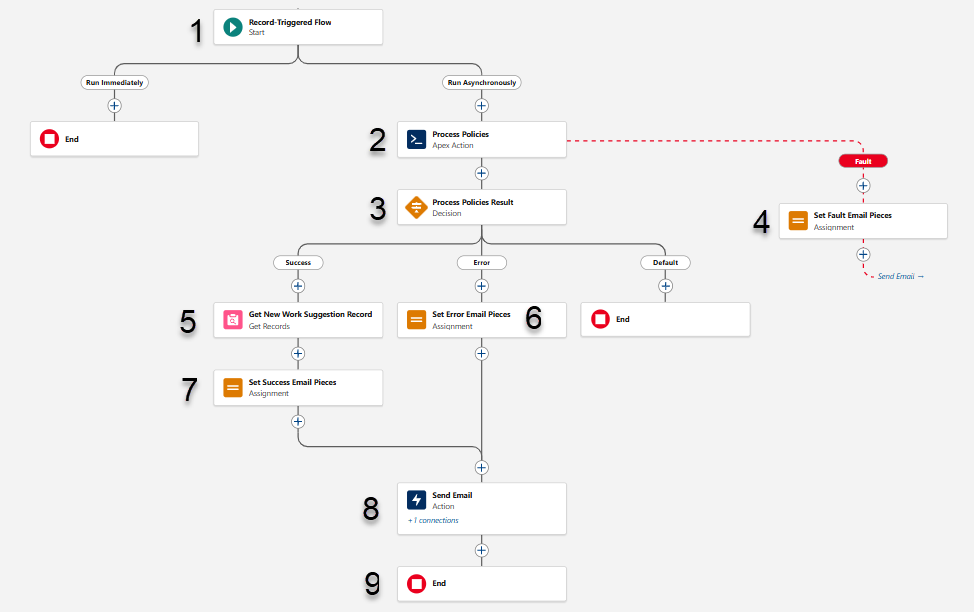
An explanation of each numbered item is provided in the table below.
| # | Flow Element | Sample Flow Suggestion | Sample Flow Setup |
|---|---|---|---|
| 1 |

|
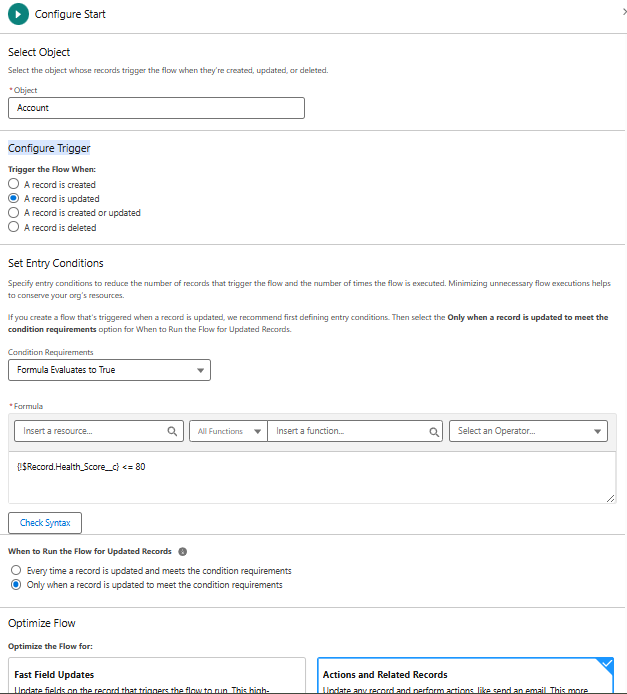
Create a new Record-Triggered flow. In the Configure Start window, set: Object: Account Trigger the Flow When: A record is updated Condition requirements: Formula Evaluates to True; Then add the following conditions: {!$Record.Health_Score__c} <= 80 When to Run the Flow for Updated Records: Only when a record is updated to meet the condition requirements Optimize the Flow for: Actions and Related Records |
|
| 2 |

|
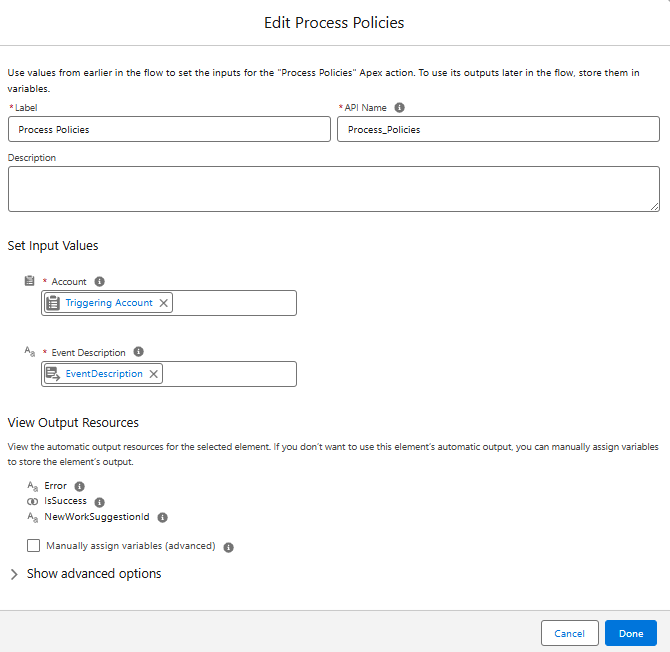
Add an Action element. Select the Process Policies action, then enter the required input values Label: Process Policies API Name: Process_Policies Set Input Values Account: {!$Record} Event Description: {!EventDescription} Transaction Control: Let the flow decide |
|
| 3 |

|
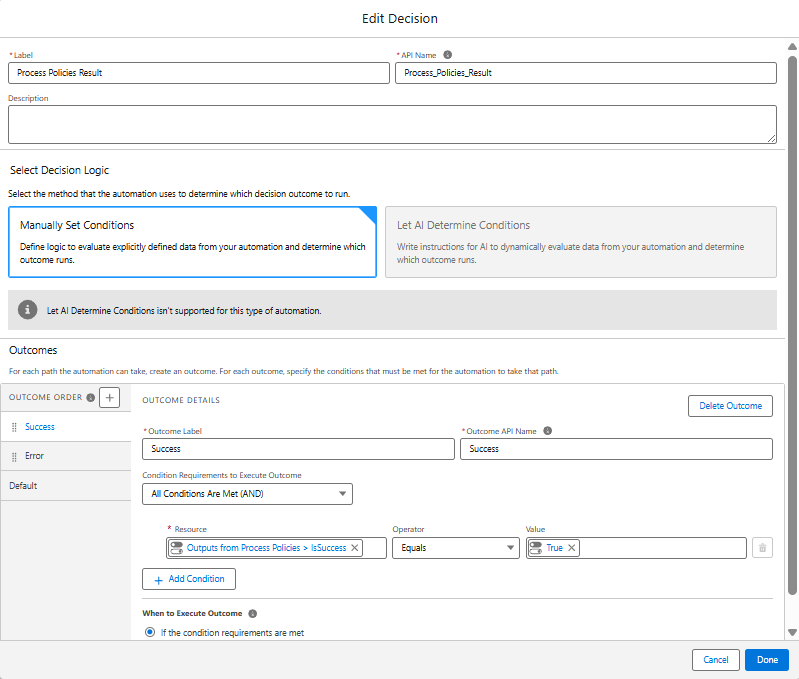
Add a Decision element to validate the results of Process Policies. Create a Success outcome and set the condition to: {!Process_Policies.IsSuccess} Equals {!$GlobalConstant.True} Create an Error outcome and set the condition to: {!Process_Policies.IsSuccess} Equals {!$GlobalConstant.False} For both outcomes, set When to Execute Outcome: If the condition requirements are met. |
|
| 4 |

|
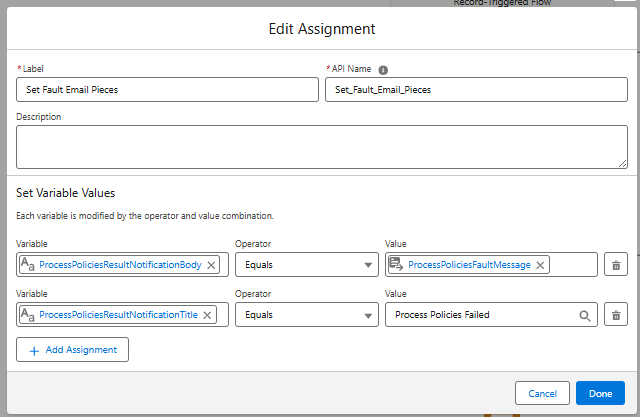
For the faulty Process Policies apex action, add an Assignment element and set the following assignments: {!ProcessPoliciesResultNotificationBody} Equals {!ProcessPoliciesFaultMessage} {!ProcessPoliciesResultNotificationTitle} Equals Process Policies Failed |
|
| 5 |

|
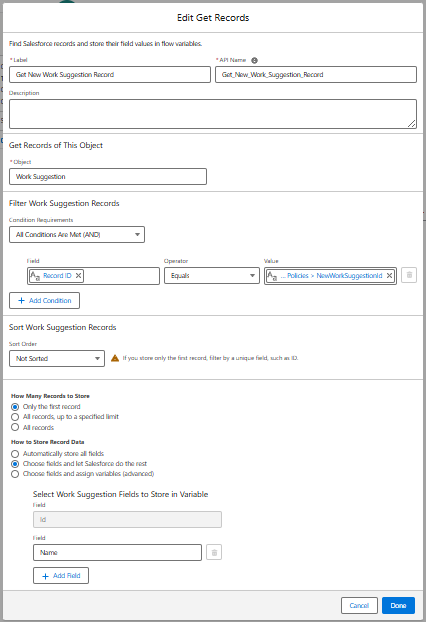
For a successful outcome of the Process Policies decision element, add a Get Records element and complete the window as follows: Object: Work Suggestion Condition Requirements: All Conditions Are Met (AND) Add the following condition: Id Equals {!Process_Policies.NewWorkSuggestionId} How Many Records to Store: Only the first record How to Store Record Data: Choose fields and let Salesforce do the rest Select Work Suggestion Fields to Store in Variable: Id and Name |
|
| 6 |
|
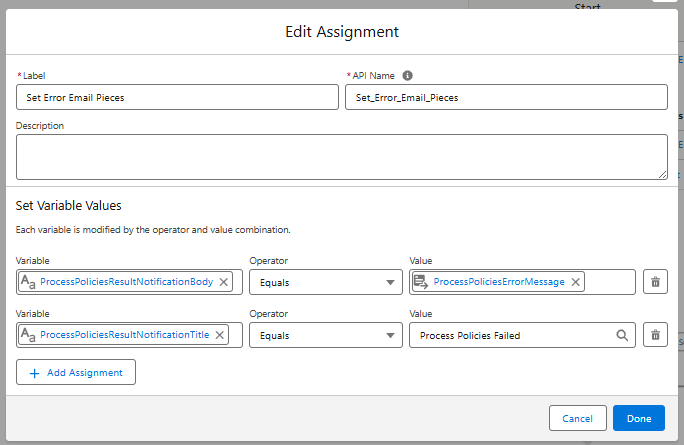
For the error in the Process Policies Decision element, add an Assignment element and set the following assignments: {!ProcessPoliciesResultNotificationBody} Equals {!ProcessPoliciesErrorMessage} {!ProcessPoliciesResultNotificationTitle} Equals Process Policies Failed |
|
| 7 |
|
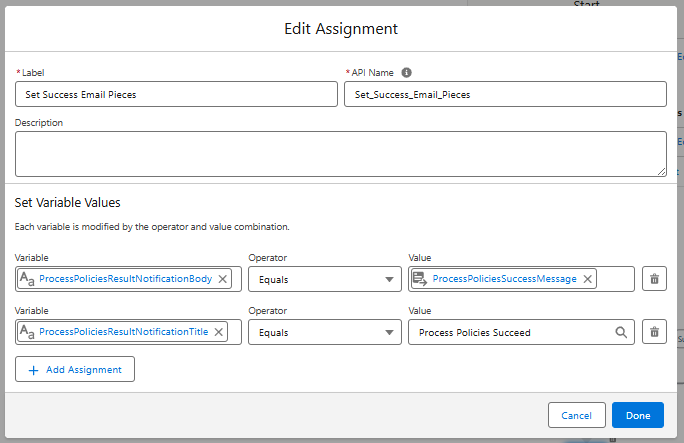
For the successful Get Records element, add an Assignment element and set the following assignments: {!ProcessPoliciesResultNotificationBody} Equals {!ProcessPoliciesSuccessMessage} {!ProcessPoliciesResultNotificationTitle} Equals Process Policies Succeed |
|
| 8 |

|
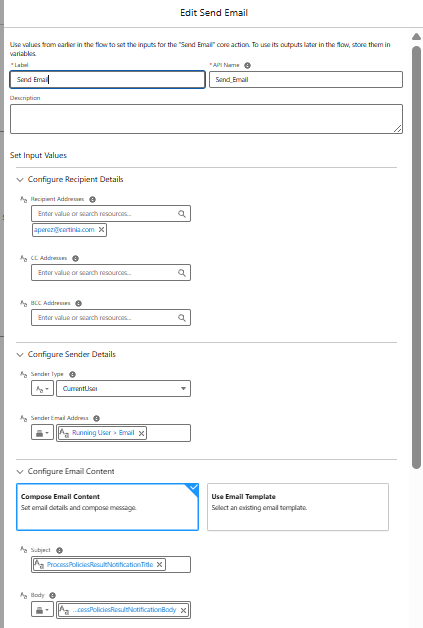
Add an Action element to send email notification to the user. Set Input Values Recipient Addresses: [email protected] Sender Type: CurrentUser; Sender Email Address: {!$User.Email} For email content set the following: Subject: {!ProcessPoliciesResultNotificationTitle} Body: {!ProcessPoliciesResultNotificationBody} |
|
| 9 |

|
End of flow. | |
| Activate the flow | Remember to save and activate the flow to make it available for use. |