 SECTIONS
(Beta) PSA Services Forecast Dashboard
The PSA Services Forecast dashboard enables service leaders and project managers to:
- View revenue, cost, and margin information for Live forecasts imported from PSA and Working forecasts imported from WorkGrid by month or quarter
- View a breakdown of the sources of revenue, cost, and margin for Live and Working forecasts
- Compare revenue, cost, and margin information for Live and Working forecasts against historical forecasts from WorkGrid
We recommend you embed the dashboard on a new tab of your region, practice, or group Lightning page. For instructions on how to do this, see Embedding the PSA Services Forecast Dashboard.
The dashboard is available only on the PS Cloud Core Analytics app and displays data from the Services Forecast Reporting dataset.
PSA Services Forecast Dashboard Guide
The summary view of the PSA Services Forecast has the following elements.
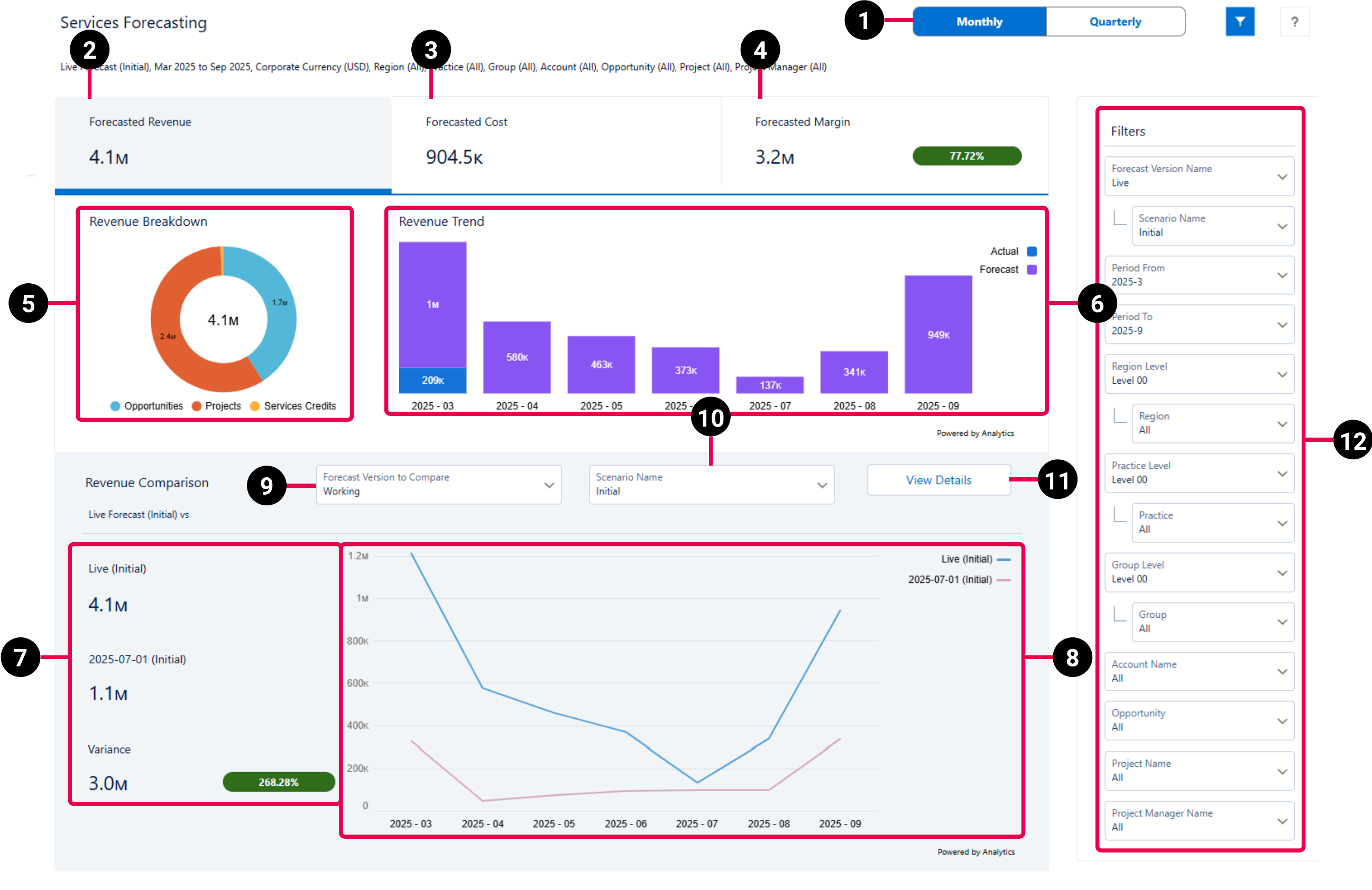
For more information about the details view of the dashboard, see PSA Services Forecast Dashboard Details View.
For more information about the fields used in the dashboard calculations, see (Beta) Services Forecast Reporting Dataset PS Cloud Analytics Output Fields.
|
Element Number |
Name |
Description |
Calculation |
|---|---|---|---|
| 1. | Period Picker |
Determines if the data displayed in the dashboard is grouped by month or quarter. |
Not applicable |
| 2. | Forecasted Revenue Summary Card | The total amount of forecasted revenue for the selected forecast version. If selected, revenue information displays in the breakdown chart (5), trend chart (6), comparison values (7), comparison chart (8), and details view. |
Revenue = Amount (Corporate Currency), when Revenue/Cost = "Revenue" |
| 3. | Forecasted Cost Summary Card | The total amount of forecasted costs for the selected forecast version. If selected, cost information displays in the breakdown chart (5), trend chart (6), comparison values (7), comparison chart (8), and details view. | Cost = Amount (Corporate Currency), when Revenue/Cost = "Cost" |
| 4. | Forecasted Margin Summary Card | Forecasted margin for the selected forecast version, expressed as an amount and as a percentage of the amount displayed in Forecasted Revenue (2). If selected, margin information displays in the breakdown chart (5), trend chart (6), comparison values (7), comparison chart (8), and details view. |
Forecasted Margin amount = Forecasted Revenue amount - Forecasted Cost amount
Forecasted margin as a percentage of forecasted revenue = Forecasted Margin amount / Forecasted Revenue amount * 100 |
| 5. | Revenue, Cost, or Margin Breakdown Donut Chart | Displays a breakdown of the revenue, costs, or margin amounts attributed to the different sources of revenue for the selected forecast version. | Revenue, Cost, or Margin grouped by Level 1 |
| 6. | Revenue, Cost, or Margin Trend Bar Chart | Displays actual and forecasted revenue, costs, or margin grouped by the period type selected in the period picker (1). If Forecasted Margin (4) is selected, actual and forecast percentages also display on the chart. | Revenue, Cost, or Margin grouped by the period type selected in the period picker (1) |
| 7. | Revenue, Cost, or Margin Value Comparison |
Displays revenue, costs, or margin totals for the selected forecast version and forecast version to compare. Also displays the variance between the two values, expressed as an amount and a percentage. If Forecasted Margin (4) is selected, the margin amount expressed as a percentage of the revenue amount also displays for the selected forecast version and forecast version to compare. |
Variance amount = total for the selected forecast version - total for the selected forecast version to compare
Margin variance percentage = Variance amount - total for the forecast version to compare * 100 |
| 8. | Revenue, Cost, or Margin Comparison Line Chart | Displays a comparison of revenue, costs, or margin between the selected forecast and scenario, and the selected forecast version and scenario to compare. | Not applicable |
| 9. | Forecast Version to Compare Picker |
Determines the forecast version you want to compare against the forecast version selected in the Filters panel. |
Not applicable |
| 10. | Scenario Name Picker |
Determines the scenario associated with the forecast version you want to compare against the forecast version selected in the Filters panel. |
Not applicable |
| 11. | View Details Button | Click to view a breakdown of the specific accounts, opportunities, projects, or project managers that are the sources of revenue, cost, or margin. For more information, see PSA Services Forecast Dashboard Details View. | |
| 12. | Filters | Filter panel used to refine the data displayed in the dashboard. By default, the Filters panel is open. For further information on the available filters, see Filters. | Not applicable |
Filters
The following filters are available on the PSA Services Forecast dashboard. For more information about the dataset fields that provide the values for the dashboard filters, see (Beta) Services Forecast Reporting Dataset PS Cloud Analytics Output Fields.
| Name | Description | Source of Filter Options |
|---|---|---|
| Forecast Version Name | Select the forecast version to filter by. | Dataset field: Version |
| Scenario Name | Select the name of the specific scenario of the selected forecast version to filter by. | Dataset field: Scenario Name |
| Period From | Select the earliest time period to filter from. | Filtered by the Time Period Start Date dataset field, but the value from the Time Period Name dataset field is displayed in the picklist |
| Period To | Select the latest time period to filter to. | Filtered by the Time Period End Date dataset field, but the value from the Time Period Name dataset field is displayed in the picklist. |
| Region Level | Select the specific region level to filter by. Selections determine the options displayed in the Region filter. | Dataset field: Region Level XX, where XX represents a number between 00 and 12. |
| Region | Select the specific regions to filter by. | Dataset field: Region |
| Practice Level | Select the specific practice level to filter by. Selections determine the options displayed in the Practice filter. | Dataset field: Practice Level XX, where XX represents a number between 00 and 12. |
| Practice | Select the specific practices to filter by. | Dataset field: Practice |
| Group Level | Select the specific group level to filter by. Selections determine the options displayed in the Group filter. | Dataset field: Group Level XX, where XX represents a number between 00 and 12. |
| Group | Select the specific groups to filter by, and apply the relevant operators to include or exclude them from the displayed data. | Dataset field: Group |
| Account Name | Select the specific accounts to filter by. | Dataset field: Account Name |
| Opportunity | Select the specific opportunities to filter by. | Dataset field: Opportunity Name |
| Project Manager Name | Select the specific project managers to filter by. | Dataset field: Project Manager Name |
| Project | Select the specific projects to filter by. | Dataset field: Project Name |