Sample Flow to Link Forecasts to Projects or Practices
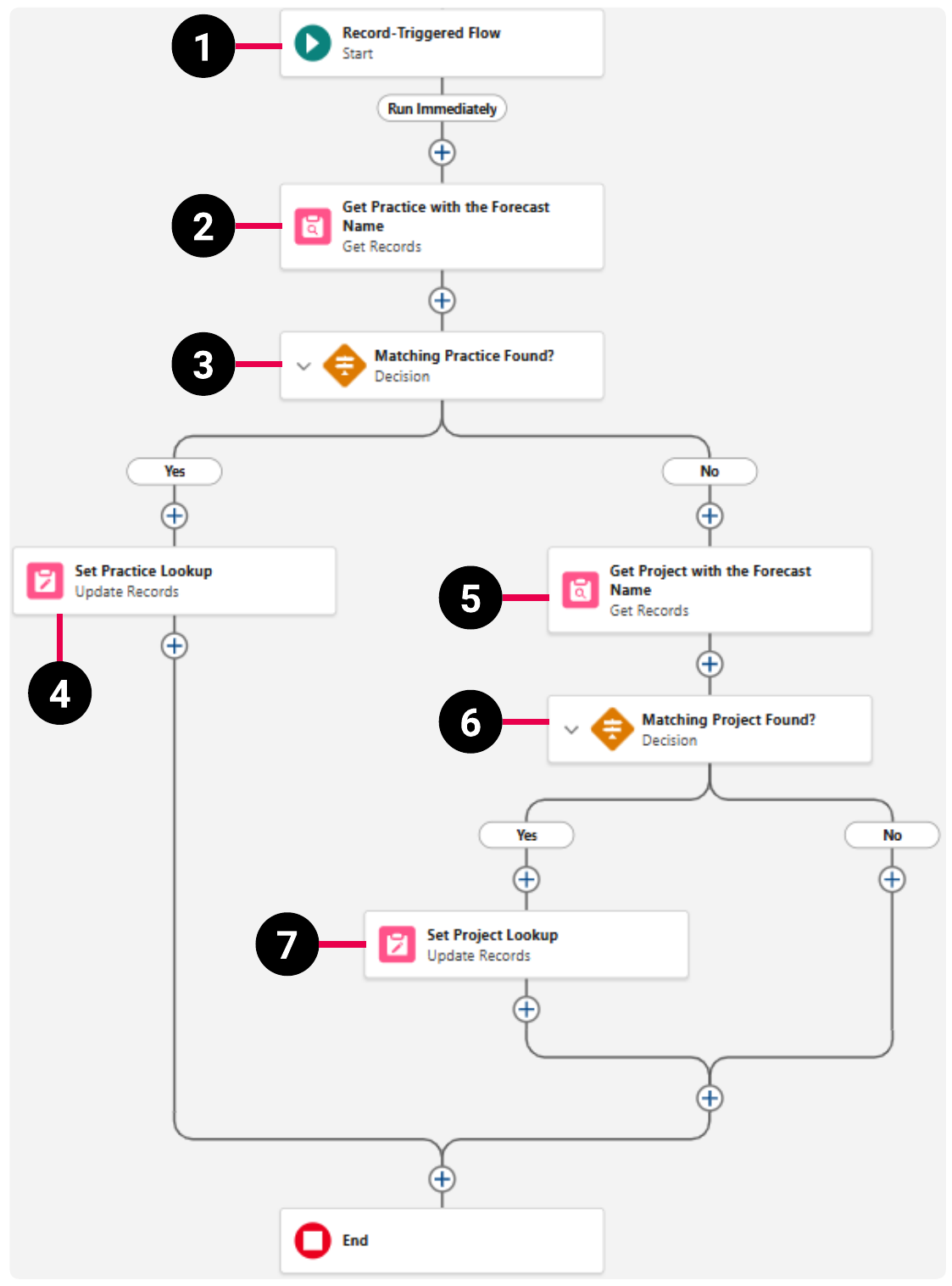
This page describes a sample flow to automatically link a newly created forecast to the project or practice that has the same name. This is achieved by populating the Project or Practice lookup field on the Plan object.
Notes:
The sample assumes that your org uses practices as the parent-level forecasts. If you intend to use regions instead, you can replace Practice with Region.
The sample assumes that your forecasts have the same name as their matching projects or practices. If you intend to use a different naming convention for your forecasts, you must amend the logic for finding the matching records.
Warnings:
This sample flow is for demonstration purposes only. It is not intended for use in a production org, it is not guaranteed against defects or errors, and it is not optimized or streamlined.
This page does not give step-by-step instructions on how to create the sample flow. The information is intended for administrators who are already experienced at creating Salesforce flows. For more information about creating flows, see the Salesforce Help.
This sample flow is a record-triggered flow that tries to find a practice that has the same name as the forecast. If found, the practice is used to populate the Practice lookup field. Otherwise, the flow tries to find a project that has the same name as the forecast. If found, the project is used to populate the Project lookup field on the forecast.
The Flow Element Explanation table provides an explanation of each numbered item.
1
Start
Create a record-triggered flow with the following details:
Object: Plan (xpna__Plan__c )
Trigger the Flow When: A record is created
Condition Requirements: "All Conditions Are Met (AND)"
Condition 1:
Field: Project (Project__c )
Operator: "Is Null"
Value: True
Condition 2:
Field: Practice (Practice__c )
Operator: "Is Null"
Value: True
This ensures that the flow runs when a new forecast record is created and it is not already linked to a project or a practice.
2
Get Practice with the Forecast Name
Add a Get Records element with the following details:
Label: Get Practice with the Forecast Name
API Name: Get_Practice_with_the_Forecast_Name
Description: Get the practice that has the name as the forecast.
Object: Practice (pse__Practice__c )
Condition Requirements: "All Conditions Are Met (AND)"
Condition:
Field: Practice Name (Name )
Operator: "Equals"
Value: Triggering xpna__Plan__c > Plan Name ({!$Record.Name} )
How Many Records to Store: Only the first record
How to Store Record Data: Choose fields and let Salesforce do the rest
This tries to find a practice that has the same name as the forecast and stores its record ID.
3
Matching Practice Found?
Add a Decision element with the following details:
Label: Matching Practice Found?
API Name: Matching_Practice_Found
Description: Determine whether a practice that has the same name as the forecast was found.
New Outcome:
Outcome Label: Yes
Outcome API Name: Matching_Practice_Found_Yes
Condition Requirements to Execute Outcome: "All Conditions Are Met (AND)"
Condition:
Resource: Practice from Get Practice with the Forecast Name > Entire Resource ({!Get_Practice_with_the_Forecast_Name} )
Operator: "Is Null"
Value: False
Default Outcome Label: No
This determines whether a practice with the same name as the forecast is found and branches the flow into two separate options.
4
Set Practice Lookup
Under the Matching Practice Found? element, in the Yes branch, add an Update Triggering Record element with the following information:
If a matching practice was found, this uses the record ID of the practice to populate the Practice lookup field on the forecast.
After this element, the Yes branch of the Matching Practice Found? element leads to the End element.
5
Get Project with the Forecast Name
Under the Matching Practice Found? element, in the No branch, add a Get Records element with the following details:
Label: Get Project with the Forecast Name
API Name: Get_Project_with_the_Forecast_Name
Description: Get the project that has the name as the forecast.
Object: Project (pse__Proj__c )
Condition Requirements: "All Conditions Are Met (AND)"
Condition:
Field: Project Name (Name )
Operator: "Equals"
Value: Triggering xpna__Plan__c > Plan Name ({!$Record.Name} )
How Many Records to Store: Only the first record
How to Store Record Data: Choose fields and let Salesforce do the rest
This tries to find a project that has the same name as the forecast and stores its record ID.
6
Matching Project Found?
Add a Decision element with the following details:
Label: Matching Project Found?
API Name: Matching_Project_Found
Description: Determine whether a project that has the same name as the forecast was found.
New Outcome:
Outcome Label: Yes
Outcome API Name: Matching_Project_Found_Yes
Condition Requirements to Execute Outcome: "All Conditions Are Met (AND)"
Condition:
Resource: Project from Get Project with the Forecast Name > Entire Resource ({!Get_Project_with_the_Forecast_Name} )
Operator: "Is Null"
Value: False
Default Outcome Label: No
This determines whether a project with the same name as the forecast is found and branches the flow into two separate options.
7
Set Project Lookup
Under the Matching Project Found? element, in the Yes branch, add an Update Triggering Record element with the following information:
If a matching practice was found, this uses the record ID of the practice to populate the Practice lookup field on the forecast.
After this element, the Yes branch of the Matching Project Found? element leads to the End element.
When you have finished defining the flow, you can save it with the following details:
Flow Label: Services Forecasting: Link Forecast to Project or Practice
Flow API: Services_Forecasting_Link_Forecast_to_Project_or_Practice
Description: When a forecast is created, this automatically populates the Project or Practice lookup with the matching record of the same name. This is to ensure that the forecast is embedded on the relevant record.
After saving the flow, make sure to activate it.
 SECTIONS