At a Glance: Resource Planner
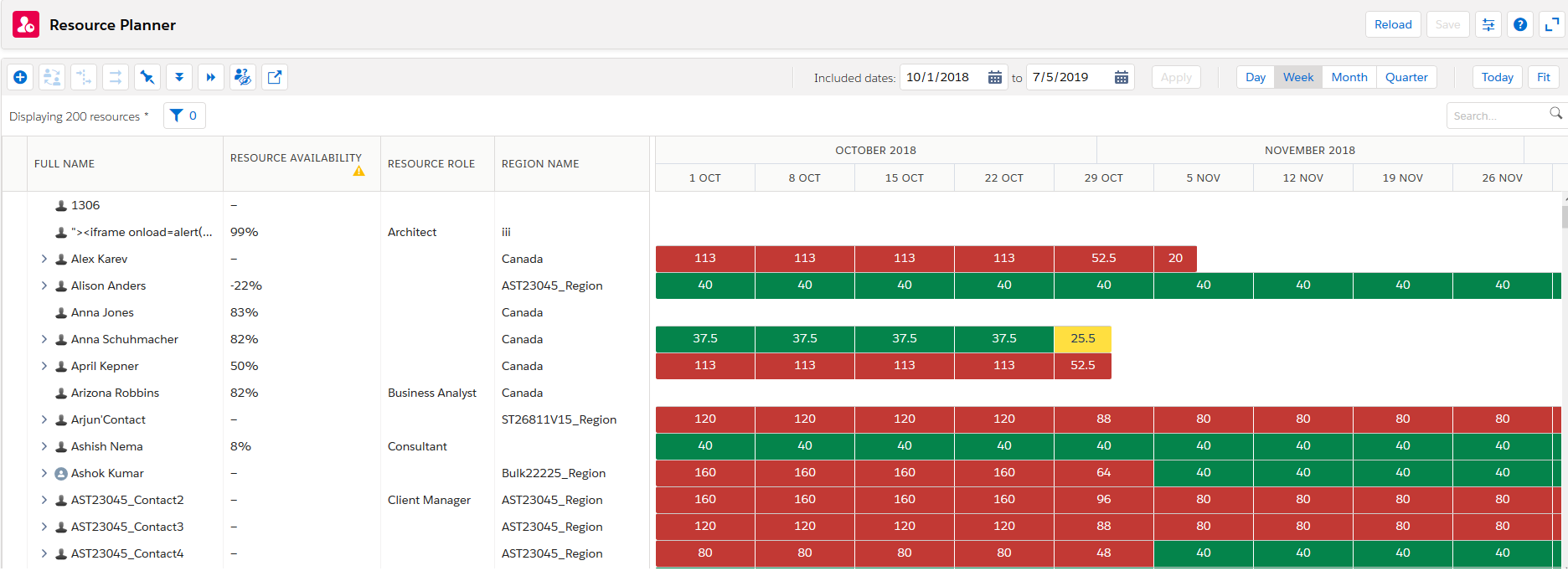
The Resource Planner comprises the following:
|
Item |
Description |
More Information |
|---|---|---|
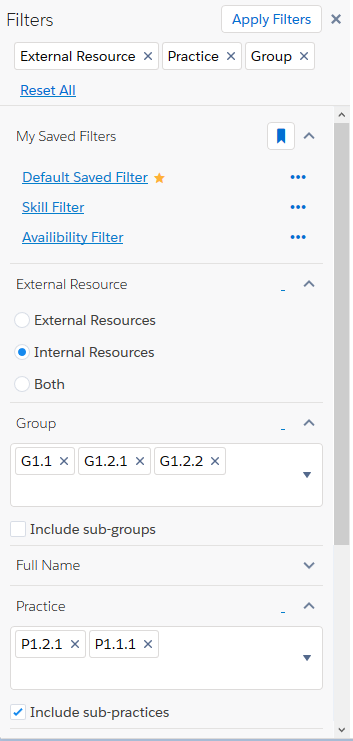
| Filters Panel | Use a criteria to refine the number of resources. | Filters Panel Overview |
| Resources List | Displays all resources in your organization A deployment of the Salesforce/FinancialForce applications with a defined set of licensed users. Your organization includes all of your data and applications, and is separate from all other organizations. together with their profile photos if configured by your administrator. Click A deployment of the Salesforce/FinancialForce applications with a defined set of licensed users. Your organization includes all of your data and applications, and is separate from all other organizations. together with their profile photos if configured by your administrator. Click to expand or contract the resource's assignments and held resource requestsA resource request with a status of “held” and a schedule. The Resource field is populated.. Double-click the resource name to view the edit assignments panel. to expand or contract the resource's assignments and held resource requestsA resource request with a status of “held” and a schedule. The Resource field is populated.. Double-click the resource name to view the edit assignments panel. |
Searching for Resources or Projects |
| Timeline |
Contains assignment bars and resource summary bars, which represent assignment length, scheduled hours rolled up to the parent resource, and resource allocation indicated by a color code. A scrollable timeline shows days, weeks, months or quarters through a set time span. Click on the resource entry to expand or contract the list of all the resource's assignment |
Working with the Timeline |
| Edit Assignments Panel | View and edit schedules for assignments and view held resource requestsA resource request with a status of “held” and a schedule. The Resource field is populated.. |
Edit Assignments Panel Overview |
Example Resource Planner Filters Panel
Example Resources List
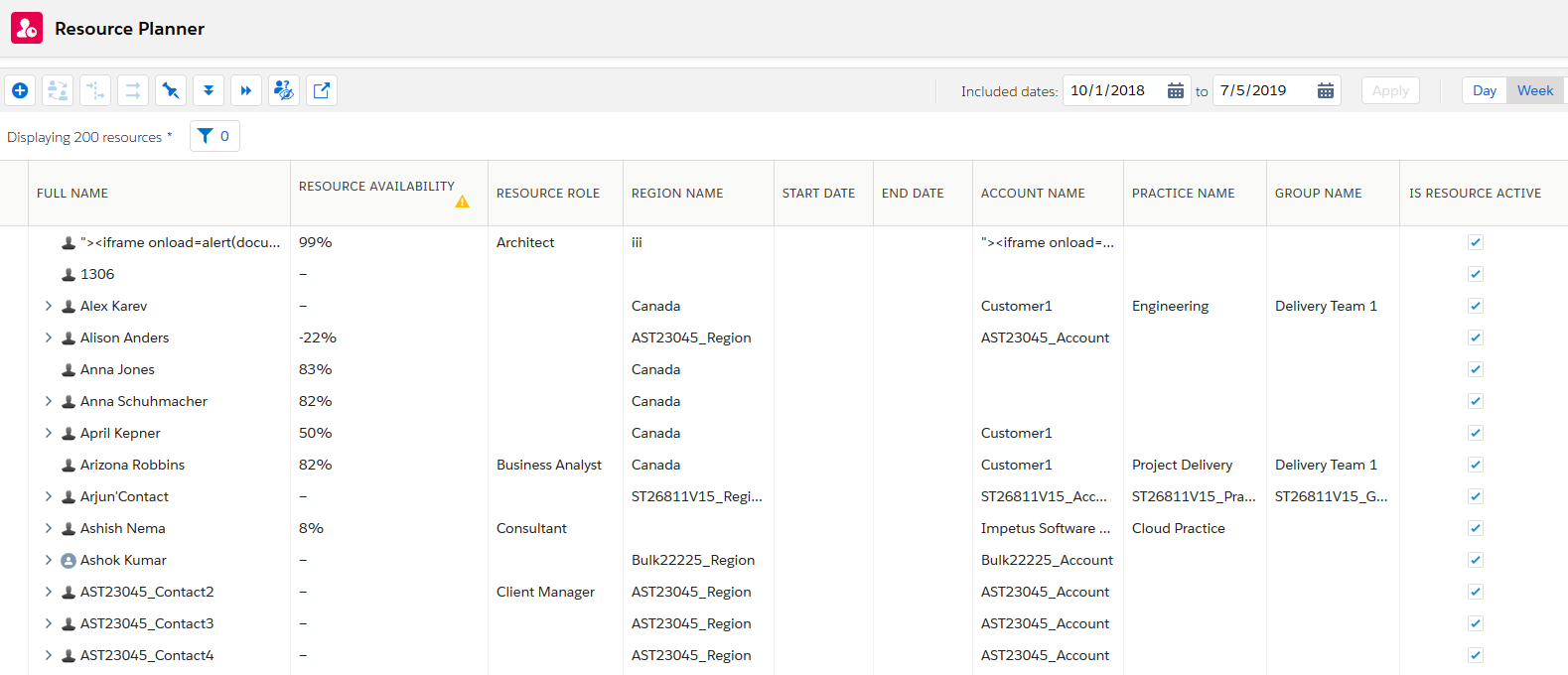
Resource Availability
- The Availability column displays a resource's availability. Availability is derived from a resource's assignment and held resource request hours. Availability displays as either a percentage of the resource's overall availability, or in hours, based on your user preferences.
- When you save changes in Resource Planner that alter resource availability, reload Resource Planner to view the changes in the Availability column. Availability values that changed when you save display as blank until you click Reload.
Incomplete Utilization Indicators
- If resources do not have utilization records for the entire date range that displays, only partial availability displays in the Availability column. A warning indicator
 displays in the header.
 - If a resource does not have any associated utilization records, a hyphen displays in the Availability column instead of Availability data and a warning indicator displays in the header.
- Click on the warning indicator to see a message indicating the error condition.
Controlling Resource Availability Display
- Your administrator can control the display of the Availability column, and how availability displays in the column. For more information, see Resource Availability in Hours and Show Availability Column
- Availability display in the Resource Planner requires Utilization Engine enabled in your organization. For more information, see Utilization Engine.
Example Timeline
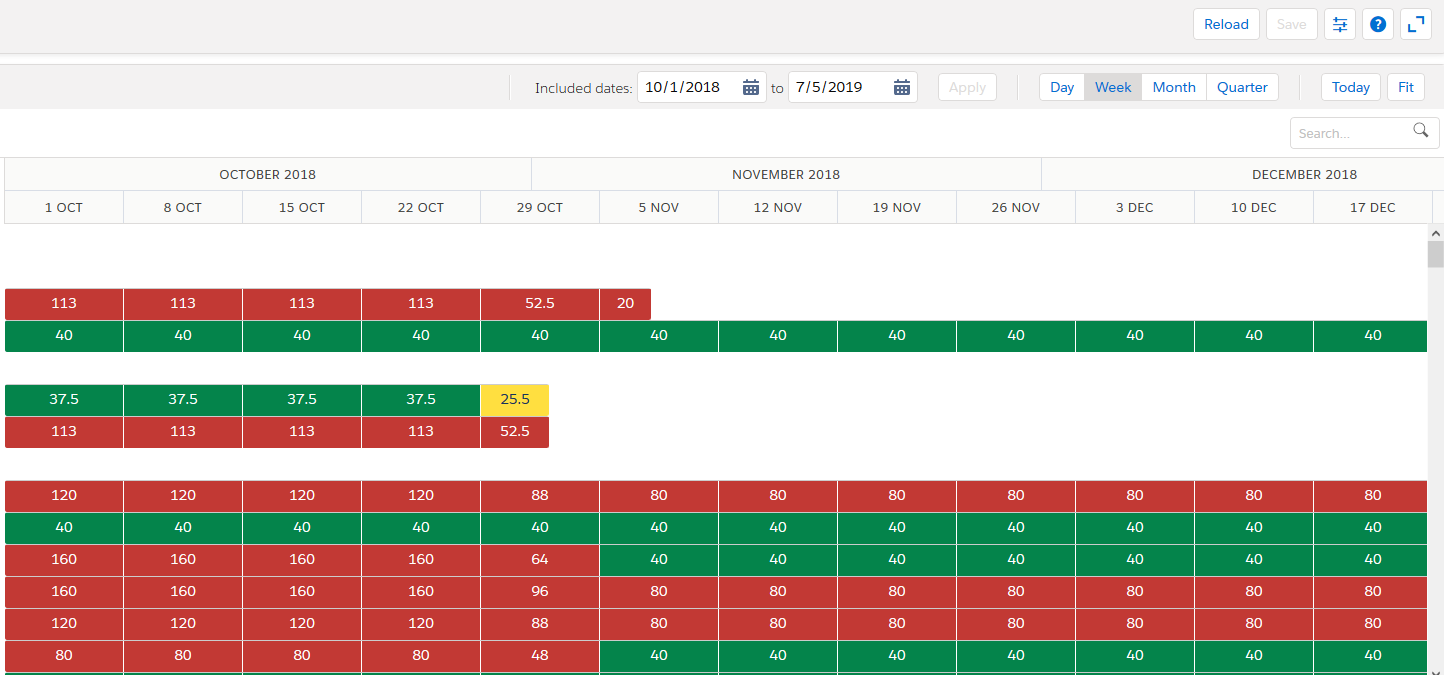
Resource Summary Color Code
The following table shows color coding examples in Day view. You can use color coding statuses to review the allocation levels of resources:
| Bar Color | Status | Description |
|---|---|---|

|
Under allocated resource | Total hours for all assignments and held resource requests are currently zero or lower than the resource's work calendarA calendar that defines the working days, hours and public holidays for a resource, region, practice or group. hours or the threshold defined in the Lower Summary Bar Threshold Limit preference. |

|
Correctly allocated resource | Total hours for all assignments and held resource requests currently match the resource's work calendar hours or are within the thresholds defined in the Lower Summary Bar Threshold Limit and Upper Summary Bar Threshold Limit preferences. |

|
Over allocated resource | Total hours for all assignments and held resource requests currently exceed the resource's work calendar hours or the threshold defined in the Upper Summary Bar Threshold Limit preference. |

|
Non-working days | Indicates non-working days, such as weekends, public holidays, federal holidays, and so on for which the resource has zero assigned hours. These are derived from the resource's work calendar. |

|
Gray assignment bars show the contributing daily, weekly, monthly or quarterly hours for the assignment. |