Rapid Edit Overview
Rapid edit (Inline Editing) enables you to update in the Timeline panel in Resource and Project Planners.
You can edit hours in either of the following modes:
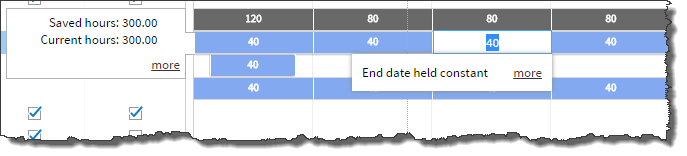
- End date held constant. If you adjust hours, the end date does not change and the total hours is adjusted over the remaining working days.
- Total hours held constant. If you increase the schedule, the end date moves out on the timeline. If you decrease the schedule or more hours are recorded over fewer days, the end date moves in on the timeline. Total hours are evenly distributed over the remaining days in the project.
Edits apply to time periods based on the zoom level. When you edit a cell in the Week zoom level, the change applies to the week (or portion of a week) represented by the cell you edit.
To get started, review the following screenshots and see Editing in the Timeline.
At a Glance
Hover over an area for more information.

Notes on Editing in Total Hours Held Constant Mode
When editing schedules in Total Hours Held Constant mode, schedule changes at the Week, Month, and Quarter zoom levels may appear not to work if you edit the last cell of an assignment.
For example:
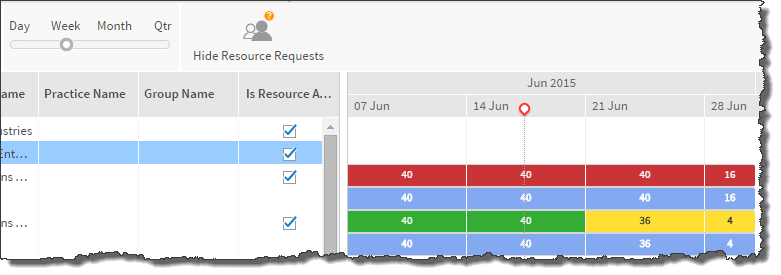
In the above example, the assignment schedule in the last cell has 16 hours.
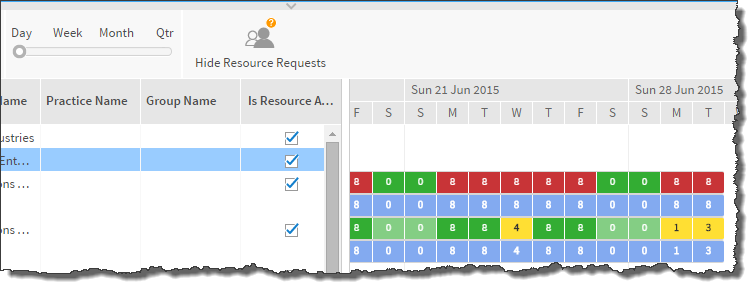
In the above example, this is the assignment schedule in Day zoom. Note the 16 hours in Week zoom level shows as two 8 hour days.
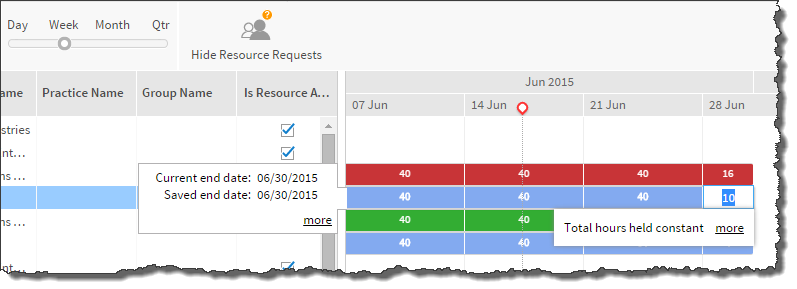
In the above example, the 16 hour schedule is changed to 10 hours in the Week zoom level using Total Hours Held Constant mode.
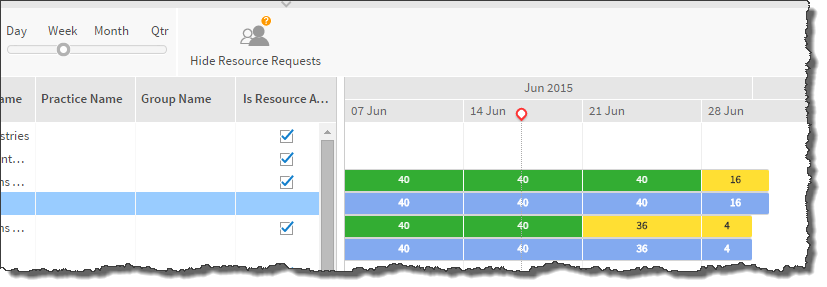
In the above example, after the change to the last cell, the schedule still shows 16 hours.
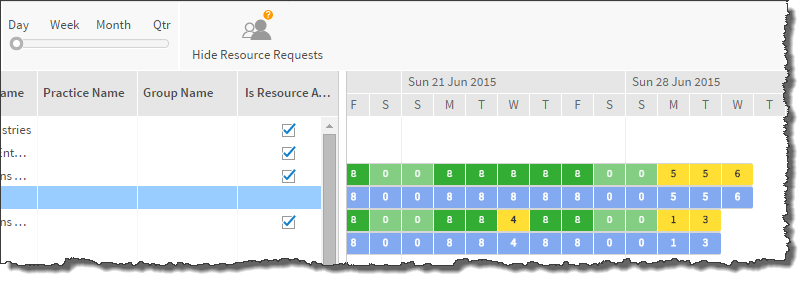
In the above example, viewing in Day zoom level, the ten hours show as two 5 hour days (Monday and Tuesday in the week of Sun 28 2015). The remaining six hours are added to a 6 hour day.
As a best practice, we recommend making changes in the Day zoom level when reducing hours in the last cell of an assignment.