This topic describes how to add the FF Highlight Numbers Panel component to a Lightning Record page. For more information about the overall process, see "Adding Customizable Lightning Components to a Lightning Record Page".
Each Highlight Number Panel displays up to three cards. Each card displays the value contained in a field on the object that the Lightning record page corresponds to. A threshold can then be added to each card, these thresholds determine the color the card will be displayed in.
The color of the card changes when the value of the field is above or below the threshold that has been set. If the value does not match the rules set by the threshold, the card will be displayed in the default color.
Depending on the space available on the Lightning Record page Highlight Number panels will be displayed horizontally or vertically on the page layouts. If less than three cards are added to a Highlight Number panel the cards will be aligned vertically or horizontally from the top or right of the panel depending on it’s orientation.
|
Field |
Value |
Details |
|---|---|---|
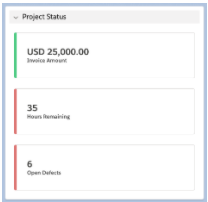
| Highlight Numbers Panel Title | Project Status | Enter a title for this highlight numbers panel. When left blank the default title ‘Summary’ will be displayed. |
| Field 1 | Invoice Amount | Select Field 1 on the object that corresponds to the Lightning Record page that you want to display in the first card on this highlight numbers panel. |
| Field 1 Label (Optional) | Left blank | [Optional] Enter a custom label for Field 1. Leaving this blank displays the default label for the selected field. |
| Field 1 Default Color (Optional) | Grey | Select the default color that the first card on this highlight number panel will be displayed as when the criteria set in the relevant cards field greater than or less than threshold value are not met. |
| Field 1 Greater Than Threshold Value (Optional) | 24,999 | [Optional] Enter a number in Field 1 Greater Than Threshold Value. When the value of the field selected as Field 1 is greater than this number the first card on this highlight number panel will be displayed in the color selected in the Field 1 Greater Than Threshold Color. |
| Field 1 Greater Than Threshold Color (Optional) | Green | [Optional] Select a color the first card is displayed in when the value in Field 1 is greater than the threshold set in Field 1 Greater Than Threshold Value. |
| Field 1 Less Than Threshold Value (Optional) | Left Blank | [Optional] Enter a number in Field 1 Less Than Threshold Value. When the value of the field selected as Field 1 is less than this number, the first card on this highlight number panel will be displayed in the color selected in the Field 1 Greater Than Threshold Color. |
| Field 1 Less Than Threshold Color (Optional) | Left Blank | [Optional] Select a color the first card is displayed in when the value in Field 1 is less than the threshold set in Field 1 Less Than Threshold Value. |
| Field 2 | Hours Remaining | Select Field 2 on the object that corresponds to the Lightning Record page that you want to display in the second card on this highlight numbers panel. |
| Field 2 Label (Optional) | Left Blank | [Optional] Enter a custom label for Field 2. Leaving this blank displays the default label for the selected field. |
| Field 2 Default Color (Optional) | Grey | Select the default color that the second card on this highlight number panel will be displayed as when the criteria set in the relevant cards field greater than or less than threshold value are not met. |
| Field 2 Greater Than Threshold Value (Optional) | Left Blank | [Optional] Enter a number in Field 2 Greater Than Threshold Value. When the value of the field selected as Field 2 is greater than this number the second card on this highlight number panel will be displayed in the color selected in the Field 2 Greater Than Threshold Color. |
| Field 2 Greater Than Threshold Color (Optional) | Left Blank | [Optional] Select a color the second card is displayed in when the value in Field 2 is greater than the threshold set in Field 2 Greater Than Threshold Value. |
| Field 2 Less Than Threshold Value (Optional) | 40 | [Optional] Enter a number in Field 2 Less Than Threshold Value. When the value of the field selected as Field 2 is less than this number, the second card on this highlight number panel will be displayed in the color selected in the Field 2 Less Than Threshold Color. |
| Field 2 Less Than Threshold Color (Optional) | Red | [Optional] Select a color the second card is displayed in when the value in Field 2 is less than the threshold set in Field 2 Less Than Threshold Value. |
| Field 3 | Open Defects | Select Field 3 on the object that corresponds to the Lightning Record page that you want to display in the third card on this highlight numbers panel. |
| Field 3 Label (Optional) | Left Blank | [Optional] Enter a custom label for Field 3. Leaving this blank displays the default label for the selected field. |
| Field 3 Default Color (Optional) | Grey | Select the default color that the third card on this highlight number panel will be displayed as when the criteria set in the relevant cards field greater than or less than threshold value are not met. |
| Field 3 Greater Than Threshold Value (Optional) | 3 | [Optional] Enter a number in Field 3 Greater Than Threshold Value. When the value of the field selected as Field 3 is greater than this number the second card on this highlight number panel will be displayed in the color selected in the Field 3 Greater Than Threshold Color. |
| Field 3 Greater Than Threshold Color (Optional) | Red | [Optional] Select a color the third card is displayed in when the value in Field 3 is greater than the threshold set in Field 3 Greater Than Threshold Value. |
| Field 3 Less Than Threshold Value (Optional) | 2 | [Optional] Enter a number in Field 3 Less Than Threshold Value. When the value of the field selected as Field 3 is less than this number, the third card on this highlight number panel will be displayed in the color selected in the Field 3 Less Than Threshold Color. |
| Field 3 Less Than Threshold Color (Optional) | Green | [Optional] Select a color the third card is displayed in when the value in Field 3 is less than the threshold set in Field 3 Less Than Threshold Value. |
To add a Highlight Number Panel to a Lightning record page:
- Edit the Lightning Record page you want to add the component to. The Lightning App Builder is displayed.
- Click and drag the FF Highlight Numbers Panel component to the relevant part of the Lightning page layout. As you make changes to the component, the Lightning App Builder displays a preview of your updates.
- In the Component Properties pane, complete the following information:
- Enter a title for this highlight numbers panel. When left blank the default title ‘Summary’ will be displayed.
- Select Field 1 on the record that you want to display in the first card on this highlight numbers panel.
- [Optional] Enter a custom label for Field 1. Leaving this blank displays the default label for the selected field.
- Select the default color that the first card on this highlight number panel will be displayed as when the criteria set in the relevant cards field greater than or less than threshold value are not met.
- [Optional] Enter a number in Field 1 Greater Than Threshold Value. When the value of the field selected as Field 1 is greater than this number the first card on this highlight number panel will be displayed in the color selected in the Field 1 Greater Than Threshold Color.
- [Optional] Select a color the first card is displayed in when the value in Field 1 is greater than the threshold set in Field 1 Greater Than Threshold Value
- [Optional] Enter a number in Field 1 Less Than Threshold Value. When the value of the field selected as Field 1 is less than this number, the first card on this highlight number panel will be displayed in the color selected in the Field 1 Greater Than Threshold Color.
- [Optional] Select a color the first card is displayed in when the value in Field 1 is less than the threshold set in Field 1 Less Than Threshold Value.
- [Optional] Complete the following information for the remaining two cards you want to display on this highlight number panel :
- Select the field on the record that you want to display in card 2 or 3 on this highlight numbers panel.
- [Optional] if you selected a field enter a custom label for the field. Leaving this blank displays the default label for the selected field.
- Select the default color that the related card on this highlight number panel will be displayed as when the criteria set in the relevant cards field greater than or less than threshold value are not met.
- [Optional] Enter a number in the relevant Field Greater Than Threshold Value. When the value of the corresponding field is greater than this number the related card will be displayed in the color selected in the corresponding Field Greater Than Threshold Color.
- [Optional] Select a color to display the corresponding card as when the value of the selected field is greater than the threshold set in the corresponding Field Greater Than Threshold Value.
- [Optional] Enter a number in the relevant Field Less Than Threshold Value. When the value of the corresponding field is less than this number the related card will be displayed in the color selected in the corresponding Field Greater Than Threshold Color.
- [Optional] Select a color to display the corresponding card as when the value of the selected field is greater than the threshold set in the corresponding Field Greater Than Threshold Value.
- [Optional] Apply additional filter logic to display the information that meets your specific requirements.
For more information on controlling component visibility, see the Salesforce Help.
- Save the page.
 Example Highlight Number Panel
This section provides an example of FF Highlight Numbers Panel that highlights the status of a Project for a PSA Project Manager.