To override a forecast for a Region, Practice, or Group (RPG):
- Click the Forecasts tab to view the Services Forecasts page.
- Click the Regions, Practices, or Groups category.
- Optionally, select a different entry period
 A time period which is open for forecast entry on the Services Forecasts page. or summary periodA time period, for example, a quarter, over which forecasts are entered for multiple entry periods on the Services Forecasts page..
 - Click Edit.
- If you want to view supporting business information, click the Show Worksheet
 icon on the RPG for which you wish to enter a forecast.
 - Enter an adjusted forecast for the RPG on the "Region Override", "Practice Override", or "Group Override" row (depending on which category you selected). (You can press TAB to move the entry field to the right and SHIFT+TAB to move it to the left.)
- Optionally, enter a comment.
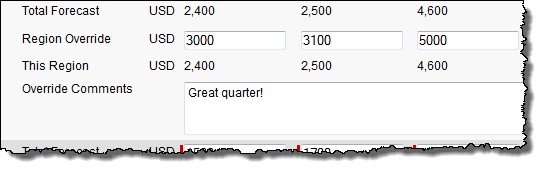
- Click Save.
To override a project forecast:
If you are the Project Manager:
- Click the Forecasts tab to view the Services Forecasts page.
- Click the Projects category to display the Project Hierarchy for the projects that you manage.
- Optionally, select a different entry period or summary period.
- Click Edit.
- If you want to view supporting business information, click the Show Worksheet icon on the project for which you wish to enter a forecast.
- Enter an adjusted forecast for sub-projects on the "Project Override" row. (You can press TAB to move the entry field to the right and SHIFT+TAB to move it to the left.)
- Optionally, enter a comment.
- Click Save.
If you are an RPG owner, or have been granted the Forecast Edit permission:
- Click the Forecasts tab to view the Services Forecasts page.
- Click the Regions, Practices, or Groups category depending on the related RPG for the project.
- Click the Show Projects
 icon to show the Project Forecasts section: this displays the individual project forecasts for your RPG.
 - Click Edit.
- Enter an adjusted project forecastA forecast of services revenue entered by a Project Manager or Project Owner for a project or sub-project. on the "Region Override", "Practice Override", or "Group Override" row (depending on which category you selected). (You can press TAB to move the entry field to the right and SHIFT+TAB to move it to the left.)
- Optionally, enter a comment.
- Click Save.
- To sum up the override values to the total forecast for your RPG, click Copy to Forecast.
The total and contributing forecast rows on the RPG Hierarchy update automatically to include the summed-up project forecast.