A forecast curve allows you to divide anticipated revenue over a series of sequences of time in a larger time period (such as a quarter). You can define forecast curves on the following:
The forecast curve is made up of a number of forecast curve details, or points on the curve, each covering a certain number of days (Period) and indicating the percentage of the total forecast amount to apply during that period (Percent Burndown).
A forecast curve is basically a delivery schedule you can build, based on how your business typically performs.
For information on creating forecast curves, see Managing Curves for Forecast Calculations.
Forecast curve data is stored in the Forecast Curve and Forecast Curve Detail objects. For more information, see:
A forecast curve is set on a project that spans Quarter 2 (Q2). The forecast curve is configured as follows:
The length of the curve is the sum of the Lag and the Periods set on the curve details = 60 days.
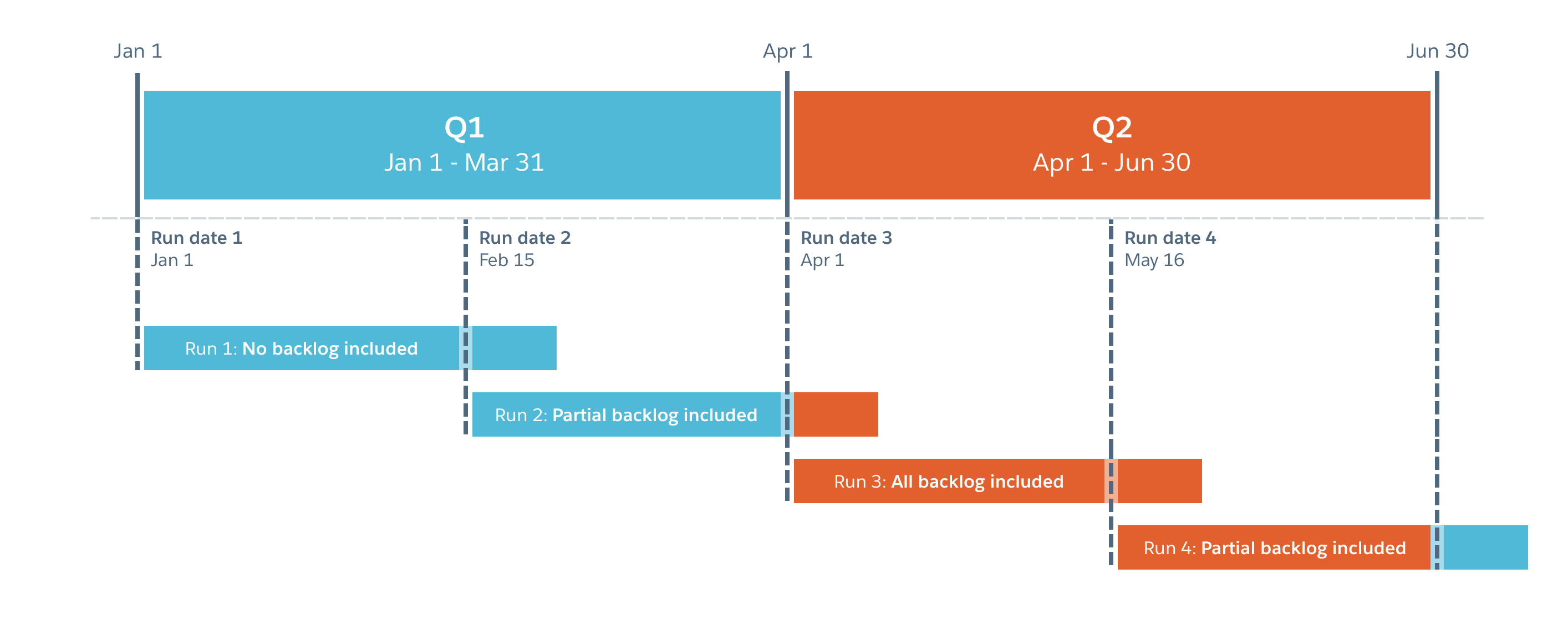
The Q2 forecast calculation is run four times: on January 1, February 15, April 1, and May 16.
January 1 + 60 days = March 1
Unscheduled backlog forecast = 0%
As January 1 does not fall within the Q2 time period, no unscheduled backlog is included in the forecast calculation.
Feb 15 + 60 days = April 16
Unscheduled backlog forecast = 6%
As 16 days of the curve fall within the Q2 time period, only part of the unscheduled backlog is included in the forecast calculation.
April 1 + 60 days = May 30
Unscheduled backlog forecast = 100%
As both the forecast run date and the curve end date fall within the Q2 time period, all of the unscheduled backlog is included in the forecast calculation.
May 16 + 60 days = July 15
Unscheduled backlog forecast = 40%
As 45 days of the curve fall within the Q2 time period, only part of the unscheduled backlog is included in the forecast calculation.
The following diagram shows what is included in each run:
We take the weighted opportunity value and then project the delivery based on a curve that you apply to one of the following:
Weighted value of opportunity (opportunity value * probability percentage) = $10,000
Projected close date = January 1.
The business typically delivers a project over the following duration:
The forecast curve reflects this delivery pattern:
Related Concepts
Enhanced Services Forecasting Overview
About Services Revenue Forecast Overrides
How Forecast Calculations Work
Related Tasks
Managing Curves for Forecast Calculations
Configuring Forecast Calculations
Overriding Services Revenue Forecast Values
Scheduling Forecast Calculations
Viewing a Services Revenue Forecast
Committing a Services Revenue Forecast
Performing Enhanced Services Forecasting Upgrade Tasks Summer 2018
Updating Enhanced Services Forecasting Data Spring 2019
Reference
Forecast Calculation Log Fields
Forecast Detail Category Fields
Forecast Setup Category Fields