The Team Schedule Planner helps your organization use a teamA group of resources who work together during a regularly-scheduled daily shift. to work on a project with a coordinated team scheduleThe hours of a day members of a team are scheduled to work.. Each team memberA resource assigned to a team. is assigned to a shiftA repeating hourly assignment worked across days in a week. or time slotA work shift in a team schedule. over a specified period in a work day.
Using the Team Schedule Planner, you can create team schedules, schedule templates, and assign team members to schedules.
On the Team Schedule Planner, you can:
You can access the Team Schedule Planner page from the PSE Links sidebar on the Home tab, with the Open Team Scheduler button on the Manage Team page, or from the Team tab.
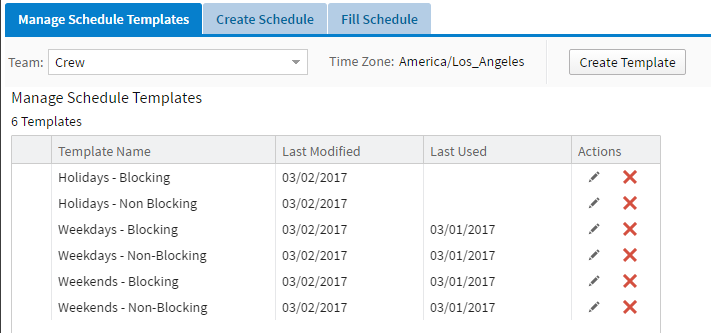
From the Manage Schedule Templates tab, you can view a list of templates, the last modified date for each template, and the last date each template was used. From this tab, you can also:
For more information, see Managing Team Schedule Templates.
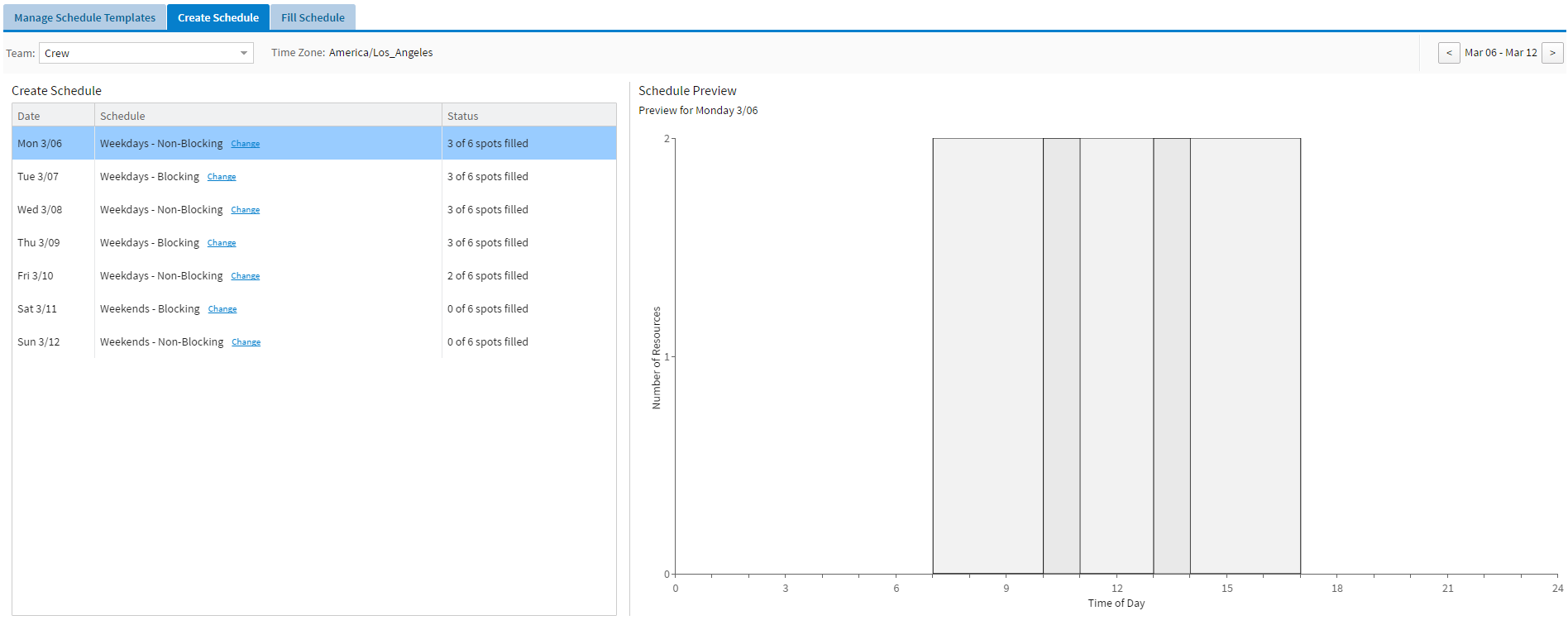
From the Create Schedule tab, you can create team schedules, see an overview of the number of spots filled for each daily schedule, and see a graphic preview of the schedule associated with the selected template.
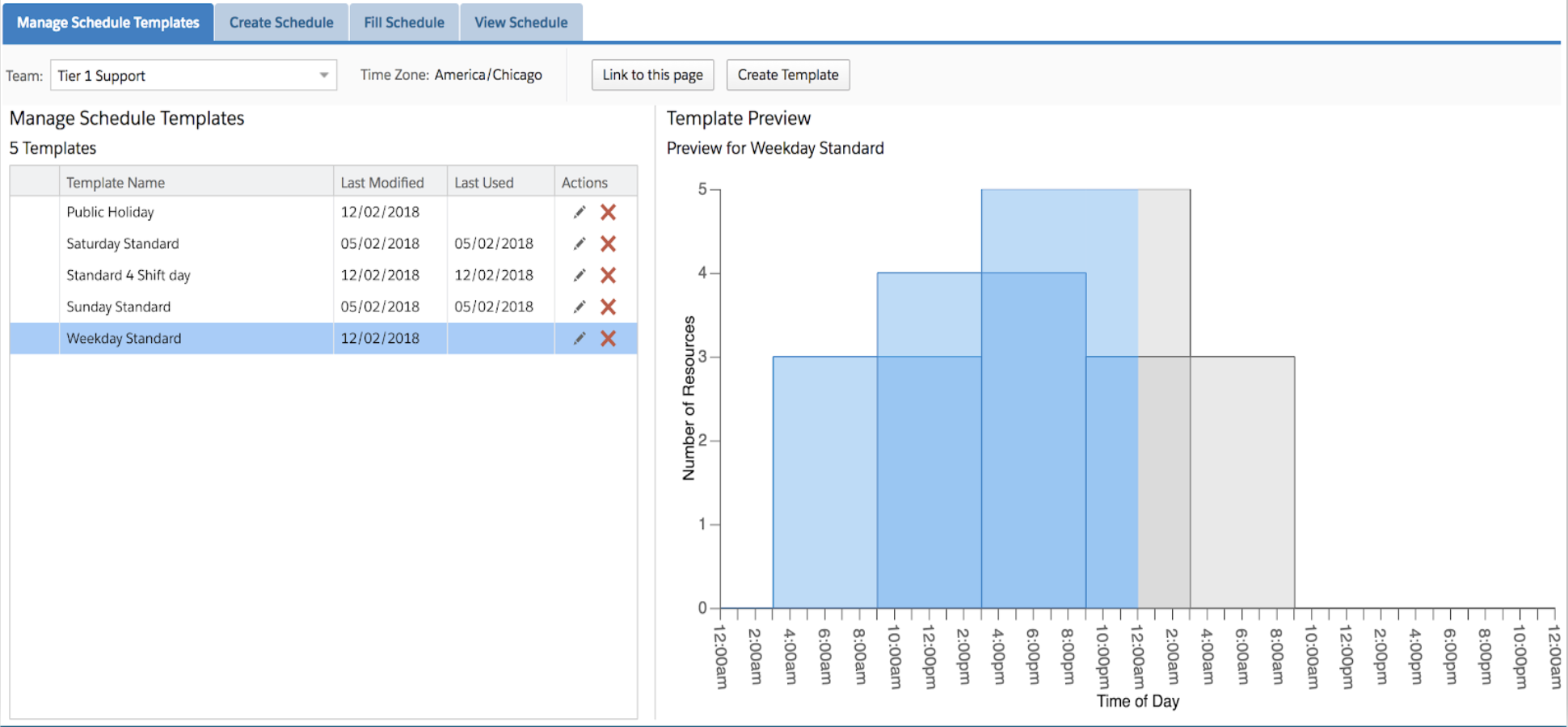
Schedules that cross the midnight boundary display as two separate colors in their respective preview charts; blue and grey for before and after midnight respectively. For example:
For more information on creating and editing team schedules, see:
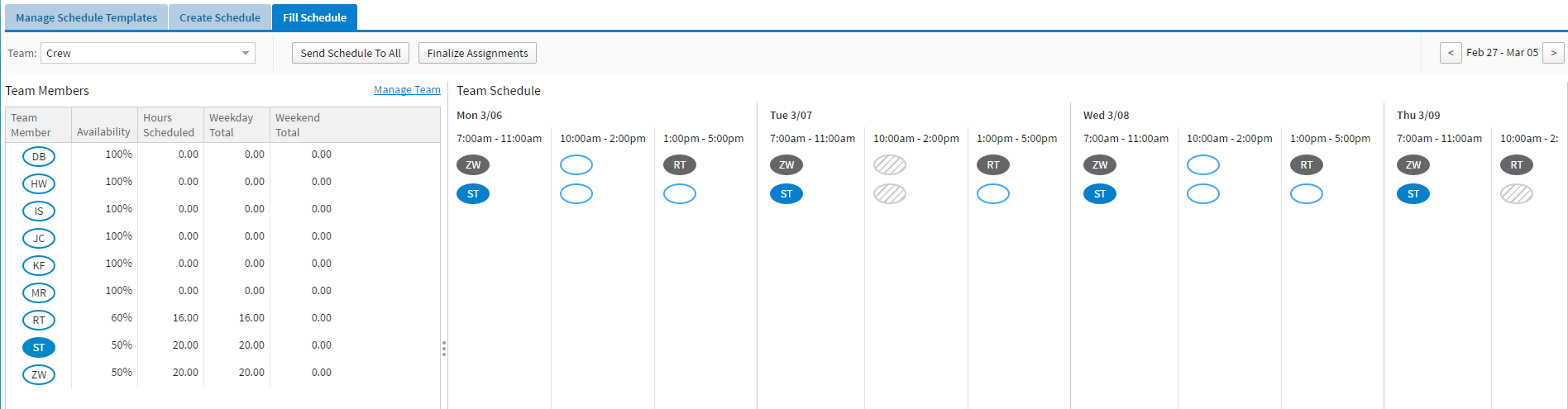
From the Fill Schedule tab, you can review information on both individual team members and the team schedule.
In the Team Members pane, you can view by team member:
From the Fill Schedule tab, you can assign team members to time slots on a team schedule. For more information, see Staffing a Team Schedule.
From the View Schedule tab, you can view daily shifts and resources assigned to those shifts.
From this tab, each shift is divided into a card that displays:
You can use the date selector to change the day view for the shift and, if enabled, team members can swap shifts with assigned resources. For more information on swapping shifts, see Swapping Team Schedules.
If you have edit permissions, you can create notes to display in the tab. Click the Notes icon
to add notes for the day's schedule then click Apply Changes to add your notes.
To view existing notes, click the Notes icon
.
Team schedule time slot types define the types of shifts your team uses for daily work schedules. Time slot types are broken down into:
For each of those types of shifts, you can specify whether a shift is considered blocking or non-blocking. Blocking shifts indicate a time schedule exclusive to other commitments. Blocking shifts show visual indications in Team Schedule Planner if another shift overlaps. Non-blocking shifts have no visual indications of schedule conflicts.
For more information, see Managing Team Schedule Time Slot Types.
Related Concepts
About Team Permission Controls
Viewing Team Schedule Assignments in Planners
Related Tasks
Adding and Viewing Notes in Team Schedule Planner
Linking to a Team Schedule Planner Page
Managing Team Schedule Time Slot Types
Managing Team Schedule Templates
Sending Team Schedule Notifications
Reference
Team Schedule Planner Buttons and Indicators
Team Schedule Template Slot Fields