 SECTIONS
Resourcing Overview
Resourcing enables you to allocate resources and view the resources already allocated to accounts, success plans, objectives, and playbooks.
The resourcing tab has a different title depending on the record page you are accessing it from, as follows:
- On account record pages, the resourcing tab has the title Customer Success Owners
- On success plan record pages, the resourcing tab has the title Success Plan Owner
- On objective record pages, the resourcing tab has the title Objective Owner
- On playbook record pages, the resourcing tab has the title Playbook Owner
On the record's resourcing tab, the Allocated Resources table displays the name and role of resources that are already allocated. By default, resources that are allocated as owners of success plans, objectives, or playbooks automatically display in the Allocated Resources table. You can replace the resources allocated to success plans, objectives, and playbooks, or allocate more resources to accounts, using the Allocate button.

Allocating Resources
The Available Resources list displays all active resources that are available to allocate to records. The listed resources are ranked based on the following criteria, in order:
- Role: Resources with the role of customer success manager are ranked the highest.
- Success plans: Resources with the lowest number of active success plans are ranked higher.
- Playbooks: Resources with the lowest number of active playbooks are ranked higher.
Example
The image Available Resource Rankings details the following:
- A customer success manager with one success plan ranking higher than a solution consultant with no accounts or success plans
- A resource with no accounts ranking higher than a resource with one account
- A resource with one account and no success plans ranking higher than a resource with one account and one success plan
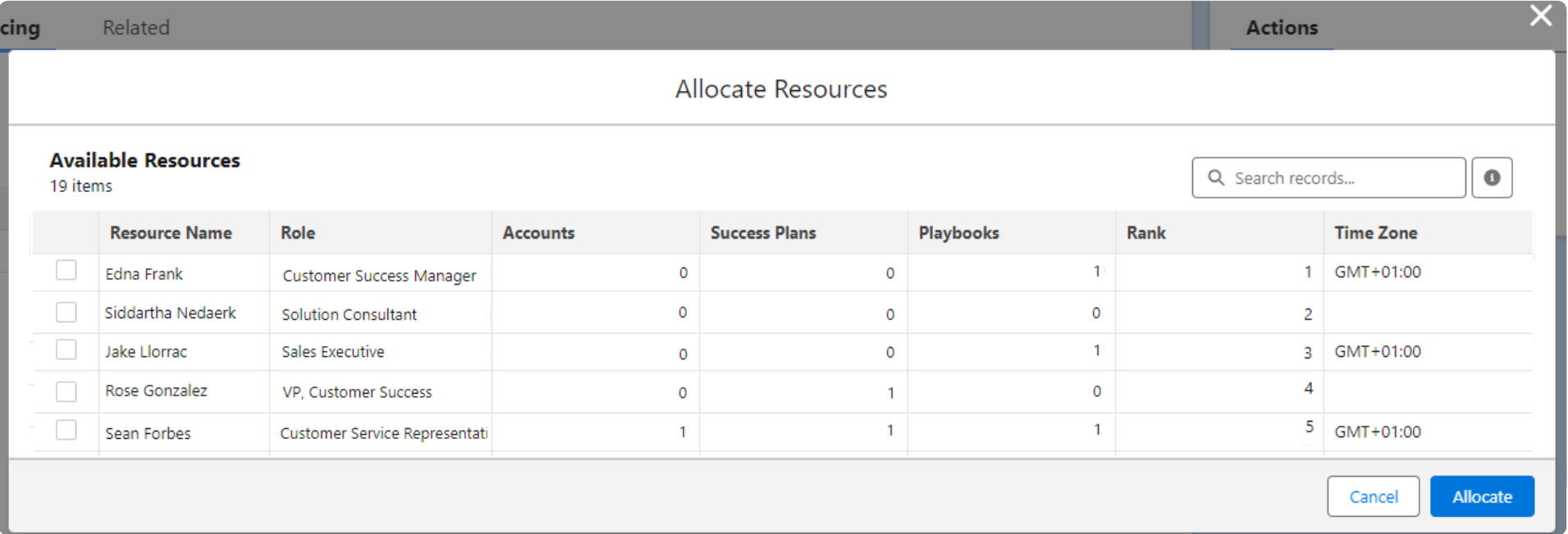
You can search for individual resources to allocate, or filter the available resources by resource name, resource pool, region, or role.
Filtering and Ranking Resources Using Skills
You can create:
- CS resource skills to determine the skills and competencies a resource has
- Playbook skills to determine the skills and competencies a resource must have to be suitable for allocation to the playbook
You can associate skills with resources and playbooks from the skills tab or related list of the resource's or playbook's record page. For more information, see CS Skills Overview, Creating CS Resource Skills, and Creating Playbook Skills.
When allocating resources to playbooks that have skills associated with them:
- You can also filter resources by the skills that they have in common with the playbook, and specify if resources must match or exceed the skill's ratings. For more information, see CS Skills Overview.
- The ranking criteria of the resources in the Available Resources table is updated to:
- Role: Resources with the role of customer success manager are ranked the highest.
- Playbook skills: Resources that match with the highest number of playbook skills selected in the Filters panel are ranked the highest.
- Success plans: Resources with the lowest number of active success plans are ranked higher.
- Playbooks: Resources with the lowest number of active playbooks are ranked higher.
Success Plan, Objective, and Playbook Owners
On success plans, objectives, and playbooks, the resource allocated to a record is also the owner of that record. Therefore, as you can only allocate one resource to success plans, objectives, and playbooks, if you choose to replace the currently allocated resource, the newly allocated resource will also automatically become the owner of that record.
Resource Pooling
Resource pooling enables you to create groups of resources that share the same attribute, such as the role of customer success manager and region. You can create resource pools and define the roles and regions that determine which CS Cloud resources can be added to the pool. You cannot create a resource pool with a similar combination of roles and regions that already exist. To bypass this validation, you need to check Enable Pools with the Same Role and Region field in the CS Cloud Settings. The Resource Pool Management tab of resource pool records displays the details of resources already added to the pool in the Resource Pool Members table.
The Role field is mandatory for a Resource Pool, while the Region field is optional. Whether or not a region is associated with the resource pool record determines which CS Cloud resources are displayed in the Available Resources table on the Add Resource Pool Members window. The scenarios are as follows:
- If the Region field on the resource pool record page is associated with a specific region, only the resources matching the specified role and region are displayed in the Available Resources table.
- If no region is associated with a resource pool, all resources matching only the specified role with any region are displayed in the Available Resources table.
You can add pool members manually using any of the methods listed in Adding Resource Pool Members and delete them using any of the methods listed in Deleting Resource Pool Members. You cannot update the roles associated with a resource pool after you have allocated members to it.
Auto-Allocating Resources to Playbooks
Auto-allocation enables you to automatically allocate the most suitable resource pool member to a playbook record. For more information, see Auto-Allocating Resources to Playbooks.
Removing Resources
You can remove resources from the Allocated Resources table so that the resource is no longer associated with the record.
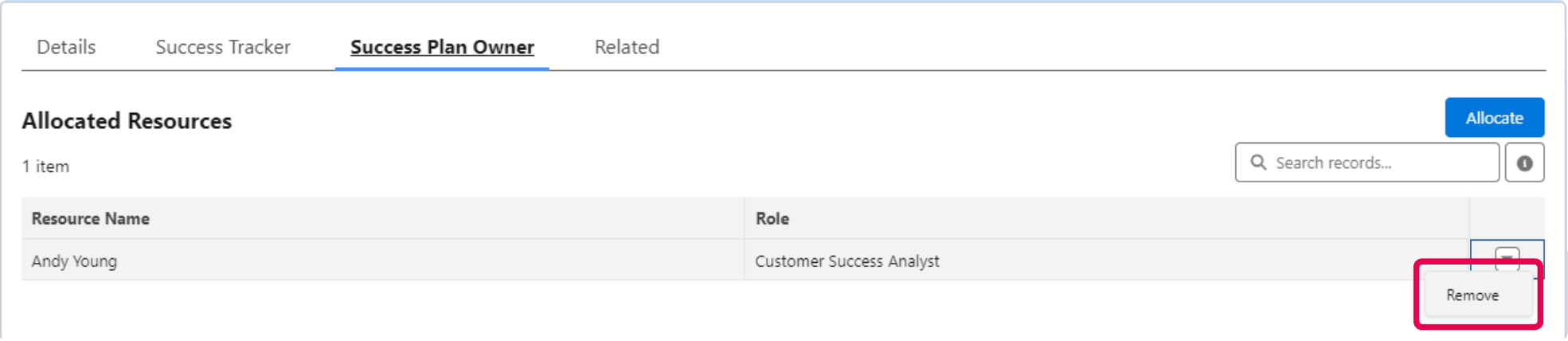
If required, the removed resource can be reallocated to the record, either manually from the Available Resources table in the Allocate Resources window, or automatically using auto-allocation.