% Complete Recognition Method for Revenue Forecasting
The % Complete revenue recognition method relates to fixed fee projects or milestones recognized on percentage of completion. A revenue forecast record is created for each monthly time period to store the values for these objects for use in Revenue Forecasting.
Revenue Forecasting automatically caps the amount at 100% to prevent over-forecasting if the number of hours logged and scheduled on a milestone or project exceeds the number of planned hours, estimated hours at completion, or expected hours.
Revenue Forecasting uses Est Vs Actuals (EVA) records to calculate the following in a given month:
- Actual percentage of completion.
- Scheduled and unscheduled percentage of completion.
 Integration with Revenue Management
If you are using the integration between PSA and Revenue Management, records looking up to a template in Revenue Management of type % Complete that fall within the monthly time periods spanning the project duration are included.
If you run Revenue Forecasting after revenue has been recognized, the revenue is moved from the Revenue Pending Recognition field into the Revenue Recognized to Date field on the revenue forecast record for the monthly time period that corresponds to the date the revenue was recognized in Revenue Management.
No Integration with Revenue Management
If you are not using the integration between PSA and Revenue Management, Revenue Forecasting looks at the Recognition Method field on a record, which must have a value of % Complete.
Example for % Complete Recognition Method
An active fixed fee project has the following attributes:
- Start Date = March 12.
- End Date = May 23.
- Bookings = $18,000.
- Total Hours = 120 (taken from field specified in Total Hours Field on Project picklist in Revenue Forecast Setup).
- Recognition Method = % Complete.
- The monthly time period records for February and March have the Closed for Forecasting checkbox selected.
There is one assignment with the following attributes:
- Assigned to resource: Sally Jones.
- Bill Rate = $0.
- Start Date = March 12.
- End Date = May 23.
- Total scheduled hours = 100.
-
Schedule or schedule exceptions are:
- 40 hours in March.
- 40 hours in April.
- 20 hours in May.
The following diagram gives details of the dates, time periods, and records included in the forecast.
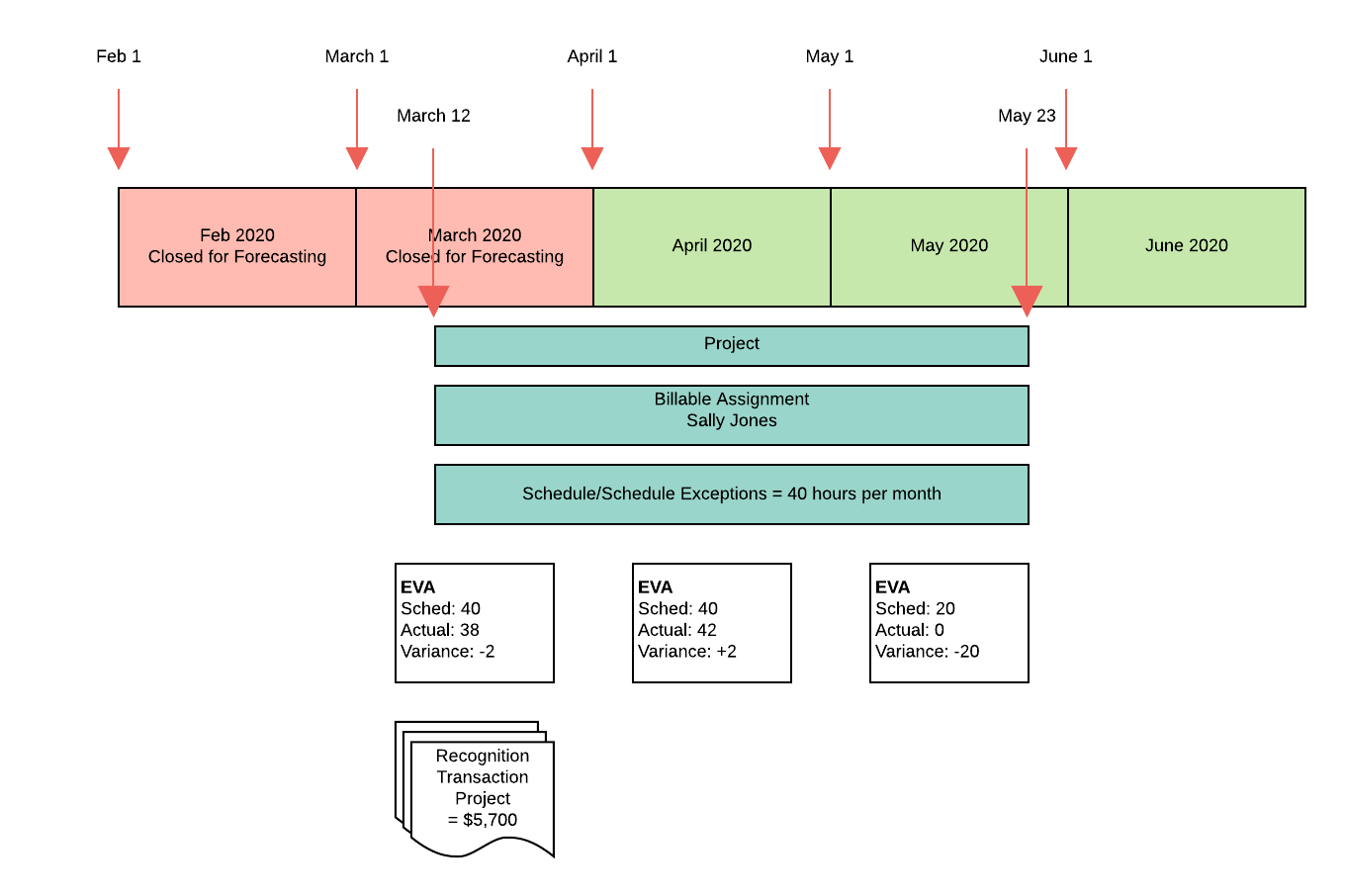
When Revenue Forecasting is run on the project, the following fields are updated on the revenue forecast records relating to each monthly time period.
| Field | $ Revenue | ||
|---|---|---|---|
| March | April | May | |
| Revenue Recognized To Date | $5,700 | $0 | $0 |
| Revenue Pending Recognition | $0 | $6,300 | $0 |
| Scheduled Revenue | $0 | $0 | $3,000 |
| Unscheduled Revenue | $0 | $0 | $3,000 |
The following revenue forecast type records are created.
| $ Value in Revenue Forecasting Fields | ||||
|---|---|---|---|---|
| Revenue Source | Revenue Forecast Type | March | April | May |
| % Complete: Project | Actual |
Revenue Recognized To Date: $5,700 Revenue Pending Recognition: $0 Scheduled Revenue: $0 Unscheduled Revenue: $0 |
Revenue Recognized To Date: $0 Revenue Pending Recognition: $6,300 Scheduled Revenue: $0 Unscheduled Revenue: $0 |
Revenue Recognized To Date: $0 Revenue Pending Recognition: $0 Scheduled Revenue: $0 Unscheduled Revenue: $0 |
| % Complete: Project | Forecast |
Revenue Recognized To Date: $0 Revenue Pending Recognition: $0 Scheduled Revenue: $0 Unscheduled Revenue: $0 |
Revenue Recognized To Date: $0 Revenue Pending Recognition: $0 Scheduled Revenue: $0 Unscheduled Revenue: $0 |
Revenue Recognized To Date: $0 Revenue Pending Recognition: $0 Scheduled Revenue: $3,000 Unscheduled Revenue: $3,000 |
Notes
In March, only 38 of the 40 scheduled hours were submitted and approved in timecards. The amount in Revenue Pending Recognition is (38 / 120) * 18,000 = $5,700. As the full amount is recognized, no revenue rolls into April when the March time period is closed.
The scheduled revenue for the remaining two hours in March is ignored when the period is closed.
In April, Sally Jones works two hours more than scheduled to make up for March. 120 hours is still the total hours for the project, so in Revenue Pending Recognition there is (42 / 120) * 18,000 = $6,300. As the number of timecard hours exceeds the number of scheduled hours, there is no scheduled revenue in April.
In May, there are 20 scheduled hours, which means the amount in Scheduled Revenue is (20 / 120) * 18,000 = $3,000.
The whole project has only 100 hours out of the total planned 120 hours in timecards or schedules. The remaining 20 hours corresponds to $3,000 of revenue, which goes into the first period that does not contain any actual or scheduled hours, or the last period in the project if there are no periods without any actual or scheduled hours. In this example, the $3,000 goes into Unscheduled Revenue in May.
Project and Milestone Calculations
A revenue forecast record is created for each month for projects and milestones whose recognition method is set as % Complete. This record stores the values from EVAs, unheld resource requests, and timecards for use in Revenue Forecasting.
Values from EVAs and timecards are rolled up into revenue forecast type records for the corresponding project that have "% Complete: Project" or "% Complete: Milestone" in the Revenue Source field. If Include Unheld RRs in % Complete is selected on the active revenue forecast setup record, values from unheld resource requests contribute to revenue forecast type records that have the following in the Revenue Source field:
- "% Complete: Project Unheld Resource Request"
- "% Complete: Milestone Unheld Resource Request"
Projects and milestones are considered to be closed or complete when you run a revenue forecast in the following circumstances:
-
Either of the following is true for a project:
- The value in the Stage field is "Completed".
- The Closed for Time Entry checkbox is selected.
- An actual date is recorded for a milestone.
If a record is closed or complete, only actual hours are included and the revenue is split between the actual hours. Any scheduled or unscheduled hours are discounted. Actual hours are used as the total hours instead of the value in the Estimated Hours at Completion field for projects or the Planned Hours field for milestones.
When you run a revenue forecast for a project or milestone, the following calculation is used to work out the total revenue forecast percentage for a given month:
Revenue Pending Recognition percentage + Scheduled Revenue percentage + Unscheduled Revenue percentage from unheld resource requests
Est Vs Actuals
EVA records that meet the following criteria are included:
- The Type field in the Time Period lookup has a value of Month.
- For EVA records generated for assignments, the assignment record in the Assignment lookup has the Billable checkbox deselected, or has the Billable checkbox selected with a value of zero or null in the Bill Rate field and the Use Dated Resource Bill Rates checkbox is deselected. The assignment record also looks up to the corresponding milestone, if applicable.
-
For EVA records generated for held resource requests:
- The held resource request has the Use Dated Resource Bill Rates checkbox deselected.
- The value in the Resource Request Hours field is greater than zero.
- The value in the Resource Request Bill Rate field is null or zero.
- The held resource request does not have an associated assignment.
- The records look up to the corresponding milestone, if applicable.
See Resource Requests (Unheld) for information about unheld resource requests.
If there are no timecard, assignment, held resource request, or unheld resource request hours within a project's or milestone's duration, the value in the Bookings field on a project or the Milestone Amount field on a milestone is spread evenly over the project's or milestone's duration.
The duration of a project is calculated using the Start Date and End Date fields on the project record.
The duration of a milestone is calculated using the following fields on the milestone record.
| Field | Notes |
|---|---|
| Start Date | If the date in this field falls before the project start date, after the project end date, or if this field does not contain a value, the date in the Start Date field on the project record is used. |
| Actual Date |
If the date in this field falls before the project start date or after the project end date, the date in the End Date field on the project record is used. If this field does not contain a value, the date in the Target Date field on the milestone record is used. |
| Target Date | If the date in this field falls before the project start date or after the project end date, the date in the End Date field on the project record is used. |
Scheduled Hours
For assignments, Revenue Forecasting uses the following calculation to work out the number of scheduled hours:
Estimated Hours - Actual Hours
For held resource requests, the value in the Resource Request Hours field on an EVA record represents the number of scheduled hours.
Unscheduled Hours
For projects, the following calculation is used to work out the number of unscheduled hours:
Estimated Hours at Completion - (Actual Hours on timecards + Scheduled Hours on resource requests + Scheduled Hours on assignments + Unscheduled Hours on unheld resource requests)
For milestones, the value in the Planned Hours field is used as the total hours, so the following calculation is used to work out the number of unscheduled hours:
Planned Hours - (Actual Hours on timecards + Scheduled Hours on resource requests + Scheduled Hours on assignments + Unscheduled Hours on unheld resource requests)
Scheduled Revenue
For projects, the following calculation is used to work out the Scheduled Revenue percentage for a given month:
(Total Scheduled Hours / Estimated Hours at Completion) * 100
The following calculation is used to work out the Scheduled Revenue amount:
Scheduled Revenue percentage * Bookings
For milestones, the following calculation is used to work out the Scheduled Revenue percentage for a given month:
(Total Scheduled Hours / Planned Hours) * 100
The following calculation is used to work out the Scheduled Revenue amount:
Scheduled Revenue percentage * Milestone Amount
Resource Requests (Unheld)
Unheld resource requests are only included in % Complete forecast calculations if the Include Unheld RRs in % Complete checkbox is selected on the active revenue forecast setup record.
Resource request records that meet the following criteria are included:
- The resource request is unheld.
- The resource request has the Use Dated Resource Bill Rates checkbox deselected.
- The bill rate is zero.
- The resource request looks up to the corresponding milestone, if applicable.
Records with No Associated Schedule
For unheld resource requests without an associated schedule, the requested hours are split equally across the days that are within the resource request's date range (based on the resource request start and end dates). Any requested hours from outside the project date range are lost.
For example, if a project or milestone spans February and March and the resource request covers January to March, the requested hours are split equally across the days that are within the resource request's date range. Any requested hours from January are lost because they fall outside the project or milestone date range.
Records with an Associated Schedule
For unheld resource requests with an associated schedule, resource request records that meet the following criteria are included in revenue forecast calculations:
- The Preferred Schedule field looks up to a schedule showing hours.
- The bill rate is zero.
The schedule determines how many hours there are within each monthly time period.
Timecards
Timecard records that meet the following criteria are included:
- The Assignment lookup is populated with a value.
- The value in the Status field matches one of the values displayed in the Timecard Statuses field on the Est Vs Actuals custom setting.
- The Approved checkbox is selected.
- The Billable checkbox is deselected or the bill rate on the assignment associated with the timecard is zero or null, and also the assignment's Use Dated Resource Bill Rates checkbox is deselected.
- The timecard record looks up to the corresponding milestone, if applicable.
To work out the Revenue Pending Recognition percentage, the following calculation is used:
For projects (Sum of approved timecard hours / Estimated Hours at Completion) * 100
For milestones (Sum of approved timecard hours / Planned Hours) * 100
To work out the Revenue Pending Recognition amount, the Revenue Pending Recognition percentage is multiplied by:
- The value in the Bookings field on the project record.
- The value in the Milestone Amount field on the milestone record.
For more information about the fields on project and milestone records, see Project Fields and Milestone Fields.
Calculating with Closed Periods
This section explains how the revenue forecasts are calculated when relevant records are marked as % Complete and there are closed time periods within the project or milestone duration.
Integration with Revenue Management
If you are using the integration between PSA and Revenue Management and you run a revenue forecast on an open project, actual revenue is treated in the following way when there are closed monthly time periods:
- Closed period, full amount recognized: The full amount is displayed in the Revenue Recognized to Date field on the revenue forecast record for the closed time period.
- Closed period, partial amount recognized: The part that has been recognized is displayed in the Revenue Recognized to Date field on the revenue forecast record for the closed time period. The remainder is displayed in the Revenue Pending Recognition field on the revenue forecast record for the next open time period.
- No open time period within project or milestone duration: A revenue forecast record is created for the next available open time period and the revenue is displayed in the Revenue Pending Recognition field on this record. If the revenue is subsequently recognized and you run Revenue Forecasting again, the revenue is moved into the Revenue Recognized to Date field on the revenue forecast record for the time period that corresponds to the date the revenue was recognized in Revenue Management.
If a project is open and there are closed periods containing scheduled or unscheduled hours within the project or milestone duration:
-
Closed period: Any scheduled hours in the closed period become unscheduled. The revenue from the unscheduled hours is spread evenly between open monthly time periods that do not contain any scheduled or actual revenue, with the exception of empty months that fall between months containing scheduled or actual hours. If all monthly time periods in the project or milestone duration contain scheduled or actual revenue, the revenue that has become unscheduled is moved into:
- The final monthly time period within the project duration for projects.
- The monthly time period that contains the target date or, if populated, the actual date for milestones. If the milestone target date or actual date falls outside the project duration, the project end date is used instead.
- All periods closed in project or milestone duration: Any scheduled or unscheduled revenue is excluded.
No Integration with Revenue Management
If you are not using the integration between PSA and Revenue Management and you run a revenue forecast, the revenue is treated in the following way when a project is open or a milestone is not complete and there are closed periods within the project or milestone duration:
- Closed period: Any scheduled hours from EVAs or unscheduled hours from unheld RRs are excluded from the calculation.
- All periods closed in project or milestone duration: Any scheduled or unscheduled hours and revenue are excluded.
Tracking Values in Forecast Calculations
When a monthly time period is closed, any revenue that was ready for recognition but was not fulfilled moves from the Scheduled Revenue and Unscheduled Revenue fields into the Unfulfilled Scheduled Revenue and Unfulfilled Unscheduled Revenue fields on revenue forecast and revenue forecast type records. This enables you to track where any values not included in a forecast calculation have gone.
When a monthly time period is closed, revenue also moves from the Revenue Pending Recognition field to the Unfulfilled Pending Revenue field in either of the following circumstances:
- If you are using the integration between PSA and Revenue Management.
- Retain Pending Revenue in Closed Periods is selected on the active revenue forecast setup record.
The following fields also help you to track values in forecast calculations:
- Pending Revenue Carried Over contains pending revenue that was originally intended to be included in forecast calculations for a given monthly time period but was carried over into the next open monthly time period because the original month was closed for forecasting.
- Pending Revenue Before Carryover contains a value for pending revenue for a given monthly time period that excludes any pending revenue carried over from a closed monthly time period.
For more information about these fields, see Revenue Forecast Fields and Revenue Forecast Type Fields.
Including Unscheduled Hours
PSA identifies a month as having scheduled hours if it contains at least one Est Vs Actuals (EVA) record.
If there are any unscheduled hours on a project or milestone and there are months that do not contain any scheduled or actual hours, the revenue from the unscheduled hours is spread evenly across those months, with the exception of empty months that fall between months containing scheduled or actual hours.
If there are unscheduled hours on a project or milestone and all relevant months contain scheduled or actual hours, the revenue from the unscheduled hours is added to:
- The final month within the project duration for projects.
- The month that contains the target date or, if populated, the actual date for milestones.
If the milestone target date or, if populated, the milestone actual date falls outside the project duration, the project end date is used instead.
On projects, the following calculation is used to work out the number of unscheduled hours:
Estimated Hours at Completion - (Actual Hours on timecards + Scheduled Hours on resource requests + Scheduled Hours on assignments + Unscheduled Hours on unheld resource requests)
On milestones, the following calculation is used to work out the number of unscheduled hours:
Planned Hours - (Actual Hours on timecards + Scheduled Hours on resource requests + Scheduled Hours on assignments + Unscheduled Hours on unheld resource requests)
Unscheduled hours are displayed in the Unscheduled Hours field on revenue forecast and revenue forecast type records. The value in the Unscheduled Hours field moves into the Unfulfilled Unscheduled Hours field when unscheduled hours are not included in the forecast calculations for a given monthly time period for one of the following reasons:
- The time period was closed for forecasting.
- The associated project was closed.
- The associated milestone was completed.
This enables you to track any hours that were planned but never took place in the forecasted time period.
Calculating Accurate Mid Month Forecasts
On the active revenue forecast setup record, you can select Use Mid Month Forecast Calculations and specify a cutoff day. Revenue Forecasting then excludes the following from calculations for the current monthly time period and any previous months:
- Past scheduled hours that are not covered by timecards.
- Past unscheduled hours from unheld resource requests.
This means:
- Scheduled and unscheduled work that never took place is excluded.
- Forecast calculations exclude such scheduled work on a weekly basis instead of on a monthly basis, aligning with the typical timecard submission cadence.
This setting brings the following benefits:
- There is a smoother progression through the month, with no sudden change in forecasting values at month end.
- You have a more accurate representation of the remaining planned work and the completed planned work for the current month. Forecasts run for future months are not affected.
The following rules apply:
- If an assignment uses a daily bill rate, a day is treated as a working day if the number of hours is greater than 0. Hours to days rules are not currently respected.
- If an assignment uses a daily bill rate and there are actual hours from timecards for that day, Revenue Forecasting includes the day in the forecast as an actual day.
-
Revenue Forecasting excludes the following hours if they fall on or before the actuals cutoff day you select:
- Scheduled hours.
- Unscheduled hours from unheld resource requests.
- If the actual hours recorded for a day exceed the scheduled hours, Revenue Forecasting excludes all scheduled revenue for that day.
- For unheld resource requests with no schedule, Revenue Forecasting excludes revenue from days before the selected actuals cutoff day. All scheduled and unscheduled hours or revenue before the cutoff day are excluded.
- The values for any excluded hours or revenue are displayed in the fields for unfulfilled pending, scheduled, and unscheduled hours and revenue, as appropriate, on revenue forecast and revenue forecast type records.
For more information, see Configuring Mid Month Forecasting Calculations (Deliverable and % Complete).
Example for Accurate Mid Month Forecasting
An active fixed fee project has the following attributes:
- Start Date = December 4.
- End Date = December 29.
- Bookings = $20,000.
- Planned Hours = 160.
- Recognition method is set to % Complete.
There is one assignment with the following attributes:
- Assigned to resource: Mateo Smith.
- Bill Rate = $0 per hour.
- Start Date = December 4.
- End Date = December 29.
- Total scheduled hours = 160.
-
Schedule or schedule exceptions are:
- 40 hours in Week 1.
- 40 hours in Week 2.
- 40 hours in Week 3.
- 40 hours in Week 4.
Today's date is Tuesday, December 12.
The following timecards have been approved for Mateo Smith:
- 10 hours in Week 1.
- 30 hours in Week 2.
The following diagram shows what happens when you select the following on the active revenue forecast setup record:
- Use Mid Month Forecast Calculations.
- Exclude Actuals After Cutoff Day (this means Revenue Forecasting excludes scheduled hours that fall after Sunday, 10 December).
- Sunday from the Actuals Cutoff Day field.
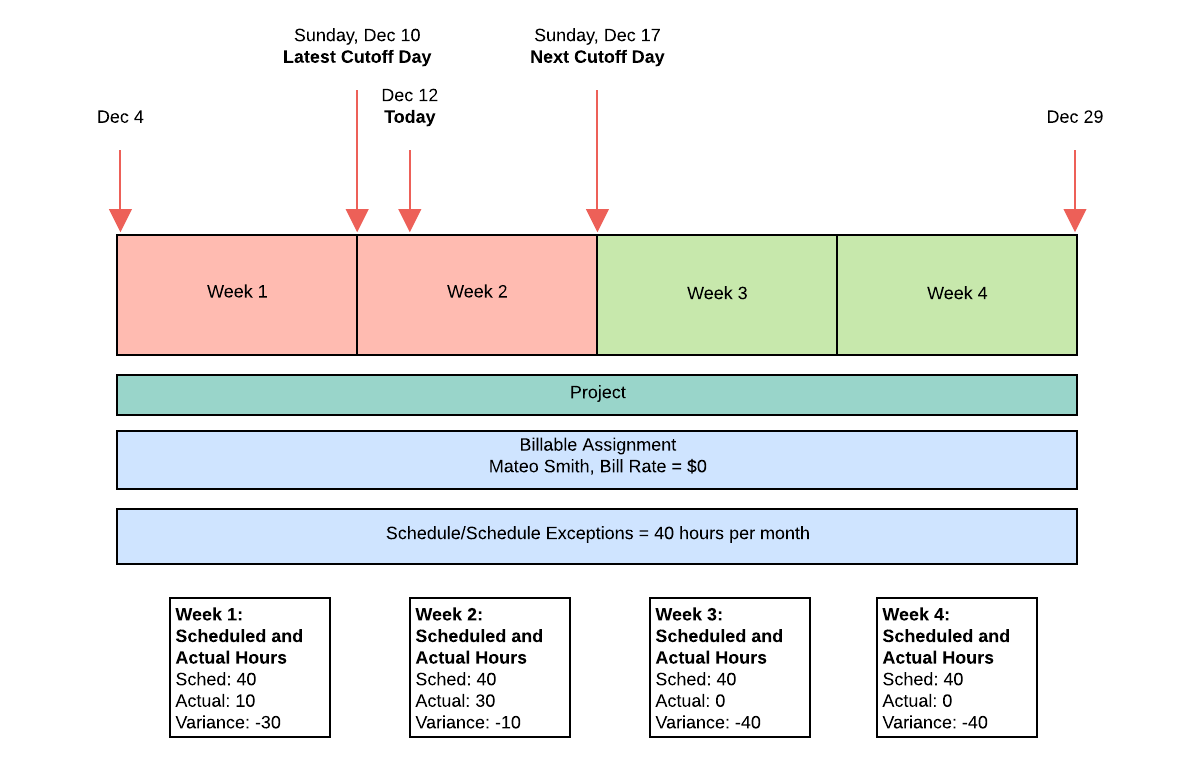
The following table shows the difference between selecting and deselecting Use Mid Month Forecast Calculations.
| Fields | Use Mid Month Forecast Calculations | |
|---|---|---|
| Selected | Deselected | |
| Revenue Recognized To Date | $0 | $0 |
| Revenue Pending Recognition | $1,250 | $1,250 |
| Scheduled Revenue | $15,000 | $18,750 |
| Unscheduled Revenue | $3,750 | $0 |
Notes
Unused scheduled hours that are not reflected by timecards up to the latest cutoff day (Sunday, December 10) are removed from the scheduled revenue. This means 30 hours from Week 1 are no longer included in the forecast.
Unused scheduled hours and unscheduled hours from unheld resource requests in current and future weeks are still forecast until the next cutoff day of Sunday, December 17 is reached.
The 10 unused hours in the current week will be removed from the forecast if not covered by suitable timecards by the end of the day on Sunday, December 17.
Using Weighting
Weighting enables you to forecast based on cost rate or other attribute so that the monetary value of each hour on a project or milestone differs depending on the resource the hours are assigned to. For example, if the cost rate amount for resource A is twice the cost rate amount for resource B, an hour of resource A's time accounts for twice as much revenue as an hour of resource B's time.
You can enable this feature from the active revenue forecast setup record and can specify the fields on the Assignment and Resource Request objects that determine the relative value of the hours.
Each actual and scheduled hour a resource has on a project is multiplied by their own weighting, and then by the value per hour:
(Hours * Weighting) * Value per hour
If unscheduled hours from unheld resource requests are included in a % Complete forecast, the weighting field specified in the Unheld RR % Complete Weighting Field on the revenue forecast setup record is applied in the same way.
For more information, see Applying Weighting (% Complete).
Example for Weighting:
An active fixed fee project has the following attributes:
- Start Date = April 12.
- End Date = June 23.
- Bookings = $20,000 (total project revenue).
- Total Hours = 240 (taken from field specified in Total Hours Field on Project picklist in Revenue Forecast Setup).
- Recognition Method = % Complete.
- The monthly time period records for March and April have the Closed for Forecasting checkbox selected.
There are two assignments on the project.
Assignment A has the following attributes:
- Assigned to resource: Sally Jones.
- Bill Rate = $0.
- Cost Rate Amount = $100.
- Start Date = April 12.
- End Date = June 23.
- Total scheduled hours = 120.
-
Schedule, including schedule exceptions:
- 40 hours in April.
- 40 hours in May.
- 40 hours in June.
Assignment B has the following attributes:
- Assigned to resource: John Smith.
- Bill Rate = $0.
- Cost Rate Amount = $150.
- Start Date = April 12.
- End Date = June 23.
- Total scheduled hours = 120.
-
Schedule, including schedule exceptions:
- 40 hours in April.
- 40 hours in May.
- 40 hours in June.
The following diagram gives details of the dates, time periods, and records included in the forecast.
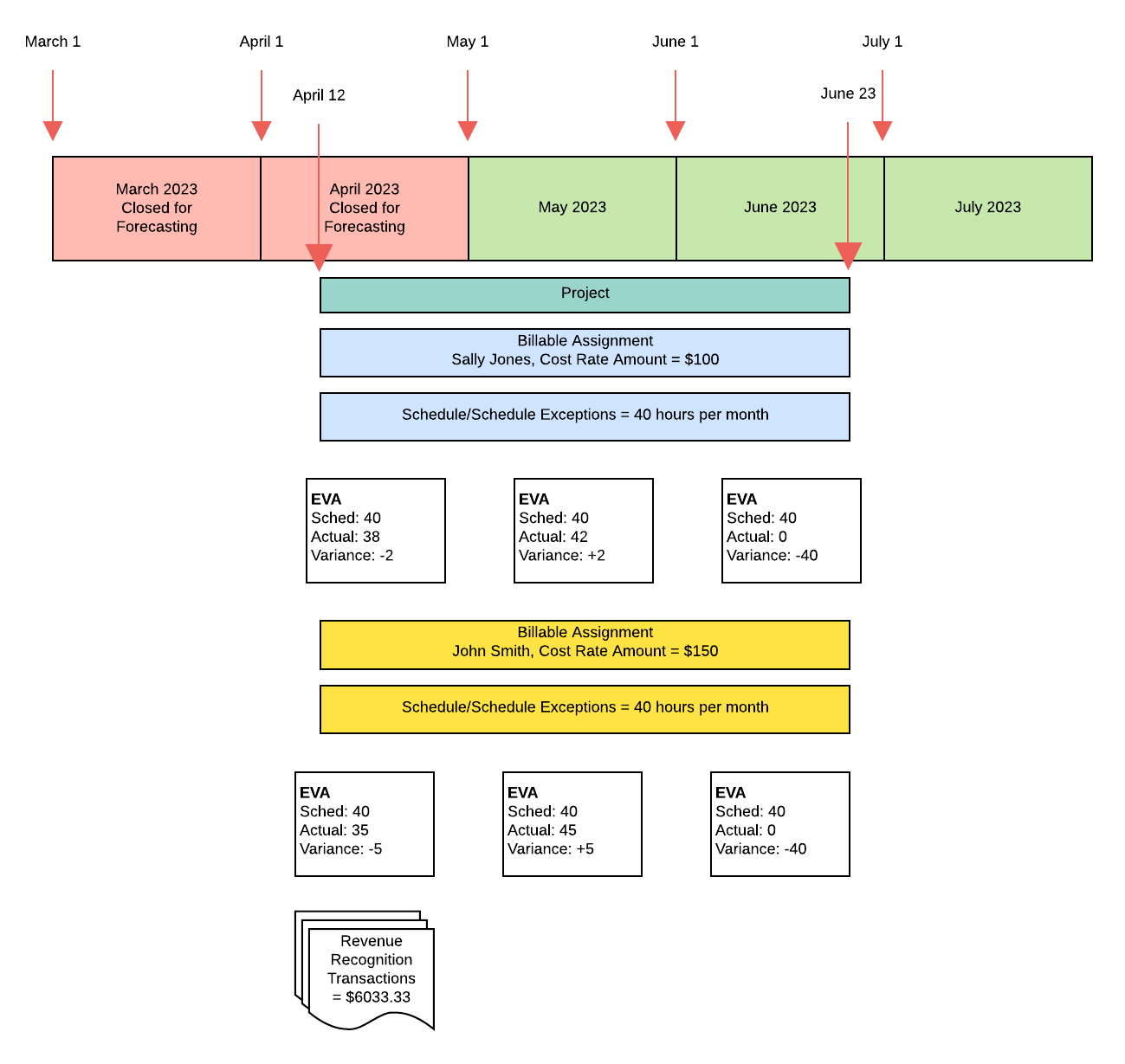
When Revenue Forecasting is run on the project, the following fields are updated on the revenue forecast records relating to each monthly time period.
| Field | $ Revenue | ||
|---|---|---|---|
| April | May | June | |
| Revenue Recognized To Date | $6,033.33 | $0 | $0 |
| Revenue Pending Recognition | $0 | $7,300 | $0 |
| Scheduled Revenue | $0 | $0 | $6,666.67 |
| Unscheduled Revenue | $0 | $0 | $0 |
The following revenue forecast type records are created.
| $ Value in Revenue Forecasting Fields | ||||
|---|---|---|---|---|
| Revenue Source | Revenue Forecast Type | April | May | June |
| % Complete: Project | Actual |
Revenue Recognized To Date: $6,033.33 Revenue Pending Recognition: $0 Scheduled Revenue: $0 Unscheduled Revenue: $0 |
Revenue Recognized To Date: $0 Revenue Pending Recognition: $7,300 Scheduled Revenue: $0 Unscheduled Revenue: $0 |
Revenue Recognized To Date: $0 Revenue Pending Recognition: $0 Scheduled Revenue: $0 Unscheduled Revenue: $0 |
| % Complete: Project | Forecast |
Revenue Recognized To Date: $0 Revenue Pending Recognition: $0 Scheduled Revenue: $0 Unscheduled Revenue: $0 |
Revenue Recognized To Date: $0 Revenue Pending Recognition: $0 Scheduled Revenue: $0 Unscheduled Revenue: $0 |
Revenue Recognized To Date: $0 Revenue Pending Recognition: $0 Scheduled Revenue: $6,666.67 Unscheduled Revenue: $0 |
Notes
In a weighted % Complete calculation, each resource's scheduled hours are multiplied by their weighting, such as cost rate, to give a total value for their effort on the project. The sum of this value for all resources gives us a total value of the effort on the project as a whole.
Sally Jones has 120 hours on the project at a cost rate of $100
Value of effort on the project: 120*100 = $12,000
John Smith has 120 hours on the project at a cost rate of $150
Value of effort on the project: 120*150 = $18,000
Total revenue, such as Bookings: $20,000
Total value of the effort on the project: 12,000+18,000 = $30,000
The total revenue of the project is divided by the value of the total effort to give a value per hour on the project: 20,000 / 30,000 = $0.6666667
Each actual and scheduled hour a resource has on the project is multiplied by their own weighting, and then by the value per hour to give the revenue forecast (Hours * Weighting) * Value per hour.
For April:
- Sally Jones worked 38 hours with a cost rate of $100, which is (38*100)*0.6666667 = $2,533.30
- John Smith worked 35 hours with a cost rate of $150, which is (35*150)*0.6666667 = $3,500.00
As April is closed for forecasting, there is no scheduled revenue and the total revenue forecast for April is 2,533.33 + 3,500.00 = $6,033.33.
For May:
- Sally Jones worked 42 hours (42*100)*0.6666667 = $2,800
- John Smith worked 45 hours (45*150)*0.6666667 = $4,500
The total revenue forecast for May is 2,800.00 + 4,500.00 = $7,300. As the actual hours exceed the scheduled hours, there is no scheduled revenue in May.
For June:
- Sally Jones has 40 hours scheduled (40*100)*0.6666667 = $2666.67
- John Smith has 40 hours scheduled (40*150)*0.6666667 = $4,000.00