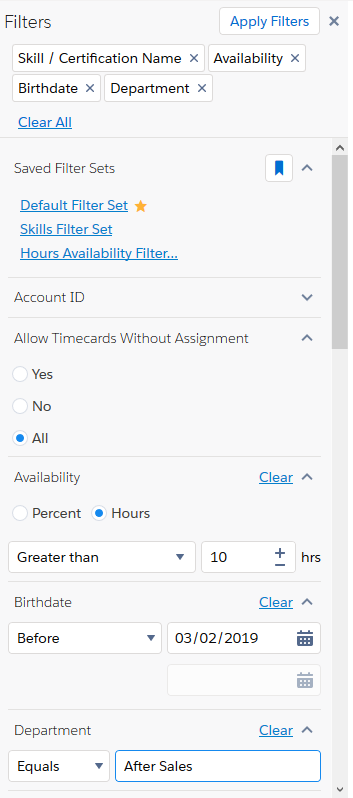
You can use filters in the Filters panel to find resources or projects. Results are returned that match the search criteria you set. For example, projects with a particular status in a specific region, or resources with a certain skill in a certain group. You can add multiple filter attributes to particular individual filters. For example, region 1, region 2, and region 3 filter attributes in the Region filter.
Click the image to expand it.
Any individual filters that are currently selected display in the Filter Summary of the Filters panel. For example, Account ID, Department, or Email. You can remove individual filters from the Filter Summary and this action clears the corresponding filter. You can Clear All filters in the Filter Summary and this action resets the Filters panel. If there are no selected filters, Clear All does not display in the Filter Summary.
Click the image to expand it.

You can create and save multiple groups of filters.
Click the image to expand it.
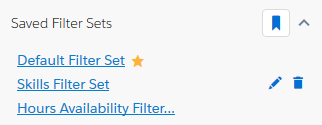
For more information, see Managing Filter Sets.
You can use the following types of filters to find resources or projects:
|
Values |
Examples | ||
|---|---|---|---|
| Availability | Filters on a resource’s availability using a numeric value and a logical numerical operator value. Results are calculated by the Utilization Engine. Enter a unit, a numerical operator, and a positive value. |
|
A resource is available for 10 hours. |
| Boolean | Filters on a field and returns a true or false result, or all results. Selecting All resets the filter and criteria is not applied. |
|
Is Resource Active field on a resource's Contact record. |
| Date | Filters on a date value field. If you select the Between operator, any record with a value between the start and end dates are returned. |
|
The Start Date field on the Project record. |
| Numerical |
Filters on a numeric value field using a logical operator value. Enter a positive value in the box, or use the + Plus and - Minus buttons. |
|
The value of the Planned Hours field is greater than 20 on the Project record, or the Hierarchy Depth equals 2. |
| Picklist | Filters on a lookup field to another object. Includes a “include sub-levels” option if the lookup is to a region, practice or group. | The Region field on the Project record. | |
| Skill |
Filters on a resource’s skills and skill rating. You can include multiple skills with logical operators for each individual skill rating. |
|
See Combining Filters. |
| String |
Filters on a string value field using a logical operator value, for example, the name of a project or a department. Multiple attributes, such as filtering on more than one name in the Full Name filter, must be comma-separated. For example: Bob Riley, Mary Jones, Francis Smith. |
|
The Department field on the resource's Contact record. |
You can combine multiple filters using And logic. Within each filter, you can combine different filter criteria you have selected using Or logic.
| Type | Description | Example |
|---|---|---|
| And | Combine multiple filters by using an And relationship between each one. | Region 1 And Project Manager Role And Account 1 |
| Or | Define Or relationships between available attributes in an individual filter. | Region 1 Or Region 2 Or Region 3 |
You can define Or/And relationships between skills in the Skill/Certification Name filter.
To add a single skill, click Add Skill. If you want to add more skills that have an Or relationship between each other, click Add Skill again. For example, if you are searching for resources with either Javascript or Python programming skills. Clicking Add Skill to include additional skills always defines an Or relationship between skills within a Skill Group.
Click the image to expand it.

Skill groups contain skills that have an Or relationship between them. However, if you add more than one skill group, an And relationship is created between the different skill groups.
Example
If you search for resources whose skills include Javascript Or Python And C# programming languages:
Click the image to expand it.

See the following to get started with filtering:
| Description | Link |
|---|---|
| Filter resources and projects. | Filtering Resources or Projects |
| View a list of filter criteria based on fields on the project. | Project Planner Filters |
| View a list of filter criteria based on fields on the resource. | Resource Planner Filters |
| Create custom columns and fields for filter criteria. | Customizing Columns And Filters |
| Customize Resource and project Planner settings and preferences. | Resource and Project Planners Settings and Preferences |
Related Concepts
Resource Planner and Project Planner Overview
Edit Assignments Panel Overview
Working with the Edit Assignments Panel
Related Tasks
Customizing Tooltips in the Resource and Project Planners
Customizing Columns And Filters
Filtering Resources or Projects
Reference