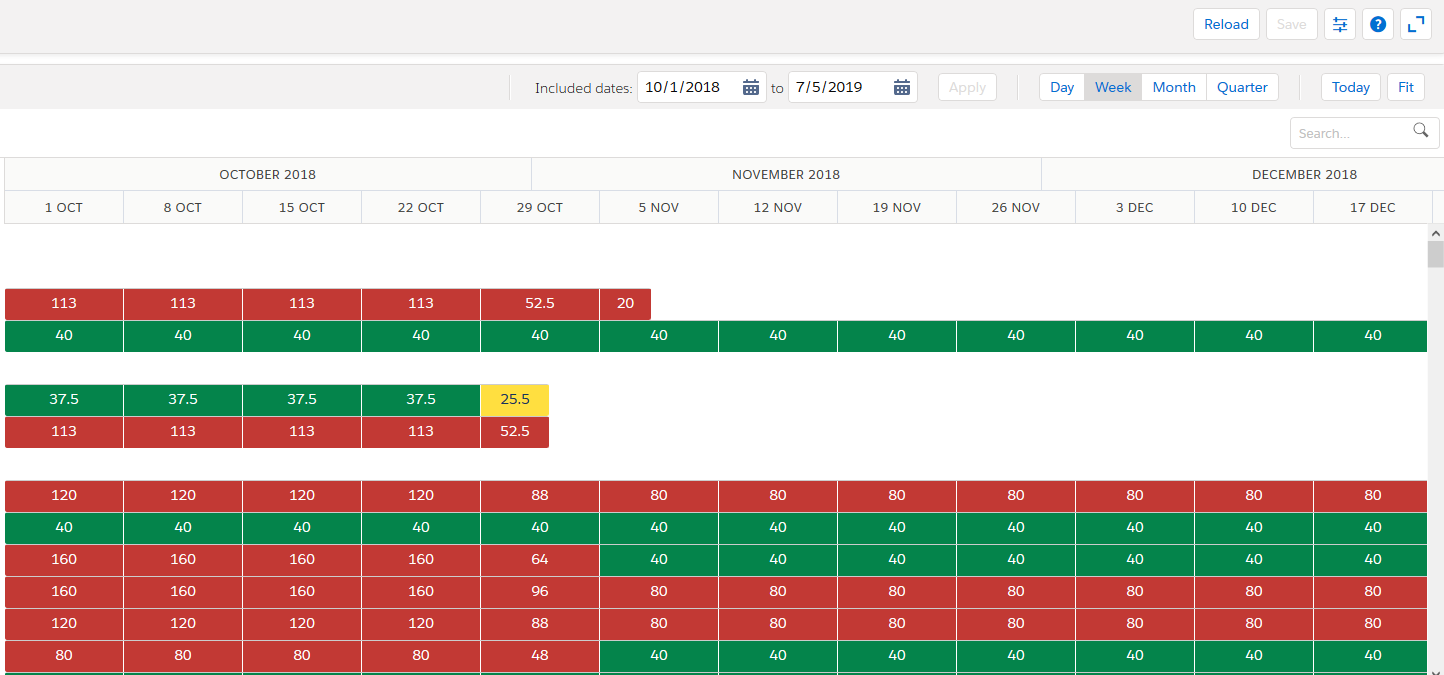
The timeline gives you a visual overview of assignmentConnection between a resource and a project. duration and scheduled hours, as well as total hours rolled up to the parent projectA collection of activities and related items to be managed over a defined time range, such as timecards, expenses, milestones and budgets. or resourceA contact that works on a project.. The timeline also shows held resource requestsA resource request with a status of “held” and a schedule. The Resource field is populated., including duration and requested hours. Additionally, the Resource Planner indicates whether resources are under or over allocated using a color code.
Click the image below to see the timeline.
You can:
To adjust the view of the Timeline to expand into the Resource or Project list, use your mouse cursor to drag the divider to the left or right.
You can review the allocation level of a resource using color coding:
| Bar Color | Status | Description |
|---|---|---|

|
Resource is under allocated | Total hours for all assignments and held resource requests are currently zero or lower than the resource's work calendarA calendar that defines the working days, hours and public holidays for a resource, region, practice or group. hours or the threshold defined in the Lower Summary Bar Threshold Limit preference. |

|
Resource is correctly allocated | Total hours for all assignments and held resource requests currently match the resource's work calendar hours or are within the thresholds defined in the Lower Summary Bar Threshold Limit and Upper Summary Bar Threshold Limit preferences. |

|
Resource is over allocated | Total hours for all assignments and held resource requests currently exceed the resource's work calendar hours or the threshold defined in the Upper Summary Bar Threshold Limit preference. |

|
Indicates non-working days, such as weekends, public holidays federal holidays, and so on for which the resource has zero assigned hours. These are derived from the resource's work calendar. | |

|
Gray assignment bars show the contributing daily, weekly, monthly or quarterly hours for the assignment. |
The color gray is used for assignment bars in both the Resource Planner and Project Planner. The other colors only apply to the Resource Planner, and are used to indicate, on the resource summary bar, the allocation level of the individual resource.
You can use the Resource Planner and Project Planner to work through "what if" scenarios. Therefore, changes made to assignment bars on the timeline are not saved on their native objects unless you click Save.
Related Concepts
Resource Planner and Project Planner Overview
Edit Assignments Panel Overview
Working with the Edit Assignments Panel
Related Tasks
Zooming and Fitting on the Timeline
Dragging and Stretching Assignments or Resource Requests in the Timeline
Customizing Tooltips in the Resource and Project Planners
Customizing Columns And Filters
Reference
Resource and Project Planners Settings and Preferences