To create a contract using the enhanced Contract Detail page:
Click New or Create New Contract on the Contracts tab.
Enter a Contract Name.
Enter the Account to which this contract belongs.
Enter the Start Date for the contract.
Enter the End Date for the contract if there is one.
Enter the date of the first bill.
[Optional] Enter a Renewal Reminder date.
Enter the Currency of the contract.
[Optional] Select the Company or legal entity in your organization to which this contract belongs.
[Optional] Enter a description for the contract.
Select the products or plans you want to add to the contract:
[Optional] If the Price Book drop-down list is shown and you are adding a product, select the price book that you want to obtain the default Unit Price from.
Depending on whether you want to add a product or a plan, select the product or plan you want from the Add Product or Add Plan drop-down list.
Select the Billing Type.
Select the Pricing Type.
Depending on whether a pricing structure is required for the contract line, enter a Unit Price or click the Unit Price field to enter a pricing structure or edit the existing one.
If the Billing Type is One-off or Recurring Fixed, enter a Quantity.
Enter a Billing Term for the contract line.
If you did not enter a First Bill Date for the contract, enter a First Bill Date for the contract line item.
If required, enter a different Start and End Date for the contract line.
If the line is to be billed on a recurring basis, select the billing type Recurring Fixed. If the line is to be billed once, select One-off. If the line is to be billed based on customer usage, select Recurring Variable.
[Optional] If you want to add a description, click the description icon or , enter the description you want then click Update.
[Optional] Complete the remaining fields.
Repeat these steps for each plan or product that you want to add to the contract.
Click Create.
If the contract contains invalid lines, those lines are highlighted. The fields that contain invalid information are highlighted. If this occurs, hover over the field for information about the problem:
Salesforce
To create a contract using the Salesforce Contract Detail page:
Click New or New Contract on the Contracts tab.
Enter a Contract Name.
Enter the Customer Account to which this contract relates.
[Optional] Enter a description for the contract.
[Optional] Select the Company or legal entity in your organization to which this contract belongs.
Enter the date of the first bill.
Enter the Start Date for the contract.
Enter the End Date for the contract if there is one.
[Optional] Complete the remaining fields.
Click Save.
A contract must contain one or more contract line items.
To add contract line items:
Click New Contract Line Item in the Contract Line Items related list of the on the Contract Detail page.
Enter a Product or Service.
If required, enter a different Start and End Date for the contract line item.
Depending on whether a pricing structure is required for the contract line item, enter a Unit Price or enter a Pricing Structure.
If the line is to be billed on a recurring basis, select the billing type Recurring Fixed. If the line is to be billed once, select One-off. If the line is to be billed based on customer usage, select Recurring Variable.
If the Billing Type is One-off or Recurring Fixed, enter a Quantity.
Choose a Billing Term.
Select Bill in Arrears if you want the contract line item to be billed in arrears.
[Optional] If the line is to be billed based on usage, enter a unit of measure.
If required, enter a different First Bill Date for the contract line item.
[Optional] Enter a Description for the contract line item.
Click Save.
Repeat these steps for each contract line item to be added to the contract.
To add a plan to the contract:
Click Add Plan on the Contract Detail page of the contract to which you want to add a plan.
Enter the name of the plan you want to add or search for it using the lookup icon .
Enter the Start Date for the contract line items to be created.
Enter the First Bill Date for the contract line items to be created.
 or
or  , enter the description you want then click Update.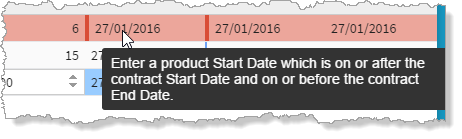
 .
. View Tutorial