You are here: Features > Contracts > Editing Contracts
Editing Contracts
To edit a contract using the enhanced Contract Detail page:
On the Contracts tab click the name of the contract you want to edit.
Click Edit.
If required, edit the details of the contract in the Contract Details pane.
Add, remove or edit products or plans associated with the contract:
To add a new product or plan to the contract, select the product or plan you want from the Add Product or Add Plan drop-down list depending on whether you want to add a product or a plan.
To remove a product or plan, click the remove icon next to that product or plan.
To edit a product or plan on the contract, click the value you want to edit and enter the value you want.
To add or edit a description, click the description icon or , enter the description you want then click Update.
Click Save.
If the contract contains invalid lines, those lines are highlighted. The fields that contain invalid information are highlighted. If this occurs, hover over the field for information about the problem:
Salesforce
To select a contract to edit using the Salesforce Contracts tab, click the name of the contract you want to edit.
To edit the contract:
Click Edit.
Edit the details of the contract.
Click Save.
To edit a contract line:
Click Edit next to the contract line you want to edit in the Contract Line Items related list of the Contract Detail page.
Edit the fields you want.
Click Save.
To add a contract line:
Click New Contract Line Item in the Contract Line Items related list of the Contract Detail page.
Enter a Product or Service.
Complete the remaining fields.
Click Save.
To add a plan to the contract:
Click Add Plan on the Contract Detail page of the contract to which you want to add a plan.
Enter the name of the plan you want to add or search for it using the lookup icon .
Enter the Start Date for the contract line items to be created.
Enter the First Bill Date for the contract line items to be created.
Click Add to Contract.
To delete a contract line:
Click Del next to the contract line you want to delete in the Contract Line Items related list of the Contract Detail page.
 next to that product or plan.
 or
or  , enter the description you want then click Update.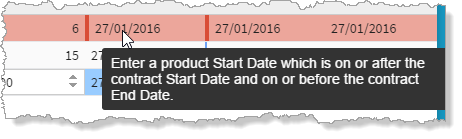
 .
. View Tutorial