 or
or  depending on whether you want to expand or collapse the pane.
On the enhanced Contract Detail page you can view the Contract Details and the products, services and plans that form the contract line items. You can also add, edit and delete the contract lines on the enhanced Contract Detail page. When you make changes to the contract, the Total Value updates to reflect the changes.
If you want to expand or collapse the Contract Detail pane, click or depending on whether you want to expand or collapse the pane.
The Status of the contract is shown in color:
The Additional Fields tab shows the fields in the Enhanced Contract Additional Fields field set within the Contract object. The fields in the Enhanced Contract Additional Fields field set in the Contract Line Item object are shown as columns initially in the order specified in the field set. See Enhanced Contract Additional Fields.
Click the Additional Fields tab to view or edit the additional contract fields.
The relationship of related object fields is indicated on the Additional Fields tab by '>'.
When editing a contract, you cannot edit additional fields that are related object fields, formulas, or roll-up summaries. Additional fields that are related object fields, formulas, or roll-up summaries are not updated while editing contracts. For instance, if the Additional Fields tab contains a field from a related object such as Account and you update the account on the enhanced Contract Detail page, the version of that field in the Additional Field tab is not updated while you are editing it.
To edit an additional field on a contract line while editing a contract or creating a new one, select the value you want to change or tab to it using your keyboard.
If your products belong to active Salesforce Price Books, you can apply a price book to contract line items when you create them. For information about price books, see the "Prices and Price Books" topics in the Salesforce Help.
To restore the default layout:
 .
.You can change the layout of the contract lines on the Contract Detail page in these ways:
When viewing or editing a contract, you can filter the list of products or plans on the contract by entering the first few characters of the plan or product in the Filter by Name box.
You can also filter the lines by a particular value in a column:
 icon.
icon.To remove a filter, repeat the first two steps and then clear the checkboxes.
To remove all filters, click Clear Filters.
The typeface of column headings that you've applied filters to changes to bold italic to indicate that a filter is applied to that column.
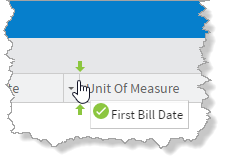
To move a column:
To the sort the contracts by column, do one of the following:
 indicates that the contracts are sorted in ascending order. The down arrow
  indicates that the contracts are sorted in descending order. icon then select
  Sort Ascending or
  Sort Descending depending on whether you want to sort the contracts in ascending or descending order.
To show or hide columns on the Contract Detail page:
icon. View Tutorial
Related Concepts
Related Tasks
Adding a Plan or Product to a Contract
Creating a Contract from a Plan
Creating Billing Documents from Contracts
Creating Billing Schedules from Contracts
Reference